Content-Type与浏览器资源处理完整指南
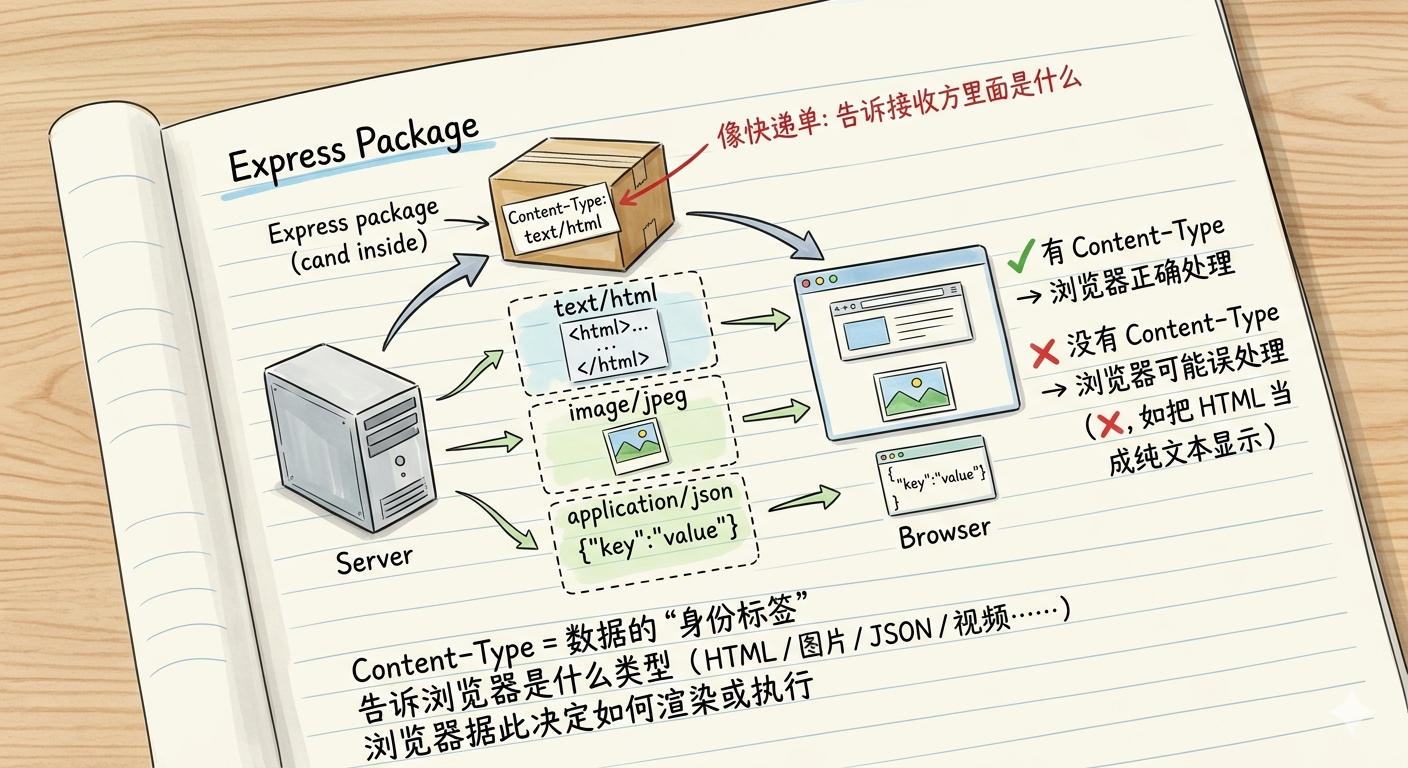
Content-Type是HTTP协议中的一个重要头部字段,它告诉浏览器服务器发送的数据是什么类型的。简单理解:就像快递包裹上的标签,告诉你里面装的是什么,这样你才知道怎么处理它。Content-Type是Web开发中非常重要的概念,它决定了浏览器如何处理服务器返回的数据。正确设置Content-Type:确保服务器返回正确的Content-Type头理解浏览器行为:知道不同资源类型会触发什么浏览
·
1. 什么是Content-Type
Content-Type是HTTP协议中的一个重要头部字段,它告诉浏览器服务器发送的数据是什么类型的。
简单理解:就像快递包裹上的标签,告诉你里面装的是什么,这样你才知道怎么处理它。
1.1 为什么需要Content-Type?
- 浏览器识别:浏览器需要知道如何处理接收到的数据
- 正确渲染:不同类型的资源需要不同的渲染方式
- 安全考虑:防止恶意文件被错误执行
- 用户体验:确保资源能够正确显示和播放
2. Content-Type的基本格式
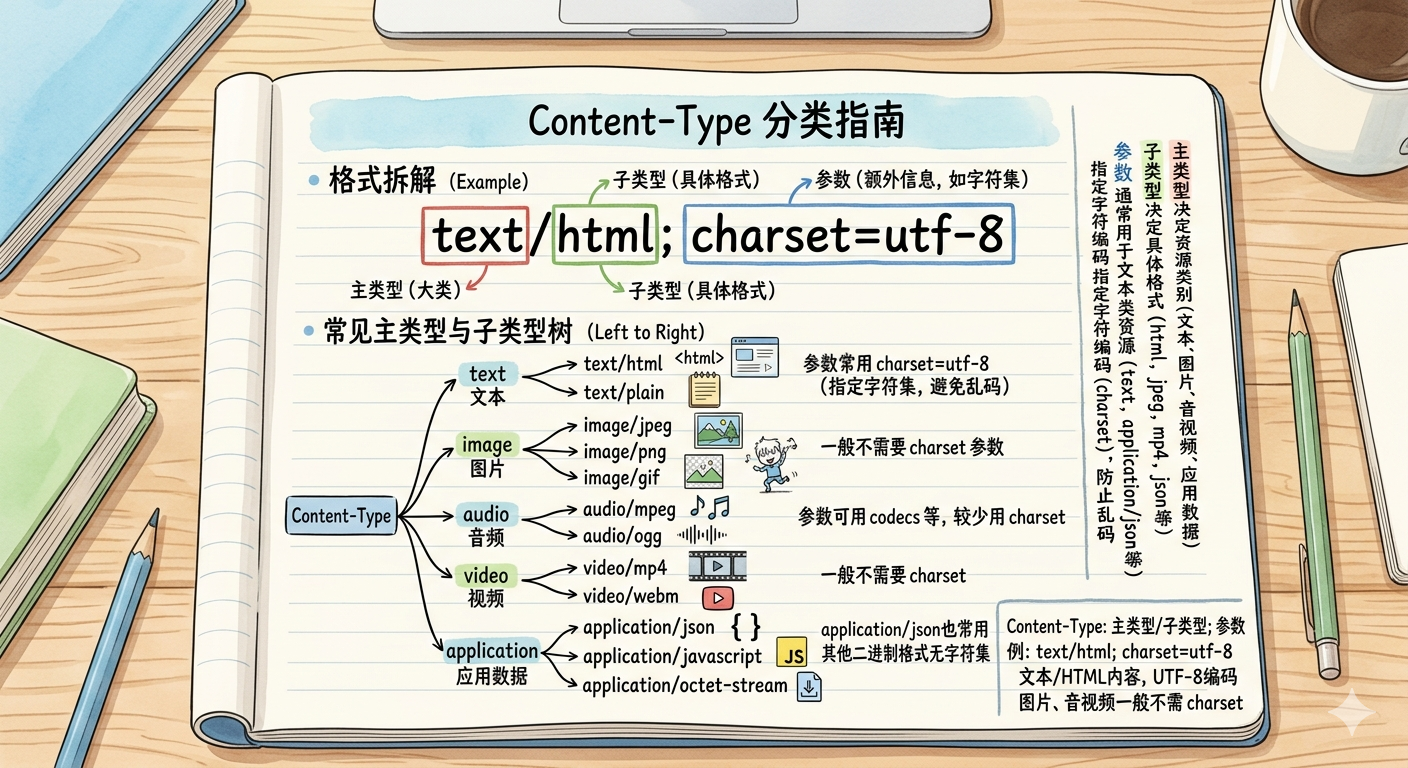
Content-Type的格式通常是:
Content-Type: 主类型/子类型; 参数
2.1 基本结构
- 主类型(Type):资源的大分类,如text、image、video等
- 子类型(Subtype):具体的格式,如html、png、mp4等
- 参数(Parameters):额外的信息,如字符编码
2.2 示例
Content-Type: text/html; charset=utf-8    // HTML网页,使用UTF-8编码
Content-Type: image/png                   // PNG图片
Content-Type: application/json; charset=utf-8  // JSON数据,使用UTF-8编码
3. 常见的MIME类型分类及浏览器资源处理
3.1 文本类型(text/*)
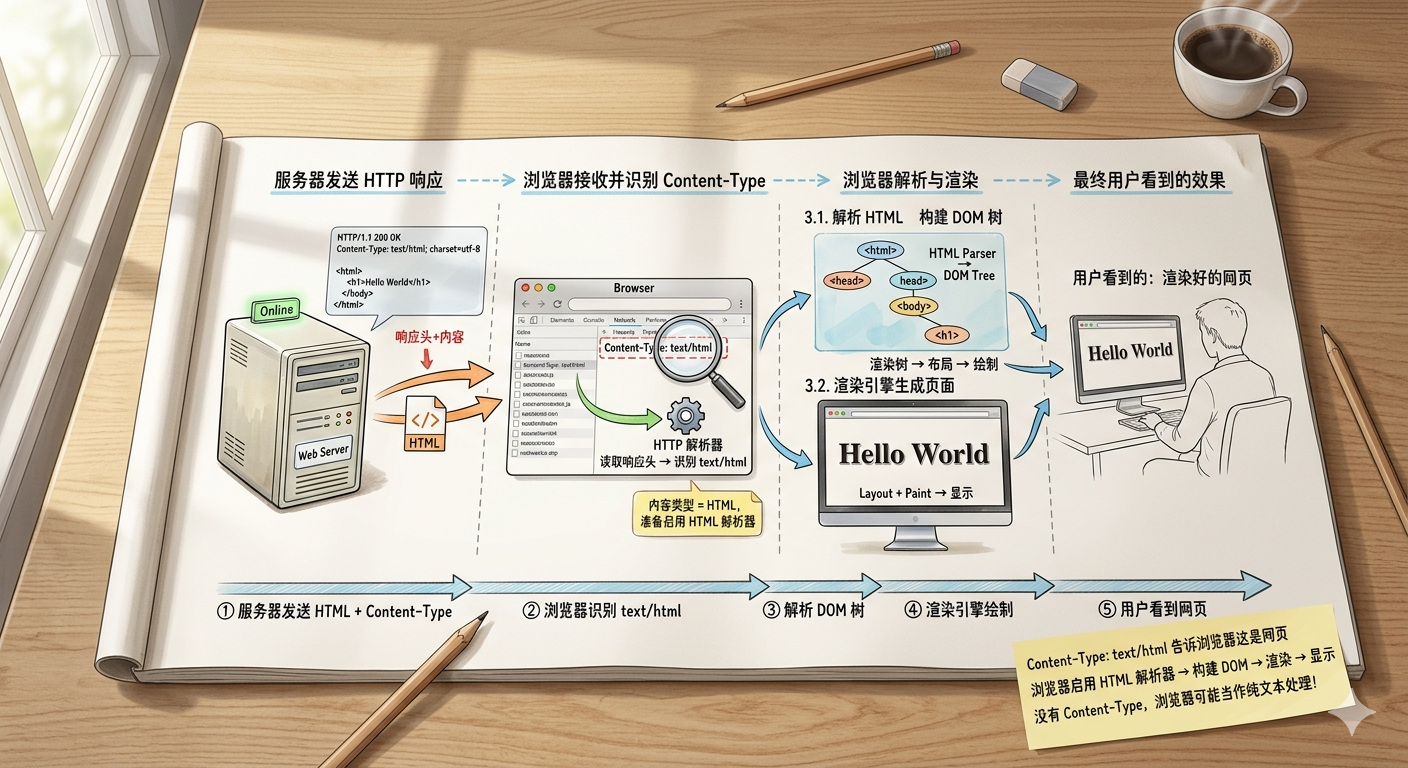
3.1.1 text/html - HTML网页
- 用途:网页内容
- 浏览器行为:解析HTML标签并渲染成网页
- 浏览器处理步骤:
- 解析HTML标签结构
- 构建DOM树(文档对象模型)
- 加载并应用CSS样式
- 执行JavaScript代码
- 渲染最终页面
- 示例:
<!DOCTYPE html>
<html>
<head>
    <title>示例页面</title>
</head>
<body>
    <h1>Hello World</h1>
</body>
</html>
3.1.2 text/css - CSS样式表
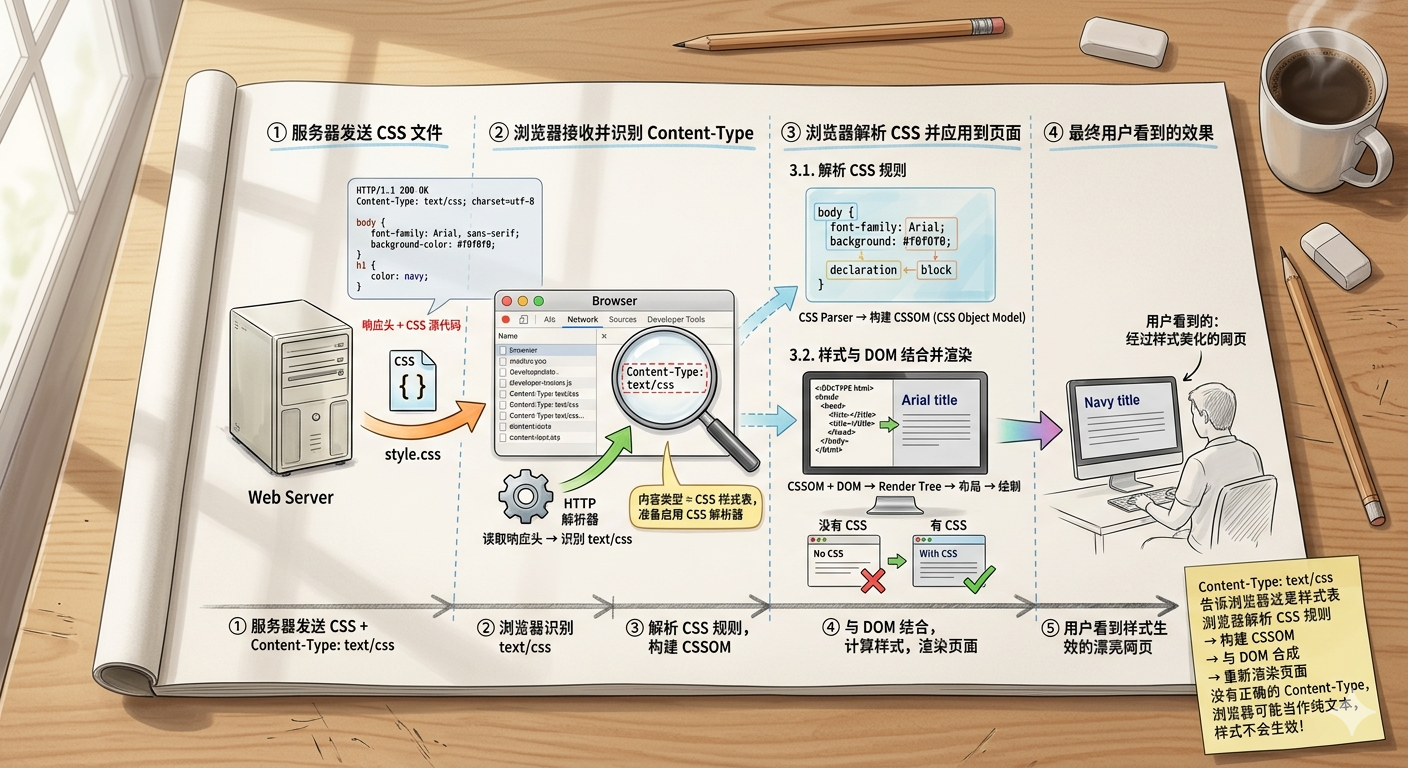
- 用途:网页样式
- 浏览器行为:解析CSS规则并应用到页面
- 浏览器处理步骤:
- 解析CSS规则
- 计算样式优先级
- 应用到对应的HTML元素
- 重新计算页面布局
- 示例:
/* 设置页面基本样式 */
body {
    font-family: Arial, sans-serif;  /* 设置字体 */
    background-color: #f0f0f0;       /* 设置背景色 */
}
3.1.3 text/javascript - JavaScript代码
- 用途:网页交互逻辑
- 浏览器行为:解析并执行JavaScript代码
- 示例:
// 在控制台输出信息
console.log('Hello from JavaScript!');

// 修改页面元素内容
document.getElementById('demo').innerHTML = 'Hello World';

3.2 图片类型(image/*)
3.2.1 image/jpeg - JPEG图片
- 用途:照片类图片
- 浏览器行为:显示图片
- 特点:有损压缩,文件小,适合照片
- 文件扩展名:.jpg, .jpeg
3.2.2 image/png - PNG图片
- 用途:图标、透明图片
- 浏览器行为:显示图片
- 特点:无损压缩,支持透明背景
- 文件扩展名:.png
3.2.3 image/svg+xml - SVG矢量图
- 用途:矢量图形
- 浏览器行为:渲染为矢量图形
- 特点:可缩放,文件小,适合图标
- 文件扩展名:.svg
图片文件通用处理步骤(适用于上述所有图片类型):
- 解码图片数据
- 在页面中显示
- 支持缩放和交互
- 缓存图片数据

3.3 应用程序类型(application/*)
3.3.1 application/json - JSON数据
- 用途:API接口数据交换
- 浏览器行为:通常由JavaScript处理
- 示例:
{
    "name": "张三",
    "age": 25,
    "city": "北京",
    "hobbies": ["读书", "游泳", "编程"]
}

4. 开发中的实际应用
4.1 前端开发
4.1.1 发送JSON数据到服务器
// 使用fetch发送JSON数据
async function sendUserData(userData) {
    try {
        const response = await fetch('/api/users', {
            method: 'POST',
            headers: {
                'Content-Type': 'application/json'  // 告诉服务器这是JSON数据
            },
            body: JSON.stringify(userData)  // 将对象转换为JSON字符串
        });

        if (response.ok) {
            const result = await response.json();
            console.log('数据发送成功:', result);
        } else {
            console.error('发送失败:', response.status);
        }
    } catch (error) {
        console.error('网络错误:', error);
    }
}

// 使用示例
const userData = {
    name: '张三',
    age: 25,
    email: 'zhangsan@example.com'
};
sendUserData(userData);

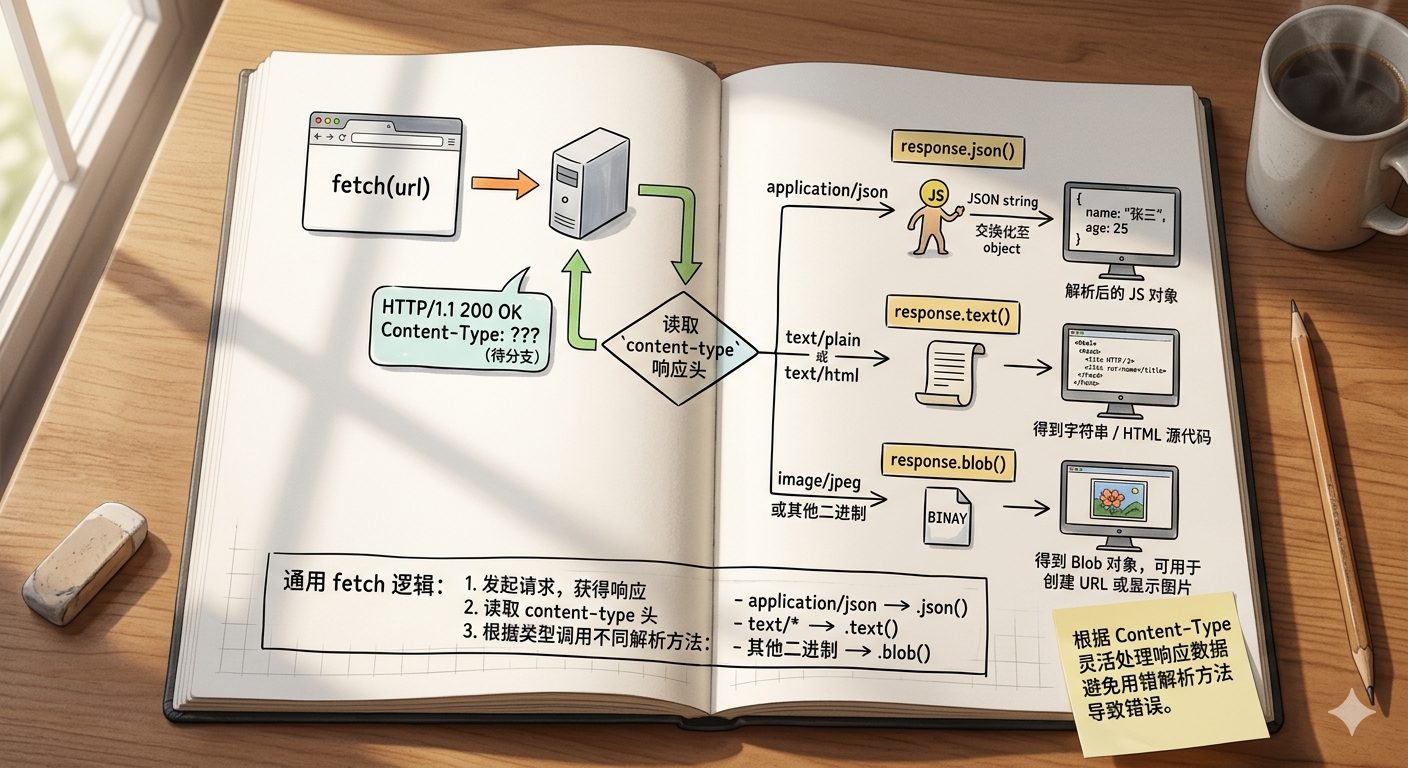
4.1.2 处理服务器返回的不同类型数据
// 通用的数据获取函数
async function fetchData(url) {
    try {
        const response = await fetch(url);

        // 检查响应是否成功
        if (!response.ok) {
            throw new Error(`HTTP错误! 状态码: ${response.status}`);
        }

        // 获取Content-Type头
        const contentType = response.headers.get('content-type');

        // 根据Content-Type选择处理方法
        if (contentType && contentType.includes('application/json')) {
            // 处理JSON数据
            return await response.json();
        } else if (contentType && contentType.includes('text/plain')) {
            // 处理纯文本数据
            return await response.text();
        } else if (contentType && contentType.includes('text/html')) {
            // 处理HTML数据
            return await response.text();
        } else {
            // 处理二进制数据(如图片、文件等)
            return await response.blob();
        }
    } catch (error) {
        console.error('获取数据失败:', error);
        throw error;
    }
}

// 使用示例
fetchData('/api/data').then(data => {
    console.log('获取到的数据:', data);
});
4.2 后端开发
4.2.1 Express.js服务器设置
const express = require('express');
const app = express();

// 中间件:自动解析JSON请求体
app.use(express.json());

// 中间件:自动解析URL编码的表单数据
app.use(express.urlencoded({ extended: true }));

// API接口:返回JSON数据
app.get('/api/users', (req, res) => {
    // 设置正确的Content-Type
    res.setHeader('Content-Type', 'application/json; charset=utf-8');

    // 模拟用户数据
    const users = [
        { id: 1, name: '张三', age: 25 },
        { id: 2, name: '李四', age: 30 }
    ];

    // 返回JSON数据
    res.json({
        success: true,
        data: users,
        message: '获取用户列表成功'
    });
});

// 静态文件服务:自动设置正确的Content-Type
app.use(express.static('public'));

// 文件下载接口
app.get('/download/:filename', (req, res) => {
    const filename = req.params.filename;

    // 设置下载头
    res.setHeader('Content-Disposition', `attachment; filename="${filename}"`);

    // 根据文件扩展名设置Content-Type
    if (filename.endsWith('.pdf')) {
        res.setHeader('Content-Type', 'application/pdf');
    } else if (filename.endsWith('.txt')) {
        res.setHeader('Content-Type', 'text/plain; charset=utf-8');
    } else {
        res.setHeader('Content-Type', 'application/octet-stream');
    }

    // 发送文件
    res.sendFile(path.join(__dirname, 'files', filename));
});

app.listen(3000, () => {
    console.log('服务器运行在 http://localhost:3000');
});

4.3 文件上传处理
4.3.1 前端文件上传
<!DOCTYPE html>
<html>
<head>
    <title>文件上传示例</title>
</head>
<body>
    <form id="uploadForm" enctype="multipart/form-data">
        <input type="file" id="fileInput" accept="image/*" required>
        <button type="submit">上传文件</button>
    </form>

    <div id="result"></div>

    <script>
        // 文件上传处理
        document.getElementById('uploadForm').addEventListener('submit', async (e) => {
            e.preventDefault(); // 阻止表单默认提交

            const fileInput = document.getElementById('fileInput');
            const file = fileInput.files[0];

            if (!file) {
                alert('请选择一个文件');
                return;
            }

            // 验证文件类型
            const allowedTypes = ['image/jpeg', 'image/png', 'image/gif'];
            if (!allowedTypes.includes(file.type)) {
                alert('只支持 JPG、PNG、GIF 格式的图片');
                return;
            }

            // 验证文件大小(5MB限制)
            const maxSize = 5 * 1024 * 1024; // 5MB
            if (file.size > maxSize) {
                alert('文件大小不能超过5MB');
                return;
            }

            try {
                // 创建FormData对象
                const formData = new FormData();
                formData.append('file', file);

                // 发送上传请求
                const response = await fetch('/upload', {
                    method: 'POST',
                    body: formData  // 注意:不设置Content-Type,让浏览器自动设置
                });

                const result = await response.json();

                if (result.success) {
                    document.getElementById('result').innerHTML =
                        `<p style="color: green;">上传成功!</p>
                         <p>文件名: ${result.filename}</p>
                         <p>文件大小: ${(result.size / 1024).toFixed(2)} KB</p>`;
                } else {
                    document.getElementById('result').innerHTML =
                        `<p style="color: red;">上传失败: ${result.message}</p>`;
                }
            } catch (error) {
                console.error('上传错误:', error);
                document.getElementById('result').innerHTML =
                    `<p style="color: red;">上传失败: ${error.message}</p>`;
            }
        });
    </script>
</body>
</html>

4.3.2 后端文件上传处理
const multer = require('multer');
const path = require('path');
const fs = require('fs');

// 确保上传目录存在
const uploadDir = 'uploads';
if (!fs.existsSync(uploadDir)) {
    fs.mkdirSync(uploadDir, { recursive: true });
}

// 配置multer存储
const storage = multer.diskStorage({
    destination: (req, file, cb) => {
        cb(null, uploadDir); // 保存到uploads目录
    },
    filename: (req, file, cb) => {
        // 生成唯一文件名:时间戳 + 原始扩展名
        const uniqueSuffix = Date.now() + '-' + Math.round(Math.random() * 1E9);
        cb(null, file.fieldname + '-' + uniqueSuffix + path.extname(file.originalname));
    }
});

// 文件过滤器:验证文件类型
const fileFilter = (req, file, cb) => {
    const allowedTypes = ['image/jpeg', 'image/png', 'image/gif'];

    if (allowedTypes.includes(file.mimetype)) {
        cb(null, true); // 接受文件
    } else {
        cb(new Error('不支持的文件类型,只支持 JPG、PNG、GIF 格式'), false);
    }
};

// 创建multer实例
const upload = multer({
    storage: storage,
    fileFilter: fileFilter,
    limits: {
        fileSize: 5 * 1024 * 1024 // 限制文件大小为5MB
    }
});

// 文件上传接口
app.post('/upload', upload.single('file'), (req, res) => {
    try {
        if (!req.file) {
            return res.status(400).json({
                success: false,
                message: '没有文件上传'
            });
        }

        // 返回上传成功信息
        res.json({
            success: true,
            message: '文件上传成功',
            filename: req.file.filename,
            originalName: req.file.originalname,
            mimetype: req.file.mimetype,
            size: req.file.size,
            path: req.file.path
        });
    } catch (error) {
        console.error('上传处理错误:', error);
        res.status(500).json({
            success: false,
            message: '服务器内部错误'
        });
    }
});

// 错误处理中间件
app.use((error, req, res, next) => {
    if (error instanceof multer.MulterError) {
        if (error.code === 'LIMIT_FILE_SIZE') {
            return res.status(400).json({
                success: false,
                message: '文件过大,请选择小于5MB的文件'
            });
        }
    }

    res.status(400).json({
        success: false,
        message: error.message
    });
});

5. 常见问题与解决方案
5.1 中文乱码问题
5.1.1 问题描述
服务器返回的中文内容显示为乱码,如:ä¸æ–‡ 而不是 中文。
5.1.2 原因分析
- 服务器没有设置正确的字符编码
- 客户端和服务器使用不同的字符编码
5.1.3 解决方案
// 服务器端:确保设置正确的字符编码
app.get('/api/data', (req, res) => {
    // 设置Content-Type和字符编码
    res.setHeader('Content-Type', 'application/json; charset=utf-8');

    const data = {
        message: '你好,世界!',
        users: ['张三', '李四', '王五']
    };

    res.json(data);
});

// 客户端:确保正确处理编码
fetch('/api/data')
    .then(response => {
        // 检查Content-Type是否包含charset
        const contentType = response.headers.get('content-type');
        console.log('Content-Type:', contentType);

        return response.json();
    })
    .then(data => {
        console.log('数据:', data);
    });

5.2 文件下载问题
5.2.1 问题描述
浏览器直接显示文件内容而不是下载文件。
5.2.2 解决方案
// 设置Content-Disposition头强制下载
app.get('/download/:filename', (req, res) => {
    const filename = req.params.filename;
    const filePath = path.join(__dirname, 'files', filename);

    // 检查文件是否存在
    if (!fs.existsSync(filePath)) {
        return res.status(404).json({
            success: false,
            message: '文件不存在'
        });
    }

    // 设置下载头
    res.setHeader('Content-Disposition', `attachment; filename="${encodeURIComponent(filename)}"`);

    // 根据文件类型设置Content-Type
    const ext = path.extname(filename).toLowerCase();
    const mimeTypes = {
        '.pdf': 'application/pdf',
        '.txt': 'text/plain; charset=utf-8',
        '.doc': 'application/msword',
        '.docx': 'application/vnd.openxmlformats-officedocument.wordprocessingml.document',
        '.xls': 'application/vnd.ms-excel',
        '.xlsx': 'application/vnd.openxmlformats-officedocument.spreadsheetml.sheet'
    };

    res.setHeader('Content-Type', mimeTypes[ext] || 'application/octet-stream');

    // 发送文件
    res.sendFile(filePath);
});

5.3 CORS跨域问题
5.3.1 问题描述
跨域请求被浏览器阻止,控制台显示CORS错误。
5.3.2 解决方案
// 后端:设置CORS头
app.use((req, res, next) => {
    // 允许的源(生产环境应该设置具体的域名)
    res.setHeader('Access-Control-Allow-Origin', '*');

    // 允许的HTTP方法
    res.setHeader('Access-Control-Allow-Methods', 'GET, POST, PUT, DELETE, OPTIONS');

    // 允许的请求头
    res.setHeader('Access-Control-Allow-Headers', 'Content-Type, Authorization');

    // 预检请求的处理
    if (req.method === 'OPTIONS') {
        res.sendStatus(200);
    } else {
        next();
    }
});

// 或者使用cors中间件
const cors = require('cors');
app.use(cors({
    origin: ['http://localhost:3000', 'https://yourdomain.com'],
    credentials: true
}));

6. 最佳实践
6.1 服务器端最佳实践
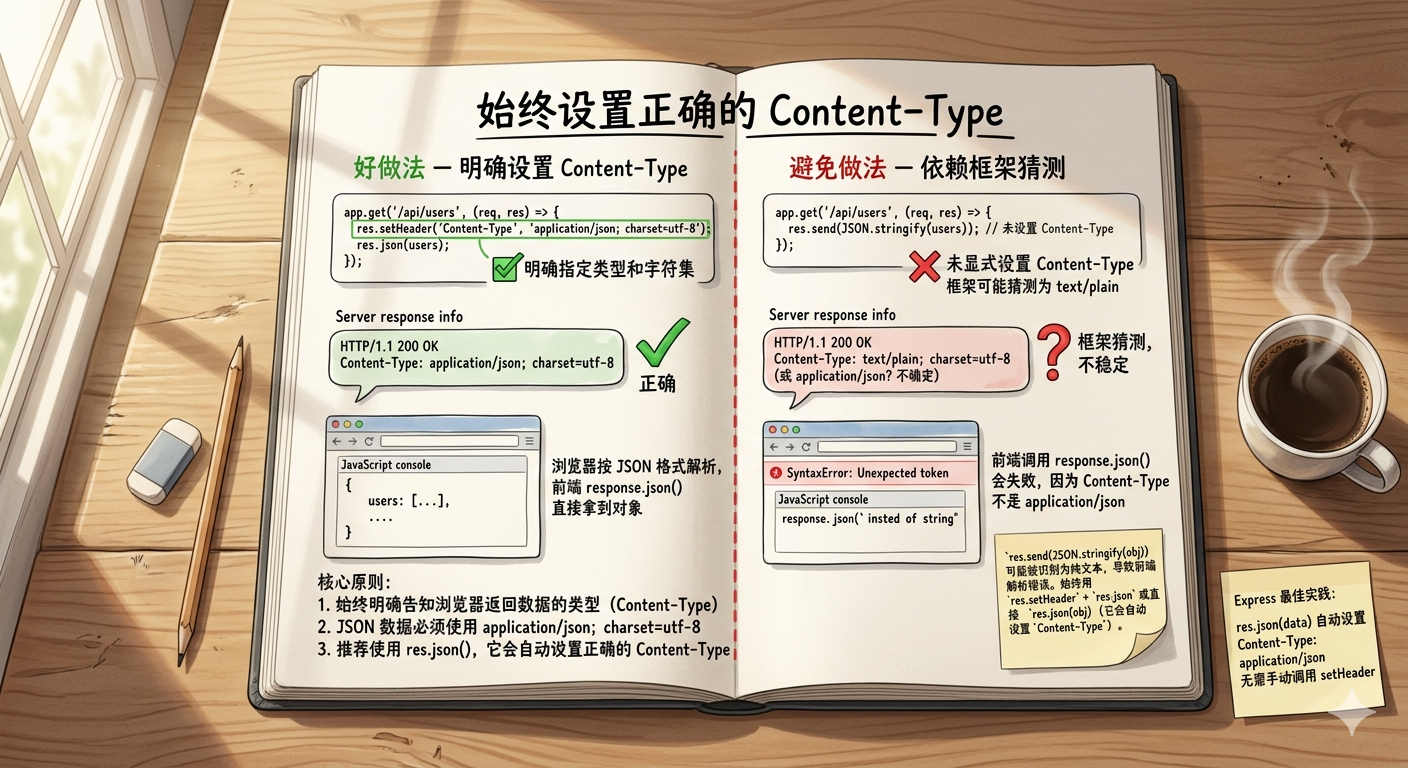
6.1.1 始终设置正确的Content-Type
// 好的做法:明确设置Content-Type
app.get('/api/users', (req, res) => {
    res.setHeader('Content-Type', 'application/json; charset=utf-8');
    res.json(users);
});

// 避免的做法:让框架猜测Content-Type
app.get('/api/users', (req, res) => {
    res.send(JSON.stringify(users)); // 可能被识别为text/plain
});
6.1.2 使用中间件自动设置
// 使用express.json()中间件自动处理JSON
app.use(express.json());

// 自定义中间件处理静态文件
app.use(express.static('public', {
    setHeaders: (res, filePath) => {
        // 根据文件扩展名设置Content-Type
        if (filePath.endsWith('.css')) {
            res.setHeader('Content-Type', 'text/css; charset=utf-8');
        } else if (filePath.endsWith('.js')) {
            res.setHeader('Content-Type', 'text/javascript; charset=utf-8');
        } else if (filePath.endsWith('.html')) {
            res.setHeader('Content-Type', 'text/html; charset=utf-8');
        }
    }
}));

6.2 客户端最佳实践
6.2.1 检查响应类型
async function fetchData(url) {
    try {
        const response = await fetch(url);

        // 检查响应状态
        if (!response.ok) {
            throw new Error(`HTTP错误! 状态码: ${response.status}`);
        }

        // 获取Content-Type
        const contentType = response.headers.get('content-type');

        // 根据Content-Type选择处理方法
        if (contentType && contentType.includes('application/json')) {
            return await response.json();
        } else if (contentType && contentType.includes('text/')) {
            return await response.text();
        } else {
            return await response.blob();
        }
    } catch (error) {
        console.error('获取数据失败:', error);
        throw error;
    }
}

6.3 安全考虑
6.3.1 验证文件类型
// 前端验证
function validateFile(file) {
    const allowedTypes = ['image/jpeg', 'image/png', 'image/gif'];
    const maxSize = 5 * 1024 * 1024; // 5MB

    // 检查文件类型
    if (!allowedTypes.includes(file.type)) {
        throw new Error('不支持的文件类型,只支持 JPG、PNG、GIF 格式');
    }

    // 检查文件大小
    if (file.size > maxSize) {
        throw new Error(`文件过大,请选择小于 ${maxSize / 1024 / 1024}MB 的文件`);
    }

    return true;
}

// 后端验证
const upload = multer({
    fileFilter: (req, file, cb) => {
        const allowedTypes = ['image/jpeg', 'image/png', 'image/gif'];

        if (allowedTypes.includes(file.mimetype)) {
            cb(null, true);
        } else {
            cb(new Error('不支持的文件类型'), false);
        }
    },
    limits: {
        fileSize: 5 * 1024 * 1024 // 5MB
    }
});

7. 总结关键要点
Content-Type是Web开发中非常重要的概念,它决定了浏览器如何处理服务器返回的数据。
- 正确设置Content-Type:确保服务器返回正确的Content-Type头
- 理解浏览器行为:知道不同资源类型会触发什么浏览器行为
- 处理字符编码:特别是中文内容的编码问题
- 安全考虑:验证文件类型,防止恶意文件上传
- 错误处理:妥善处理各种异常情况

openEuler 是由开放原子开源基金会孵化的全场景开源操作系统项目,面向数字基础设施四大核心场景(服务器、云计算、边缘计算、嵌入式),全面支持 ARM、x86、RISC-V、loongArch、PowerPC、SW-64 等多样性计算架构
更多推荐

 7
7 0
0- 0


 已为社区贡献1条内容

所有评论(0)