Linux 文件系统基本管理与硬盘分区管理
排故:xshell无法通过ssh连接10.1.8.10服务器。解决过程:发现网络存在问题。先查看物理连接,发现:网卡未连接,其次网卡模式是仅主机,修复这两个问题。修复完成后,问题依旧。再次查看服务器的IP地址,发现网卡没有IP地址,尝试激活网卡配置,提示不受管理。nmcli networking on,启用。再次激活成功。此时windows可以ping同服务器了。可能的原因:sshd服务未启动或者
排故练习
排故:xshell无法通过ssh连接10.1.8.10服务器。
解决过程:
-
xshell 连接服务器,提示如下:
Connecting to 10.1.8.10:22...发现网络存在问题。
可能的原因:
- 服务器的网络未连接,还有可能是连接到错误的交换机。
- 服务器的IP地址未正确配置。
-
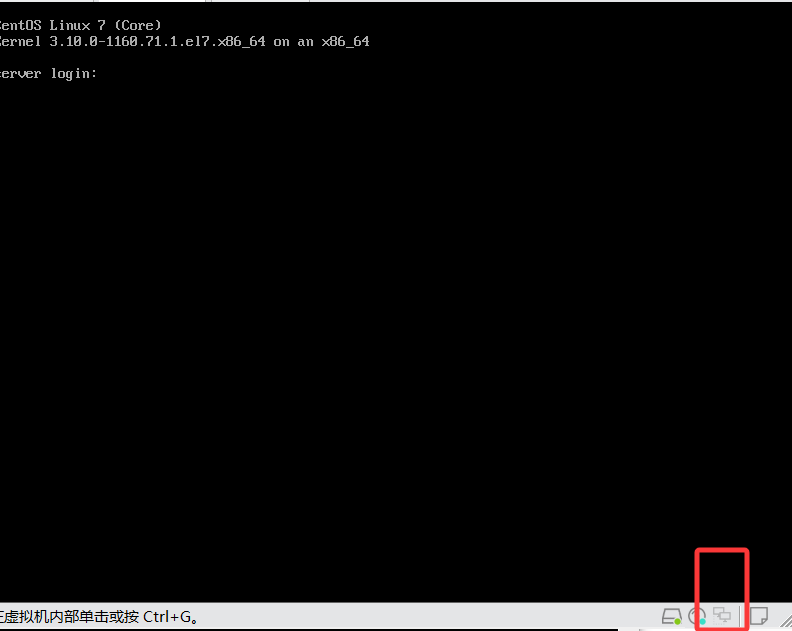
先查看物理连接,发现:网卡未连接,其次网卡模式是仅主机,修复这两个问题。修复完成后,问题依旧。
-
再次查看服务器的IP地址,发现网卡没有IP地址,尝试激活网卡配置,提示不受管理。nmcli networking on,启用。再次激活成功。
此时windows可以ping同服务器了。
-
xshell 再次连接服务,提示信息如下:
Connecting to 10.1.8.10:22...
Could not connect to '10.1.8.10' (port 22): Connection failed.
可能的原因:sshd服务未启动或者防火墙拦截(不考虑防火墙问题)。
-
用systemctl status sshd 进一步查看发现服务未启动
-
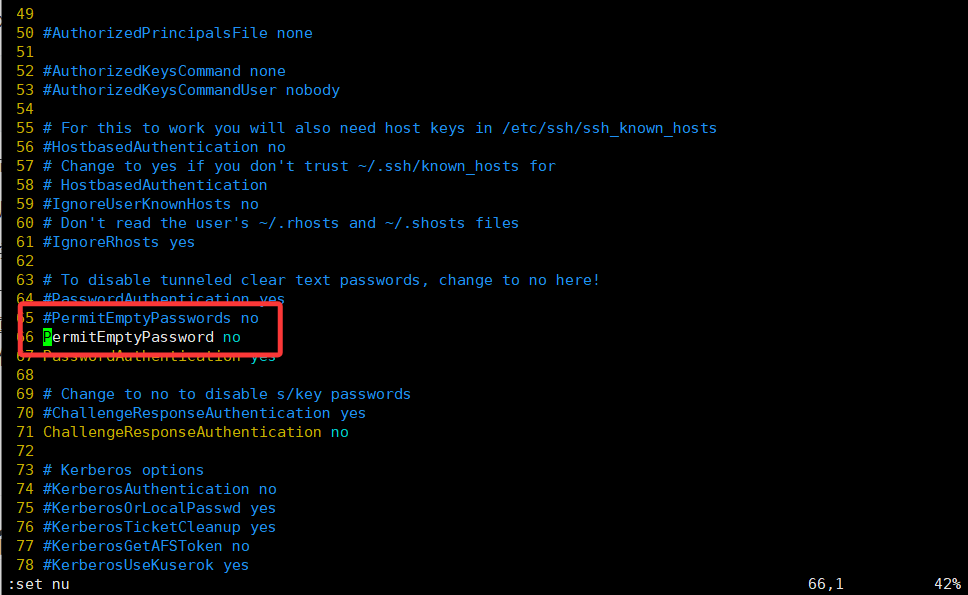
尝试启动,结果显示启动失败,进一步查看日志,tail -f /var/log/messages,发现配置文件66行有错误,对比上一行发现passwords少s,修正后重启正常
-
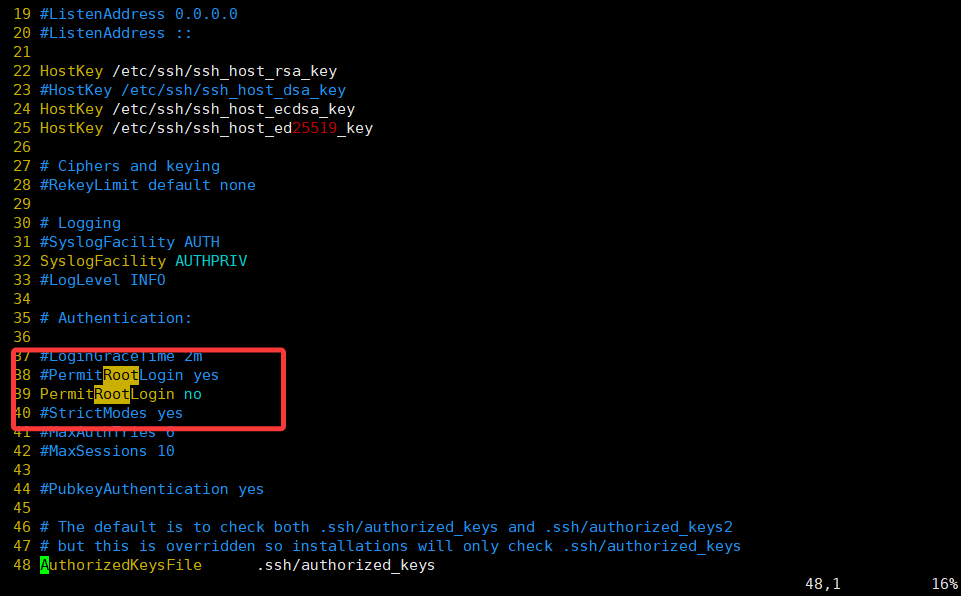
重新连接测试,问题依然存在,怀疑是root用户禁止登陆,打开配置文件,发现问题root用户确实禁止登录,修改完重启服务,再次验证,发现登陆成功
Linux 文件系统基本管理
综合案例
案例:Linux 挂载 NTFS 格式U盘
思路:默认情况下 Linux不识别 NTFS 格式文件系统,需要安装相应的模块进行识别。
- 安装 ntfs-3g (该软件包由epel仓库提供)
- 挂载
[root@server ~ 16:52:24]# yum install -y ntfs-3g
[root@server ~ 16:52:24]# mount.ntfs /dev/sdb1 /mnt
案例:Linux 挂载 exfat 格式U盘
思路:默认情况下 Linux 不识别 exfat 格式文件系统,需要安装相应的模块进行识别。
#查看盘的格式
[root@server ~ 11:02:30]# blkid /dev/sdc1
/dev/sdc1: LABEL="Ventoy" UUID="4E21-0000" TYPE="exfat" PTTYPE="dos"

[root@server ~ 11:02:53]# yum install -y gcc fuse-devel make pkg-config

[root@server ~ 11:05:08]# wget https://github.com/relan/exfat/releases/download/v1.2.0/fuse-exfat-1.2.0.tar.gz

[root@server ~ 11:05:57]# tar -xf fuse-exfat-1.2.0.tar.gz

[root@server ~ 11:06:03]# cd fuse-exfat-1.2.0

[root@server fuse-exfat-1.2.0 11:06:39]# ./configure
[root@server fuse-exfat-1.2.0 11:06:57]# make && make install

# 挂载exFAT格式的U盘(假设U盘设备为/dev/sdb1)
mount.exfat /dev/sdb1 /mnt
案例:构建基于 ISO 文件的 yum 仓库
client 想安装图形化,但仓库来源于Internet,希望使用本地仓库以提高速度。
现要求在server服务器上部署nginx服务发布dvd光盘中的仓库。
操作思路:
- server上部署并配置nginx服务
- server上挂载 ISO 文件到nginx服务网站目录
- client创建指向server上web站点仓库
- 测试
部署web服务器
# 安装软件
[root@server ~ 10:32:02]# yum install -y nginx

# 设置允许查看目录中清单
[root@server ~ 10:39:02]# vim /etc/nginx/nginx.conf
......
http {
    # 添加以下参数
    autoindex on;
......
[root@server ~ 10:39:38]# systemctl enable nginx.service --now
Created symlink from /etc/systemd/system/multi-user.target.wants/nginx.service to /usr/lib/systemd/system/nginx.service.
# 准备测试文件
[root@server ~ 10:39:48]# mv /usr/share/nginx/html/index.html{,.ori}
[root@server ~ 10:39:58]# echo welcome to Nginx website. > /usr/share/nginx/html/index.html

# 客户端测试
[root@client ~ 10:40:28]# curl http://10.1.8.10
welcome to Nginx website.
挂载光盘到web服务器发布目录
确保光盘关联正确的iso并连接到虚拟机
[root@server ~ 10:41:24]# mkdir /usr/share/nginx/html/dvd
[root@server ~ 10:41:30]# mount /dev/sr0 /usr/share/nginx/html/dvd
mount: /dev/sr0 is write-protected, mounting read-only
客户端测试
[root@client ~ 10:42:13]# mkdir /etc/yum.repos.d/old
[root@client ~ 10:42:30]# mv /etc/yum.repos.d/*repo /etc/yum.repos.d/old
[root@client ~ 10:43:13]# vim /etc/yum.repos.d/dvd.repo
[dvd]
name= dvd from local server
baseurl=http://10.1.8.10/dvd
gpgcheck=0

[root@client ~ 10:43:23]# yum clean all

[root@client ~ 10:43:34]# yum grouplist
Loaded plugins: fastestmirror
There is no installed groups file.
Maybe run: yum groups mark convert (see man yum)
Loading mirror speeds from cached hostfile
Available Environment Groups:
   Minimal Install
   Compute Node
   Infrastructure Server
   File and Print Server
   Basic Web Server
   Virtualization Host
......

[root@client ~ 10:43:55]# yum groupinstall -y 'Server with GUI'

# 启动图形化
[root@client ~ 10:50:11]# init 5

# 切换到字符
[root@client ~ 10:50:16]# init 3
查找系统中文件
locate
locate 命令根据文件名及其路径,在 mlocate 数据库中查找文件,并返回结果。数据库中存放文件和文件路径信息。
常规用户查找时,返回的结果仅包含用户有读取权限的目录树中匹配项。
查找文件前,需要root用户手动执行updatedb命令更新mlocate数据库。
#安装软件包
[root@client ~ 10:59:02]# yum install -y mlocate
#更新数据库
[root@client ~ 10:59:05]# updatedb
locate命令语法:
locate [OPTION]... [PATTERN]...
常用选项:
- -b, --basename
- -i, --ignore-case(忽略大小写)
- -c, --count(返回找到的数量)
- -r, --regexp(按照正则表达式查找)
示例:
[root@client ~ 11:32:52]# yum install -y httpd
# 安装后,未跟新数据库,所以检索不到
[root@client ~ 11:33:32]# locate httpd.conf

# 更新后查找
[root@client ~ 11:33:45]# updatedb
[root@client ~ 11:33:58]# locate httpd.conf
/etc/httpd/conf/httpd.conf
/usr/lib/tmpfiles.d/httpd.conf

# -b选项 查找
[root@client ~ 11:34:02]# locate -b httpd
/etc/httpd
/etc/httpd/conf/httpd.conf
/etc/logrotate.d/httpd
/etc/sysconfig/httpd
/usr/lib/systemd/system/httpd.service
/usr/lib/tmpfiles.d/httpd.conf
......

# 扩展
[root@client ~ 11:34:29]# basename /usr/share/doc
doc
[root@client ~ 11:35:27]# dirname /usr/share/doc
/usr/share

# -i选项 忽略大小写
[root@client ~ 11:36:50]# mkdir /etc/PASSWD
[root@client ~ 11:39:32]# updatedb
[root@client ~ 11:39:45]# locate PASSWD
/etc/PASSWD


[root@client ~ 11:39:58]# locate -i PASSWD
/etc/PASSWD
/etc/passwd
/etc/passwd-
/etc/pam.d/passwd
/etc/security/opasswd
/usr/bin/gpasswd
......

# -c选项 返回找到的数量
[root@client ~ 11:40:13]# locate -b -c PASSWD
1
find
find 命令在本地文件系统中执行实时查找文件。使用find命令的用户对文件夹必须有读取和执行权限。
语法:
find [path] [expression] [action]
- path,是查询路径,如果没有指定文件夹,将会查找当前目录及子目录。
- expression,是查询条件表达式。
- action,是找到文件后采取的动作。
根据文件 name 查找
#先创建一个文件
[root@client ~ 11:42:52]# touch /etc/PASSWD
#按照名字查找
[root@client ~ 11:42:56]# find /etc/ -name passwd
/etc/passwd
/etc/pam.d/passwd

[root@client ~ 11:43:08]# find /etc/ -name '*passwd*'
/etc/passwd-
/etc/passwd
/etc/pam.d/passwd
/etc/security/opasswd
#加上-i组合忽略大小写查找
[root@client ~ 11:43:43]# find /etc/ -iname passwd
/etc/passwd
/etc/pam.d/passwd
/etc/PASSWD
根据文件 type 查找
-type 根据文件类型查找,支持文件类型:
- b,block (buffered) special。
- c,character (unbuffered) special。
- d,directory。
- p,named pipe (FIFO)。
- f,regular file。
- l,symbolic link。
- s,socket。
#查找上面创建的PASSWD文件
[root@client ~ 11:46:20]# find /etc/ -iname 'passwd' -type f
/etc/passwd
/etc/pam.d/passwd
/etc/PASSWD
根据文件 owner 查找
-
-user、-uid,属于特定用户。
[root@client ~ 11:47:25]# id ggg uid=1000(ggg) gid=1000(ggg) 组=1000(ggg),10(wheel) [root@client ~ 11:47:51]# find /home -user ggg /home/ggg /home/ggg/.bash_logout /home/ggg/.bash_profile /home/ggg/.bashrc /home/ggg/.cache /home/ggg/.cache/gdm /home/ggg/.cache/gdm/session.log [root@client ~ 11:48:23]# find /home -uid 1000 /home/ggg /home/ggg/.bash_logout /home/ggg/.bash_profile /home/ggg/.bashrc /home/ggg/.cache /home/ggg/.cache/gdm ...... -
-group、-gid,属于特定组
[root@client ~ 12:27:45]# grep wheel /etc/group wheel:x:10:ggg [root@client ~ 12:28:53]# find / -group wheel [root@client ~ 12:28:53]# find / -gid 10 -
-nouser,不属于任何用户;-nogroup,不属于任何组
# 查找系统中不属于任何用户或者不属于任何组的文件
[root@client ~ 11:48:28]# useradd ggg1
[root@client ~ 11:49:08]# userdel ggg1
[root@client ~ 12:25:43]# ls -l /home/
总用量 4
drwx------. 14 ggg  ggg  4096 5月  20 10:56 ggg
drwx------   3 1001 1001   78 5月  20 11:49 ggg1
[root@client ~ 12:25:57]# find / -nouser -o -nogroup
/home/ggg1
/home/ggg1/.bash_logout
/home/ggg1/.bash_profile
/home/ggg1/.bashrc
/home/ggg1/.mozilla
/home/ggg1/.mozilla/extensions
/home/ggg1/.mozilla/plugins
....
根据文件 perm 查找
# 准备文件
[root@client ~ 12:29:33]# mkdir lab;cd lab
[root@client lab 12:29:52]# touch file-{1..3}
[root@client lab 12:30:07]# ls -l file*
-rw-r--r-- 1 root root 0 5月  20 12:30 file-1
-rw-r--r-- 1 root root 0 5月  20 12:30 file-2
-rw-r--r-- 1 root root 0 5月  20 12:30 file-3
-
-perm mode,查找文件权限为mode的文件。
#没修改前发现没有权限为764的文件 [root@client lab 12:32:03]# find -perm 764 #修改权限 [root@client lab 12:32:05]# chmod 764 file-1 # 查找文件权限为764的文件 [root@client lab 12:32:24]# find -perm 764 | xargs ls -l -rwxrw-r-- 1 root root 0 5月 20 12:30 ./file-1 -
-perm -mode,例如:mode为764,则ugo必须同时满足的最小权限:user至少为7、group至少为6、other为4。
[root@client lab 12:32:39]# chmod 777 file-1 [root@client lab 12:32:54]# chmod 764 file-2 [root@client lab 12:32:58]# chmod 760 file-3 [root@client lab 12:33:02]# find . -perm -764 | xargs ls -l -rwxrwxrwx 1 root root 0 5月 20 12:30 ./file-1 -rwxrw-r-- 1 root root 0 5月 20 12:30 ./file-2 # 0作为通配符,表示不匹配对应权限位。 # 查找系统中具有suid权限的文件 [root@client lab 12:33:06]# find / -perm -4000 /usr/bin/fusermount /usr/bin/chfn /usr/bin/chsh /usr/bin/chage /usr/bin/gpasswd ....... # 查找系统中同时具有特殊权限的文件:suid和sgid [root@client lab 12:35:39]# find / -perm -6000 2>/dev/null |xargs ls -l -rwsr-sr-x 1 abrt abrt 15344 10月 2 2020 /usr/libexec/abrt-action-install-debuginfo-to-abrt-cache -
-perm /mode,例如mode为764,则ugo只要有一个满足即可:user至少为7、group至少为6、other至少为4。
[root@centos7 lab]# chmod a=- file-1
[root@centos7 lab]# chmod uo=-,g=rwx file-2
[root@centos7 lab]# chmod ug=-,o=r file-3

[root@client lab 12:59:12]#  find -name 'file-*' -perm /764| xargs ls -l
----rwx--- 1 root root 0 5月  20 12:30 ./file-2
-------r-- 1 root root 0 5月  20 12:30 ./file-3

# 查找系统中具有特殊权限的文件:suid、sgid、sticky
[root@client lab 13:00:04]# find / -perm /7000
/dev/mqueue
/dev/shm
......

# 查找系统中具有特殊权限的文件:suid或者sgid
[root@client lab 13:00:07]# find / -perm /6000
/run/log/journal
/run/log/journal/83d56570db1b43eebfc7f376233b0bd3
/usr/bin/wall
/usr/bin/fusermount
......
根据文件 size 查找
单位 c(字节)、k(KiB)、M(MiB)、G(GiB)
# 大小等于10M
[root@client lab 13:00:24]# find -size 10M
#没找到

# 大小大于10G
[root@client lab 13:30:17]# find -size +10G

# 大小小于10k
[root@client lab 13:30:28]# find -size -10k
.
./file-1
./file-2
./file-3

# 大小等于1M
[root@centos7 ~]# [root@client lab 13:30:40]# find -size 1M
.
# 注意:size会取整为1个单位,所以find -size 1M结果包含小于1M的文件。
# 可以使用1024k取代1M
[root@client lab 13:30:53]# find -size 1024k
根据文件 time 查找
- -amin, -cmin, -mmin 单位1分钟。
- -atime, -ctime, -mtime 单位24小时。
- -newer file,比file新的文件。
# 10分钟前(正好10分钟)
[root@client lab 13:31:16]#  find -amin 10

# 10分钟以前(大于10分钟)
[root@client lab 13:32:16]# find -amin +10
.
./file-1
./file-2
./file-3

# 10分钟以内(小于10分钟)
[root@client lab 13:32:28]# find -amin -10
根据文件硬链接数和 inum 查找
# 硬链接数等于、大于、小于3的文件
[root@centos7 ~]# find -links 3
[root@centos7 ~]# find -links +3
[root@centos7 ~]# find -links -3

# inode为67160130的文件
[root@centos7 ~]# ls -i /etc/fstab
67160130 /etc/fstab
[root@centos7 ~]# find / -inum 67160130| xargs ls -i
67160130 /etc/fstab
多条件表达式
-
逻辑与:
expr1 -a expr2或者expr1 expr2[root@centos7 lab]# find . -name 'file-*' -perm /764 -
逻辑或:expr1 -o expr2
# 查找系统中不属于任何用户或者不属于任何组的文件 [root@centos7 ~]# find / -nouser -o -nogroup # 例如 [root@centos7 ~]# find / -perm /7000 # 等效与 [root@centos7 ~]# find / -perm -4000 -o -perm -2000 -o -perm -1000 -
逻辑非:! expr
[root@centos7 ~]# find / ! -size -200M 2>/dev/null
/proc/kcore
/proc/59432/task/59432/fd/5
/proc/59432/task/59432/fdinfo/5
/proc/59432/fd/6
/proc/59432/fdinfo/6
[root@centos7 ~]# ls -lh /proc/kcore
-r--------. 1 root root 128T Dec 24 22:00 /proc/kcore
action
-
-delete,查出找到的文件。
[root@centos7 ~]# find / -name PASSWD /etc/PASSWD [root@centos7 ~]# find / -name PASSWD -delete [root@centos7 ~]# find / -name PASSWD -
-ls,相当于
ls -dils查看找到的文件。[root@centos7 ~]# find /etc/ -name passwd /etc/pam.d/passwd /etc/passwd [root@centos7 ~]# find /etc/ -name passwd -ls 67584593 4 -rw-r--r-- 1 root root 188 Apr 1 2020 /etc/pam.d/passwd 69030856 4 -rw-r--r-- 1 root root 2315 Dec 24 19:59 /etc/passwd -
-exec command ;,找到文件后,执行相应的command。
[root@centos7 ~]# find /etc/ -name passwd -exec echo haha \; haha haha -
-exec command {} ;,找到文件后,可以在命令中对文件操作。
[root@centos7 ~]# find / -inum 67160130
/etc/fstab
# 将inode为67160130的所有文件复制到当前目录
[root@centos7 ~]# mkdir findfiles
[root@centos7 ~]# find / -inum 67160130 -exec cp -a {} ./findfiles \;
[root@centos7 ~]# ls findfiles/fstab
fstab
Linux 硬盘分区管理
MBR 分区方案
-
该方案支持最多4个主分区。
-
在 Linux系统上,管理员可以使用扩展分区和逻辑分区来创建最多 15个分区。
逻辑分区是可以格式化,扩展分区是不可以格式化。
-
MBR 记录用4个字节(1byte=8bit)存储分区的总扇区数,最大能表示2的32次方的扇区个数,按每扇区512字节计算,每个分区最大不能超过 2 TB。
通常,我们将磁盘第一个扇区称为主引导扇区,位于硬盘的柱面0、磁头0、扇区1的位置,这一扇区包含MBR引导代码,承担系统启动职能。它不属于磁盘上任何分区,因而分区空间内的格式化命令不能清除主引导记录的任何信息。
fdisk 工具
fdisk 工具可用于管理采用 MBR 分区方案的磁盘,用户可以根据实际情况进行划分分区
fdisk 命令语法
[root@centos7 ~]# fdisk -h
Usage:
 fdisk [options] <disk>    change partition table
 fdisk [options] -l <disk> list partition table(s)
 fdisk -s <partition>      give partition size(s) in blocks

Options:
 -b <size>             sector size (512, 1024, 2048 or 4096)
 -c[=<mode>]           compatible mode: 'dos' or 'nondos' (default)
 -h                    print this help text
 -u[=<unit>]           display units: 'cylinders' or 'sectors' (default)
 -v                    print program version
 -C <number>           specify the number of cylinders
 -H <number>           specify the number of heads
 -S <number>           specify the number of sectors per track
除了使用-l选项查看分区表,其他选项暂时都不用。
查看分区
fdisk工具大部分操作通过交互式完成,出了查看分区表。
DOS disklabel 指的硬盘管理方式是MBR。
我们使用上一章准备的一块硬盘/dev/sdb。
# 方法1:
[root@server ~ 13:48:27]# fdisk /dev/sdb -l

磁盘 /dev/sdb:107.4 GB, 107374182400 字节,209715200 个扇区
Units = 扇区 of 1 * 512 = 512 bytes
扇区大小(逻辑/物理):512 字节 / 512 字节
I/O 大小(最小/最佳):512 字节 / 512 字节


# 方法2:
[root@server ~ 13:50:31]# fdisk /dev/sdb
欢迎使用 fdisk (util-linux 2.23.2)。

更改将停留在内存中,直到您决定将更改写入磁盘。
使用写入命令前请三思。

Device does not contain a recognized partition table
使用磁盘标识符 0x87206255 创建新的 DOS 磁盘标签。
#输入m查看帮助信息
命令(输入 m 获取帮助):m
命令操作
   a   toggle a bootable flag
   b   edit bsd disklabel
   c   toggle the dos compatibility flag
   d   delete a partition
   g   create a new empty GPT partition table
   G   create an IRIX (SGI) partition table
   l   list known partition types
   m   print this menu
   #添加一个新分区
   n   add a new partition
   o   create a new empty DOS partition table
   #打印分区表
   p   print the partition table
   q   quit without saving changes
   s   create a new empty Sun disklabel
   t   change a partition's system id
   u   change display/entry units
   v   verify the partition table
   w   write table to disk and exit
   x   extra functionality (experts only)


# 输入p,打印分区表
命令(输入 m 获取帮助):p

磁盘 /dev/sdb:107.4 GB, 107374182400 字节,209715200 个扇区
Units = 扇区 of 1 * 512 = 512 bytes
扇区大小(逻辑/物理):512 字节 / 512 字节
I/O 大小(最小/最佳):512 字节 / 512 字节
磁盘标签类型:dos
磁盘标识符:0x87206255

   设备 Boot      Start         End      Blocks   Id  System
创建分区
#最开始磁盘状态
[root@server ~ 13:48:27]# fdisk /dev/sdb -l

磁盘 /dev/sdb:107.4 GB, 107374182400 字节,209715200 个扇区
Units = 扇区 of 1 * 512 = 512 bytes
扇区大小(逻辑/物理):512 字节 / 512 字节
I/O 大小(最小/最佳):512 字节 / 512 字节

# 输入n,创建一个新分区
命令(输入 m 获取帮助):n

# 选择分区类型
Partition type:
   p   primary (0 primary, 0 extended, 4 free)
   e   extended
# 直接回车,选择默认分区类型:primary
Select (default p): `回车`
Using default response p

# 直接回车,分区号,使用默认值1
Partition number (1-4, default 1):

# 直接回车,设置分区起始位置为:默认值2048扇区,也就是1M位置。
First sector (2048-41943039, default 2048):
Using default value 2048

# 设置分区结束位置,输入+20G,也就是起始位置之后20G
Last 扇区, +扇区 or +size{K,M,G} (2048-209715199,默认为 209715199):+20G
分区 1 已设置为 Linux 类型,大小设为 20 GiB

# 输入w,保存更改并退出
命令(输入 m 获取帮助):w
The partition table has been altered!

Calling ioctl() to re-read partition table.
正在同步磁盘。

#查看磁盘分区状态
[root@server ~ 13:55:43]# fdisk /dev/sdb -l

磁盘 /dev/sdb:107.4 GB, 107374182400 字节,209715200 个扇区
Units = 扇区 of 1 * 512 = 512 bytes
扇区大小(逻辑/物理):512 字节 / 512 字节
I/O 大小(最小/最佳):512 字节 / 512 字节
磁盘标签类型:dos
磁盘标识符:0x87206255

   设备 Boot      Start         End      Blocks   Id  System
/dev/sdb1            2048    41945087    20971520   83  Linux

# 也可以通过这种方式验证分区表变化
[root@server ~ 14:15:11]# lsblk /dev/sdb
NAME   MAJ:MIN RM  SIZE RO TYPE MOUNTPOINT
sdb      8:16   0  100G  0 disk
└─sdb1   8:17   0   20G  0 part /data01
注意:如果此时分区表未生成,执行以下命令,通知kernel重新生成分区表。有时候重启系统才会生成最新分区表。
[root@centos7 ~]# partprobe
删除分区
#在创建一个分区
[root@server ~ 13:55:44]# fdisk /dev/sdb
欢迎使用 fdisk (util-linux 2.23.2)。

更改将停留在内存中,直到您决定将更改写入磁盘。
使用写入命令前请三思。

命令(输入 m 获取帮助):n
Partition type:
   p   primary (1 primary, 0 extended, 3 free)
   e   extended
Select (default p):
Using default response p
分区号 (2-4,默认 2):
起始 扇区 (41945088-209715199,默认为 41945088):
将使用默认值 41945088
Last 扇区, +扇区 or +size{K,M,G} (41945088-209715199,默认为 209715199):
将使用默认值 209715199
分区 2 已设置为 Linux 类型,大小设为 80 GiB

命令(输入 m 获取帮助):w
The partition table has been altered!

Calling ioctl() to re-read partition table.
正在同步磁盘。
#当前磁盘分区状态
[root@server ~ 13:56:10]# fdisk /dev/sdb -l

磁盘 /dev/sdb:107.4 GB, 107374182400 字节,209715200 个扇区
Units = 扇区 of 1 * 512 = 512 bytes
扇区大小(逻辑/物理):512 字节 / 512 字节
I/O 大小(最小/最佳):512 字节 / 512 字节
磁盘标签类型:dos
磁盘标识符:0x87206255

   设备 Boot      Start         End      Blocks   Id  System
/dev/sdb1            2048    41945087    20971520   83  Linux
/dev/sdb2        41945088   209715199    83885056   83  Linux

#准备删除第二个
[root@server ~ 13:56:30]# fdisk /dev/sdb
欢迎使用 fdisk (util-linux 2.23.2)。

更改将停留在内存中,直到您决定将更改写入磁盘。
使用写入命令前请三思。

# 输入d,删除分区2,
命令(输入 m 获取帮助):d
分区号 (1,2,默认 2):
分区 2 已删除
命令(输入 m 获取帮助):w
The partition table has been altered!

Calling ioctl() to re-read partition table.
正在同步磁盘。
#用xfs格式化sdb1
[root@server ~ 13:57:01]# mkfs.xfs /dev/sdb1
#将/dev/sdb1挂载到/data01
[root@server ~ 13:57:56]# mount /dev/sdb1 /data01
#查看挂载信息
[root@server ~ 14:00:37]# df -h /data01
文件系统        容量  已用  可用 已用% 挂载点
/dev/sdb1        20G   33M   20G    1% /data01
如果硬盘空间比较大,需要的文件系统数量超过4个,那么就需要借助扩展分区创建逻辑分区了。
如下示例,创建第4个分区的时候,类型选择扩展分区;创建第5个分区的时候,类型选择逻辑分区。
[root@server ~ 14:15:16]# fdisk /dev/sdb
欢迎使用 fdisk (util-linux 2.23.2)。

更改将停留在内存中,直到您决定将更改写入磁盘。
使用写入命令前请三思。

# 再次创建一个容量为3G的分区
命令(输入 m 获取帮助):n
Partition type:
   p   primary (1 primary, 0 extended, 3 free)
   e   extended
Select (default p):
Using default response p
分区号 (2-4,默认 2):
起始 扇区 (41945088-209715199,默认为 41945088):
将使用默认值 41945088
Last 扇区, +扇区 or +size{K,M,G} (41945088-209715199,默认为 209715199):+3G
分区 2 已设置为 Linux 类型,大小设为 3 GiB


# 再次创建一个容量为4G的分区
命令(输入 m 获取帮助):n
Partition type:
   p   primary (2 primary, 0 extended, 2 free)
   e   extended
Select (default p):
Using default response p
分区号 (3,4,默认 3):
起始 扇区 (48236544-209715199,默认为 48236544):
将使用默认值 48236544
Last 扇区, +扇区 or +size{K,M,G} (48236544-209715199,默认为 209715199):+4G
分区 3 已设置为 Linux 类型,大小设为 4 GiB


# 创建第4个分区的时候,选择扩展分区,并且使用剩余所有容量
命令(输入 m 获取帮助):n
Partition type:
   p   primary (3 primary, 0 extended, 1 free)
   e   extended
Select (default e):
Using default response e
已选择分区 4
起始 扇区 (56625152-209715199,默认为 56625152):
将使用默认值 56625152
Last 扇区, +扇区 or +size{K,M,G} (56625152-209715199,默认为 209715199):
将使用默认值 209715199
分区 4 已设置为 Extended 类型,大小设为 73 GiB


# 创建第5个分区:在扩展分区中,创建逻辑分区,分配5G容量
命令(输入 m 获取帮助):n
All primary partitions are in use
添加逻辑分区 5
起始 扇区 (56627200-209715199,默认为 56627200):
将使用默认值 56627200
Last 扇区, +扇区 or +size{K,M,G} (56627200-209715199,默认为 209715199):+5G
分区 5 已设置为 Linux 类型,大小设为 5 GiB


命令(输入 m 获取帮助):p

磁盘 /dev/sdb:107.4 GB, 107374182400 字节,209715200 个扇区
Units = 扇区 of 1 * 512 = 512 bytes
扇区大小(逻辑/物理):512 字节 / 512 字节
I/O 大小(最小/最佳):512 字节 / 512 字节
磁盘标签类型:dos
磁盘标识符:0x87206255

   设备 Boot      Start         End      Blocks   Id  System
/dev/sdb1            2048    41945087    20971520   83  Linux
/dev/sdb2        41945088    48236543     3145728   83  Linux
/dev/sdb3        48236544    56625151     4194304   83  Linux
/dev/sdb4        56625152   209715199    76545024    5  Extended
/dev/sdb5        56627200    67112959     5242880   83  Linux


命令(输入 m 获取帮助):w
The partition table has been altered!

Calling ioctl() to re-read partition table.

WARNING: Re-reading the partition table failed with error 16: 设备或资源忙.
The kernel still uses the old table. The new table will be used at
the next reboot or after you run partprobe(8) or kpartx(8)
正在同步磁盘。

# 查看分区表
[root@server ~ 14:27:20]# lsblk /dev/sdb
NAME   MAJ:MIN RM SIZE RO TYPE MOUNTPOINT
sdb      8:16   0  20G  0 disk
|-sdb1   8:17   0   2G  0 part
|-sdb2   8:18   0   3G  0 part
|-sdb3   8:19   0   4G  0 part
|-sdb4   8:20   0   1K  0 part
|-sdb5   8:21   0   5G  0 part
创建分区演示完成,只保留1个分区,多余的删除。
[root@centos7 ~]# fdisk /dev/sdb
Welcome to fdisk (util-linux 2.23.2).

Changes will remain in memory only, until you decide to write them.
Be careful before using the write command.


Command (m for help): d
Partition number (1-5, default 5):
Partition 5 is deleted

Command (m for help): d
Partition number (1-4, default 4):
Partition 4 is deleted

Command (m for help): d
Partition number (1-3, default 3):
Partition 3 is deleted

Command (m for help): d
Partition number (1,2, default 2):
Partition 2 is deleted

Command (m for help): d
Selected partition 1
Partition 1 is deleted

Command (m for help): w
The partition table has been altered!

Calling ioctl() to re-read partition table.
Syncing disks.
GPT 分区方案
GPT是运行统一可扩展固件接口(UEFI)固件系统上硬盘分区表的标准。
-
MBR分区方案只能管理最大2TiB分区和磁盘。全局唯一标识分区表(GPT,GUID Partition Table)使用8个字节(1byte=8bit)存储分区的总扇区数,可支持最多18 ZiB(=264*512 Byte),即18亿太字节的分区和磁盘。
-
MBR分区方案支持最多15个分区。GPT分区方案最多可提供128个分区。
-
GPT 提供分区表信息的冗余。
gdisk 工具
gdisk工具用于管理采用GPT分区方案的磁盘分区,主要用于管理磁盘容量超过2T的磁盘。
gdisk命令语法
gdisk [ -l ] device
查看分区表
[root@centos7 ~]# gdisk -l /dev/sdb
GPT fdisk (gdisk) version 0.8.10

# 这里显示识别到了MBR分区方案
Partition table scan:
  MBR: MBR only
  BSD: not present
  APM: not present
  GPT: not present


***************************************************************
Found invalid GPT and valid MBR; converting MBR to GPT format
in memory.
***************************************************************

Disk /dev/sdb: 41943040 sectors, 20.0 GiB
Logical sector size: 512 bytes
Disk identifier (GUID): 1038836E-C6BD-48D3-A490-8FFF2133146B
Partition table holds up to 128 entries
First usable sector is 34, last usable sector is 41943006
Partitions will be aligned on 2048-sector boundaries
Total free space is 41942973 sectors (20.0 GiB)

Number  Start (sector)    End (sector)  Size       Code  Name
转换分区表方案
gdisk工具用于管理gpt分区,所以我们需要将磁盘的分区管理方案由MBR转换成GPT。
[root@server ~ 14:39:39]# gdisk /dev/sdb
GPT fdisk (gdisk) version 0.8.10

Partition table scan:
  MBR: MBR only
  BSD: not present
  APM: not present
  GPT: not present


***************************************************************
Found invalid GPT and valid MBR; converting MBR to GPT format
in memory. THIS OPERATION IS POTENTIALLY DESTRUCTIVE! Exit by
typing 'q' if you don't want to convert your MBR partitions
to GPT format!
***************************************************************
# 输入o,将磁盘的分区管理方案由MBR转换成GPT
Command (? for help): o
This option deletes all partitions and creates a new protective MBR.
Proceed? (Y/N): Y
#或者先再w
Command (? for help): p
Disk /dev/sdb: 209715200 sectors, 100.0 GiB
Logical sector size: 512 bytes
Disk identifier (GUID): C8CDAA66-F65F-4E28-AE15-1FB53DD92867
Partition table holds up to 128 entries
First usable sector is 34, last usable sector is 209715166
Partitions will be aligned on 2048-sector boundaries
Total free space is 209715133 sectors (100.0 GiB)

Number  Start (sector)    End (sector)  Size       Code  Name

Command (? for help): w

Final checks complete. About to write GPT data. THIS WILL OVERWRITE EXISTING
PARTITIONS!!

Do you want to proceed? (Y/N): y^HY
OK; writing new GUID partition table (GPT) to /dev/sdb.
The operation has completed successfully

#查看磁盘发现磁盘标签类型是gpt
[root@server ~ 14:40:46]# fdisk /dev/sdb -l
WARNING: fdisk GPT support is currently new, and therefore in an experimental phase. Use at your own discretion.

磁盘 /dev/sdb:107.4 GB, 107374182400 字节,209715200 个扇区
Units = 扇区 of 1 * 512 = 512 bytes
扇区大小(逻辑/物理):512 字节 / 512 字节
I/O 大小(最小/最佳):512 字节 / 512 字节
磁盘标签类型:gpt
Disk identifier: C8CDAA66-F65F-4E28-AE15-1FB53DD92867


#         Start          End    Size  Type            Name
创建分区
[root@server ~ 14:40:51]# gdisk /dev/sdb
GPT fdisk (gdisk) version 0.8.10

# 这里识别到了GPT分区方案
Partition table scan:
  MBR: protective
  BSD: not present
  APM: not present
  GPT: present

Found valid GPT with protective MBR; using GPT.

# 输入n,创建新分区
Command (? for help): n

# 设置分区ID
Partition number (1-128, default 1): `回车`

# 设置分区起始位置
First sector (34-41943006, default = 2048) or {+-}size{KMGTP}: `回车`

# 设置分区结束位置
Last sector (2048-41943006, default = 41943006) or {+-}size{KMGTP}: `+20G`
Current type is 'Linux filesystem'

# 设置分区类型,输入L查看所有分区类型
#输入回车默认8300继续查看
Hex code or GUID (L to show codes, Enter = 8300):
Changed type of partition to 'Linux filesystem'

# 输入p,查看分区表
Command (? for help): p
Disk /dev/sdb: 209715200 sectors, 100.0 GiB
Logical sector size: 512 bytes
Disk identifier (GUID): C8CDAA66-F65F-4E28-AE15-1FB53DD92867
Partition table holds up to 128 entries
First usable sector is 34, last usable sector is 209715166
Partitions will be aligned on 2048-sector boundaries
Total free space is 167772093 sectors (80.0 GiB)

Number  Start (sector)    End (sector)  Size       Code  Name
   1            2048        41945087   20.0 GiB    8300  Linux filesystem

#用ext4格式化sdb1
[root@server ~ 14:45:32]# mkfs.ext4 /dev/sdb1
#将/dev/sdb1挂在到/data01下
[root@server ~ 14:46:00]# mount /dev/sdb1 /data01
#查看挂载信息
[root@server ~ 14:46:33]# df -h /data01
文件系统        容量  已用  可用 已用% 挂载点
/dev/sdb1        20G   45M   19G    1% /data01
[root@server ~ 14:46:41]# df -hT /data01
文件系统       类型  容量  已用  可用 已用% 挂载点
/dev/sdb1      ext4   20G   45M   19G    1% /data01
删除分区
# 输入d,删除分区ID为1的分区
Command (? for help): d
Using 1

Command (? for help): p
Disk /dev/sdb: 41943040 sectors, 20.0 GiB
Logical sector size: 512 bytes
Disk identifier (GUID): 1A3D170A-56FC-4655-8B9C-01E1B89294FE
Partition table holds up to 128 entries
First usable sector is 34, last usable sector is 41943006
Partitions will be aligned on 2048-sector boundaries
Total free space is 41942973 sectors (20.0 GiB)

Number  Start (sector)    End (sector)  Size       Code  Name

Command (? for help): w

Final checks complete. About to write GPT data. THIS WILL OVERWRITE EXISTING
PARTITIONS!!

Do you want to proceed? (Y/N): Y
OK; writing new GUID partition table (GPT) to /dev/sdb.
The operation has completed successfully.
wipefs 工具
作用:清除磁盘分区表信息。
注意:数据无价,操作需谨慎,最好提前备份。
# 查看磁盘管理信息
[root@server ~ 15:06:40]# wipefs /dev/sdb

# 清除未挂载磁盘的分区表
[root@server ~ 15:06:56]# wipefs -a /dev/sdb
/dev/sdb:8 个字节已擦除,位置偏移为 0x00000200 (gpt):45 46 49 20 50 41 52 54
/dev/sdb:8 个字节已擦除,位置偏移为 0x18fffffe00 (gpt):45 46 49 20 50 41 52 54
/dev/sdb:2 个字节已擦除,位置偏移为 0x000001fe (PMBR):55 aa
/dev/sdb: calling ioclt to re-read partition table: 成功

# 禁止使用 -f 强制清除分区表
[root@centos7 ~]# wipefs -fa /dev/sdb
parted 工具
parted 工具既可以管理采用MBR分区方案的磁盘,又可以管理采用GPT分区方案的磁盘。
parted 命令同时支持交互式操作和非交互式操作(编写脚本)。
下面用管理MBR磁盘来演示免交互操作,用管理GPT磁盘来演示交互式操作
查看分区表
[root@server ~ 16:07:29]# parted /dev/sdb print
Model: VMware, VMware Virtual S (scsi)
Disk /dev/sdb: 107GB
Sector size (logical/physical): 512B/512B
Partition Table: gpt
Disk Flags:

Number  Start  End  Size  File system  Name  标志
设置单位
parted工具默认单位是MB(103K),设置为MiB(210KiB)
(parted) unit MiB
管理 MBR 磁盘
免交互操作
设置磁盘分区管理方案
# 输入mklabel或mktable设置磁盘分区管理方案
# 设置分区方案为msdos,也就是MBR,输入mklabel msdos
[root@server ~ 15:17:33]# parted /dev/sdb mklabel msdos                                  Warning: The existing disk label on /dev/sdb will be destroyed and all data on this disk will be lost. Do you want to continue?
# 确认更改,输入y
是/Yes/否/No? y
信息: You may need to update /etc/fstab.
[root@server ~ 15:22:04]# parted /dev/sdb print
Model: VMware, VMware Virtual S (scsi)
Disk /dev/sdb: 107GB
Sector size (logical/physical): 512B/512B
Partition Table: msdos
Disk Flags:
**注意:**parted命令所做更改立刻生效。
创建分区
#单位为MiB   primary后面加起始和结束位置
[root@server ~ 15:22:11]# parted /dev/sdb unit MiB mkpart primary 1 10241
信息: You may need to update /etc/fstab.

#查看磁盘状态
[root@server ~ 15:37:52]# parted /dev/sdb unit MiB print
Model: VMware, VMware Virtual S (scsi)
Disk /dev/sdb: 102400MiB
Sector size (logical/physical): 512B/512B
Partition Table: msdos
Disk Flags:

Number  Start    End       Size      Type     File system  标志
 1      1.00MiB  10241MiB  10240MiB  primary  ext4

# 在设置第二个分区
[root@server ~ 15:38:01]# parted /dev/sdb unit MiB mkpart primary 10241 51201
信息: You may need to update /etc/fstab.

[root@server ~ 15:38:16]# parted /dev/sdb unit MiB print
Model: VMware, VMware Virtual S (scsi)
Disk /dev/sdb: 102400MiB
Sector size (logical/physical): 512B/512B
Partition Table: msdos
Disk Flags:

Number  Start     End       Size      Type     File system  标志
 1      1.00MiB   10241MiB  10240MiB  primary  ext4
 2      10241MiB  51201MiB  40960MiB  primary
删除分区
# 2 代表分区号
[root@server ~ 15:38:18]# parted /dev/sdb unit MiB rm 2
信息: You may need to update /etc/fstab.

[root@server ~ 15:38:43]# parted /dev/sdb unit MiB print
Model: VMware, VMware Virtual S (scsi)
Disk /dev/sdb: 102400MiB
Sector size (logical/physical): 512B/512B
Partition Table: msdos
Disk Flags:

Number  Start    End       Size      Type     File system  标志
 1      1.00MiB  10241MiB  10240MiB  primary  ext4
管理 GPT 磁盘
管理GPT磁盘基本与管理MBR磁盘一致,除了创建分区。
交互式操作
设置磁盘分区管理方案
#进入交互式界面
[root@server ~ 16:32:55]# parted /dev/sdb
GNU Parted 3.1
使用 /dev/sda
Welcome to GNU Parted! Type 'help' to view a list of commands.

# 设置分区方案为gpt,输入mklabel gpt
(parted) `mklabel gpt`
Warning: The existing disk label on /dev/sdb will be destroyed and all data on this disk will
be lost. Do you want to continue?
Yes/No? y                                                                                 (parted) print
Model: VMware, VMware Virtual S (scsi)
Disk /dev/sda: 215GB
Sector size (logical/physical): 512B/512B
# 分区表已改成gpt
Partition Table: gpt
Disk Flags:

Number  Start  End  Size  File system  Name  标志
创建分区
#设置单位
(parted) unit MiB
#开始分区
(parted) mkpart
分区名称?  []? sdb1
文件系统类型?  [ext2]? xfs
起始点? 1
结束点? 2049
(parted) print
Model: VMware, VMware Virtual S (scsi)
Disk /dev/sdb: 102400MiB
Sector size (logical/physical): 512B/512B
Partition Table: gpt
Disk Flags:

Number  Start    End      Size     File system  Name  标志
 1      1.00MiB  2049MiB  2048MiB  xfs          sdb1
扩展分区
(parted) resizepart 1 5121
(parted) print
Model: VMware, VMware Virtual S (scsi)
Disk /dev/sdb: 20480MiB
Sector size (logical/physical): 512B/512B
Partition Table: gpt
Disk Flags:

Number  Start    End      Size     File system  Name    Flags
 1      1.00MiB  5121MiB  5120MiB  xfs          data01
删除分区
(parted) rm 1
(parted) print
Model: VMware, VMware Virtual S (scsi)
Disk /dev/sdb: 20480MiB
Sector size (logical/physical): 512B/512B
Partition Table: gpt
Disk Flags:

Number  Start  End  Size  File system  Name  Flags
文件系统持久化挂载
如果不进行持久化挂载,下次重新启动机器就会失去上次的挂载记录
并且如果/etc/fstab中配置错误,机器会启动不了
环境准备
利用 parted 创建一个分区,并格式化为xfs文件系统。
#创建分区
[root@server ~ 16:45:52]# parted /dev/sdb mklabel gpt
信息: You may need to update /etc/fstab.

[root@server ~ 16:46:12]# parted /dev/sdb unit MiB mkpart primary 1 10241
信息: You may need to update /etc/fstab.

[root@server ~ 16:46:19]# parted /dev/sdb unit MiB print
Model: VMware, VMware Virtual S (scsi)
Disk /dev/sdb: 102400MiB
Sector size (logical/physical): 512B/512B
Partition Table: gpt
Disk Flags:

Number  Start    End       Size      File system  Name     标志
 1      1.00MiB  10241MiB  10240MiB  xfs          primary

#格式化
# 如果格式化时候,提示存在文件系统,则需要-f选项强制格式化
[root@server ~ 16:47:31]# mkfs.xfs -f /dev/sdb1
meta-data=/dev/sdb1              isize=512    agcount=4, agsize=655360 blks
         =                       sectsz=512   attr=2, projid32bit=1
         =                       crc=1        finobt=0, sparse=0
data     =                       bsize=4096   blocks=2621440, imaxpct=25
         =                       sunit=0      swidth=0 blks
naming   =version 2              bsize=4096   ascii-ci=0 ftype=1
log      =internal log           bsize=4096   blocks=2560, version=2
         =                       sectsz=512   sunit=0 blks, lazy-count=1
realtime =none                   extsz=4096   blocks=0, rtextents=0
持久化挂载
当服务器重启时,系统不会再次将文件系统自动挂载到目录树上,用户无法访问。为了确保系统在启动时自动挂载文件系统, 需要在 /etc/fstab文件中添加一个条目。
/etc/fstab 是以空格分隔的文件,每行具有六个字段。
- **第一个字段指定设备。**可以使用UUID或device来指定设备。
- **第二个字段是目录挂载点。**通过它可以访问目录结构中的块设备。挂载点必须存在;如果不存在,请使用mkdir命令进行创建。
- 第三个字段包含文件系统类型,如xfs或ext4 。
- 第四个字段是挂载选项,以逗号分隔的。 defaults是一组常用选项。详细信息参考mount(8) 。
- 第五个字段指定dump命令是否备份设备。
- 第六个字段指定fsck顺序字段,决定了在系统启动吋是否应运行fsck命令,以验证文件系统是否干净。 该字段中的值指示了 fsck的运行顺序。 对于XFS文件系统, 请将该字段设为0 ,因为XFS并不使用fsck来检查自己的文件系统状态。 对于ext4 文件系统,如果是根文件系统, 请将该字段设 为 1 ; 如果是其他ext4 文件系统, 则将该字段设为2。 这样, fsck就会先处理根文件系统,然后同步检查不同磁盘上的文件系统,并按顺序检查同一磁盘上的文件系统。
示例:
[root@server ~ 16:47:39]# blkid /dev/sdb1
/dev/sdb1: UUID="99a48dcc-1a39-403d-a21b-847128805709" TYPE="xfs" PARTLABEL="primary" PARTUUID="bbf1482e-5aa8-4eb5-8c65-c73d4e01a27b"
[root@server ~ 16:48:21]# mkdir /data011

[root@server ~ 16:49:01]# vim /etc/fstab
# 最后一行增加一个条目
UUID="99a48dcc-1a39-403d-a21b-847128805709" /data01 xfs defaults 0 0

# 使用如下命令立刻挂载
[root@centos7 ~]# mount /data01
# 或者
[root@centos7 ~]# mount /dev/sdb1

# 验证
[root@server ~ 16:50:30]# df -h /data01
文件系统        容量  已用  可用 已用% 挂载点
/dev/sdb1        10G   33M   10G    1% /data01

# 重启系统验证
[root@server ~ 16:52:24]# reboot
[root@server ~ 16:50:30]# df -h /data01
文件系统        容量  已用  可用 已用% 挂载点
/dev/sdb1        10G   33M   10G    1% /data01
取消持久化挂载
删除/etc/fstab中对应条目即可

openEuler 是由开放原子开源基金会孵化的全场景开源操作系统项目,面向数字基础设施四大核心场景(服务器、云计算、边缘计算、嵌入式),全面支持 ARM、x86、RISC-V、loongArch、PowerPC、SW-64 等多样性计算架构
更多推荐
 8
8 0
0- 0


 已为社区贡献3条内容

所有评论(0)