C# FTP上传
·
一、什么是FTP
先搞懂两个角色
- 本地电脑:你自己的电脑,文件存在这
- FTP 服务器:放在网上的另一台远程电脑(网站服务器、云存储、公司文件服务器都算)
FTP 就是一套专门用来两台电脑之间传文件的规则,上传 = 把你本地文件,发到远程服务器上。
通俗类比
把 FTP 服务器想象成网上的共享仓库:
- 仓库有专属地址(FTP 地址)、账号、密码,不是谁都能进
- FTP 上传 = 你把自己电脑里的照片 / 文档 / 软件,打包送到这个远程仓库存起来
- 反过来叫下载:从仓库把文件拿回自己电脑
完整上传流程(超简单)
- 准备三样东西(管理员会给你) FTP 地址、登录用户名、登录密码,部分还要端口号
- 打开 FTP 工具 常见工具:FileZilla、Xftp、电脑自带资源管理器也能简易连
- 连接服务器 填入地址账号密码,点连接,成功后界面分两栏: 左边 = 你电脑文件,右边 = 远程服务器文件
- 执行上传 左边选中要发的文件 / 文件夹,右键点「上传」,或直接拖到右侧窗口
- 等待传输完成,文件就永久存在线上服务器了
什么时候会用 FTP 上传?
- 做网站:把网页代码、图片传到服务器,别人才能访问你的网站
- 公司办公:把大文件传到公司公用文件服务器,同事都能下载
- 备份资料:把本地重要文件传到远程服务器备份
小补充区分
- FTP:传输过程数据不加密,适合内网、不重要文件
- SFTP:加密版 FTP,传输更安全,现在大部分场景优先用 SFTP 上传
举个“栗”子
你做了一套店铺宣传网页,存在自己电脑桌面。 服务器商家给了你 FTP 地址、账号密码,打开 FileZilla 连上服务器,把桌面所有网页文件拖到服务器 www 文件夹,上传完成后,别人输入你的网站域名,就能打开你做的页面,这就是最典型的 FTP 上传。
二、代码实操
1.FTP上传类
我自己封装了一个名为FtpHelper.cs的FTP上传类,可以直接复制后添加一个类命名可以相同,粘贴到自己类中使用
using System;
using System.Collections.Generic;
using System.Drawing;
using System.IO;
using System.Linq;
using System.Net;
using System.Text;
using System.Threading.Tasks;
using System.Windows.Forms;

namespace FTP_Test
{
    public class FtpHelper
    {
        LOG log=new LOG();
        /// <summary>
        /// 批量上传多个文件(支持图片、文档、压缩包等所有格式)
        /// </summary>
        /// <param name="ftpServer">FTP地址</param>
        /// <param name="user">账号</param>
        /// <param name="pwd">密码</param>
        /// <param name="localFilePaths">本地文件路径数组</param>
        /// <param name="textBox">日志框</param>
        /// <returns>成功数量</returns>
        public int FtpUploadMultiFiles(string ftpServer, string user, string pwd, string[] localFilePaths, RichTextBox textBox, ProgressBar progressBar)
        {
            int successCount = 0;

            if (localFilePaths == null || localFilePaths.Length <= 0)
            {
                log.AddLog("未选择任何文件", textBox);
                return 0;
            }

            // 总文件数量
            int totalCount = localFilePaths.Length;
            int currentIndex = 0;

            // 初始化进度条
            SafeSetProgressInit(progressBar, totalCount);


            foreach (string filePath in localFilePaths)
            {
                currentIndex++;  // 每处理一个文件 +1(你之前漏了!)
                string fileName = Path.GetFileName(filePath);

                try
                {
                    if (!File.Exists(filePath))
                    {
                        log.AddLog($"跳过:{fileName} 文件不存在", textBox);

                        // 更新进度
                        progressBar.Invoke((Action)(() =>
                        {
                            progressBar.Value = currentIndex;
                        }));
                        continue;
                    }

                    // 获取文件大小
                    FileInfo fi = new FileInfo(filePath);
                    string size = fi.Length >= 1024 * 1024
                        ? $"{fi.Length / 1024.0 / 1024:F2} MB"
                        : $"{fi.Length / 1024.0:F2} KB";

                    log.AddLog($"开始上传:{fileName} | {size}", textBox);

                    string remotePath = $"{ftpServer.TrimEnd('/')}/{fileName}";

                    FtpWebRequest request = (FtpWebRequest)WebRequest.Create(remotePath);
                    request.Method = WebRequestMethods.Ftp.UploadFile;
                    request.Credentials = new NetworkCredential(user, pwd);
                    request.UseBinary = true;
                    request.UsePassive = true;
                    request.KeepAlive = false;
                    request.Timeout = 15000;
                    request.ReadWriteTimeout = 120000; // 大文件必备

                    //using (FileStream fs = new FileStream(filePath, FileMode.Open, FileAccess.Read))
                    //using (Stream reqStream = request.GetRequestStream())
                    //{
                    //    fs.CopyTo(reqStream);
                    //}

                    // 【真正提速核心:使用 32KB 大缓冲区】
                    byte[] buffer = new byte[1024 * 32];
                    using (FileStream fs = new FileStream(filePath, FileMode.Open, FileAccess.Read))
                    using (Stream reqStream = request.GetRequestStream())
                    {
                        int bytesRead;
                        while ((bytesRead = fs.Read(buffer, 0, buffer.Length)) > 0)
                        {
                            reqStream.Write(buffer, 0, bytesRead);
                        }
                    }

                    using (FtpWebResponse response = (FtpWebResponse)request.GetResponse())
                    {
                        log.AddLog($"上传成功:{fileName}", textBox);
                    }

                    successCount++;
                }
                catch (Exception ex)
                {
                    log.AddLog($"上传失败:{fileName} → {ex.Message}", textBox);
                }
                finally
                {
                    // 更新进度 + 绘制文字
                    SafeDrawProgressText(progressBar, currentIndex, totalCount);
                }
            }

            log.AddLog($"✅ 批量上传完成 | 总数:{totalCount} | 成功:{successCount}", textBox);
            return successCount;
        }

        /// <summary>
        /// 线程安全初始化进度条
        /// </summary>
        private void SafeSetProgressInit(ProgressBar pb, int maxValue)
        {
            if (pb.InvokeRequired)
            {
                pb.Invoke(new Action(() => SafeSetProgressInit(pb, maxValue)));
                return;
            }
            pb.Visible = true;
            pb.Minimum = 0;
            pb.Maximum = maxValue;
            pb.Value = 0;
            pb.Style = ProgressBarStyle.Continuous;
        }

        /// <summary>
        /// 线程安全更新进度+绘制居中文字
        /// </summary>
        private void SafeDrawProgressText(ProgressBar pb, int now, int total)
        {
            if (pb == null || total <= 0) return;
            if (pb.InvokeRequired)
            {
                pb.Invoke(new Action(() => SafeDrawProgressText(pb, now, total)));
                return;
            }

            if (now <= pb.Maximum)
                pb.Value = now;

            // 1. 强制刷新控件,清除原有绘制痕迹
            pb.Refresh();
            // 2. 计算进度
            int rate = (int)(now * 100.0 / total);
            string showStr = $"进度 {now}/{total}  {rate}%";

            using (Graphics gra = pb.CreateGraphics())
            using (Font font = new Font("微软雅黑", 9))
            {
                // 核心区别:用进度条底色覆盖原有文字,彻底清除旧字体
                gra.FillRectangle(new SolidBrush(pb.BackColor), pb.ClientRectangle);
                // 居中绘制新文字
                SizeF strSize = gra.MeasureString(showStr, font);
                float x = (pb.Width - strSize.Width) / 2;
                float y = (pb.Height - strSize.Height) / 2;
                gra.DrawString(showStr, font, Brushes.Black, x, y);
            }
        }

        /// <summary>
        /// FTP下载文件(支持图片/所有格式,局域网跨设备通用)
        /// </summary>
        /// <param name="ftpServer">FTP服务器地址,格式:ftp://对方设备内网IP</param>
        /// <param name="user">FTP登录用户名</param>
        /// <param name="pwd">FTP登录密码</param>
        /// <param name="remoteName">服务器端待下载的文件名(带后缀,仅文件名)</param>
        /// <param name="localSavePath">本地完整保存路径(包含文件夹+保存文件名)</param>
        /// <param name="rtb">日志输出富文本框控件</param>
        /// <returns>下载成功返回true,失败返回false</returns>
        public bool FtpDownloadFile(string ftpServer, string user, string pwd, string remoteName, string localSavePath, RichTextBox textBox)
        {
            try
            {
                string saveDir = Path.GetDirectoryName(localSavePath);

                // 判断目录是否存在,不存在就创建
                if (!Directory.Exists(saveDir))
                {
                    Directory.CreateDirectory(saveDir);
                    log.AddLog("自动创建保存目录:" + saveDir, textBox);
                }

                // 拼接完整远程文件访问地址
                string remoteUrl = $"{ftpServer.TrimEnd('/')}/{remoteName}";
                // 创建FTP请求对象
                FtpWebRequest req = (FtpWebRequest)WebRequest.Create(remoteUrl);
                // 设置请求方式为下载文件
                req.Method = WebRequestMethods.Ftp.DownloadFile;
                // 绑定FTP登录账号密码
                req.Credentials = new NetworkCredential(user, pwd);
                // 开启二进制传输,保证图片/文件完整不损坏
                req.UseBinary = true;
                // 开启被动模式,解决局域网跨设备连接拦截问题
                req.UsePassive = true;
                // 关闭长连接,传输完成自动释放
                req.KeepAlive = false;
                // 设置请求超时时间15秒,防止卡死
                req.Timeout = 15000;

                // 接收服务器返回流 + 本地文件写入流
                using (FtpWebResponse res = (FtpWebResponse)req.GetResponse())
                using (Stream readStream = res.GetResponseStream())
                using (FileStream fs = new FileStream(localSavePath, FileMode.Create))
                {
                    // 流拷贝完成文件下载
                    readStream.CopyTo(fs);
                }
                // 写入成功日志
                log.AddLog("从另一台设备下载成功", textBox);
                return true;
            }
            catch (Exception ex)
            {
                // 捕获异常,写入失败日志
                log.AddLog("下载失败:" + ex.Message, textBox);
                return false;
            }
        }
    }
}
2.UI测试界面
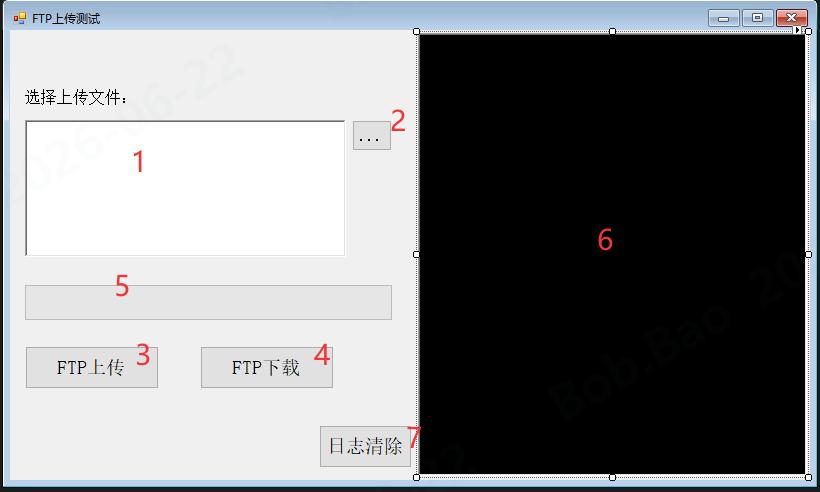
控件顺序如图所示
UI界面包括:(空间命名)控件名称
1.(txt_Path)RichText
2.(btn_UploadMulti)button
3.(btn_FTPup)button
4.(btn_FtpDown)button
5.(progressBar)progressBar
6.(txt_log)RichText
7.(btnClearLog)button
控件创建完成后直接复制以下代码到Form1下即可运行
using System;
using System.Collections.Generic;
using System.ComponentModel;
using System.Data;
using System.Drawing;
using System.IO;
using System.Linq;
using System.Text;
using System.Threading.Tasks;
using System.Windows.Forms;

namespace FTP_Test
{
    public partial class Form1 : Form
    {
        FtpHelper ftpHelper = new FtpHelper();
        /// <summary>
        /// 存放选择的文件
        /// </summary>
        private string [] filepath;

        /// <summary>
        /// 存放下载的文件
        /// </summary>
        private string Downfilepath= @"D:\FTP_file";
        public Form1()
        {
            InitializeComponent();
        }

        private void button1_Click(object sender, EventArgs e)
        {
            //ftpHelper.FtpUploadImage("ftp://127.0.0.1", "test", "123456", @"D:\test.png", "test.png", txt_log);
            //ftpHelper.FtpUploadImage("ftp://127.0.0.1", "test", "123456", @"D:\双工位压差检BOM清单.xlsx", "双工位压差检BOM清单.xlsx", txt_log);
            ftpHelper.FtpUploadMultiFiles("ftp://192.168.103.100", "User", "123456", filepath, txt_log,progressBar);
        }

        private void btn_UploadMulti_Click(object sender, EventArgs e)
        {
            OpenFileDialog ofd = new OpenFileDialog();
            ofd.Multiselect = true;          // 允许多选
            ofd.Title = "请选择要上传的文件";
            ofd.Filter = "所有文件(*.*)|*.*";
            if (ofd.ShowDialog() == DialogResult.OK)
            {
                filepath = new string[ofd.FileNames.Length];
                // 拼接所有文件名
                string allName = "";
                foreach (var item in ofd.FileNames)
                {
                    allName += Path.GetFullPath(item) + ";"+"\r\n";
                }
                // 显示到文本框
                txt_Path.Text = allName.TrimEnd(';');
                filepath = ofd.FileNames;
            }
        }

        private void btnClearLog_Click_1(object sender, EventArgs e)
        {
            txt_log.Clear();
        }

        private void btn_FtpDown_Click(object sender, EventArgs e)
        {
            //ftpHelper.FtpDownloadFile("ftp://127.0.0.1", "User", "123456", @"1.jpg",Downfilepath, txt_log);
        }

        private void Form1_Load(object sender, EventArgs e)
        {
            // 刚打开界面时,进度条隐藏
            progressBar.Visible = false;
        }
    }
}
3.操作说明
参考上传的PPT说明(在文章开头)

openEuler 是由开放原子开源基金会孵化的全场景开源操作系统项目,面向数字基础设施四大核心场景(服务器、云计算、边缘计算、嵌入式),全面支持 ARM、x86、RISC-V、loongArch、PowerPC、SW-64 等多样性计算架构
更多推荐


 2
2 0
0- 0


 已为社区贡献1条内容

所有评论(0)