Linux 零基础通关课 —— 环境搭建到 Bash 命令详解
·
Linux 零基础通关课 —— 环境搭建到 Bash 命令详解
1.Liunx入门
CentOS7安装步骤
安装版本:CentOS7.6
具体步骤:
新建虚拟机
打开VMware,按步骤操作后,点击下一步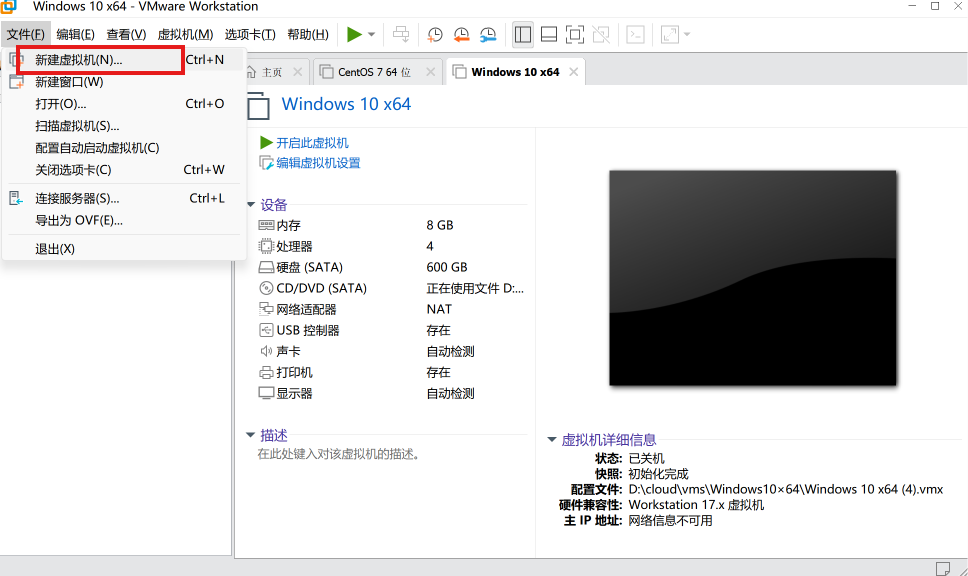
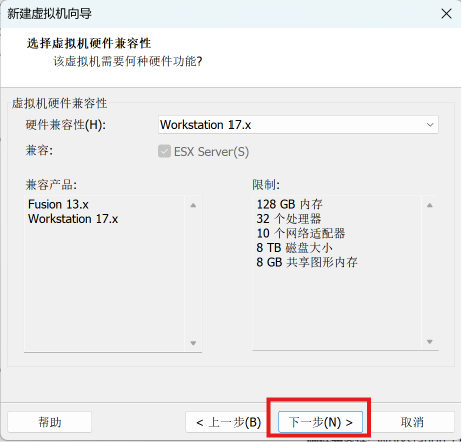
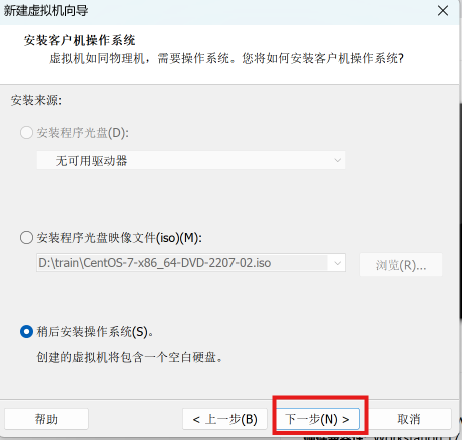
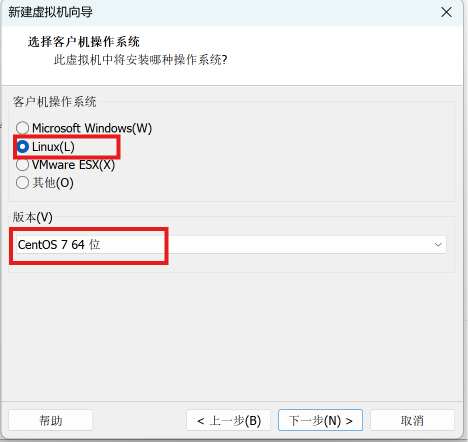
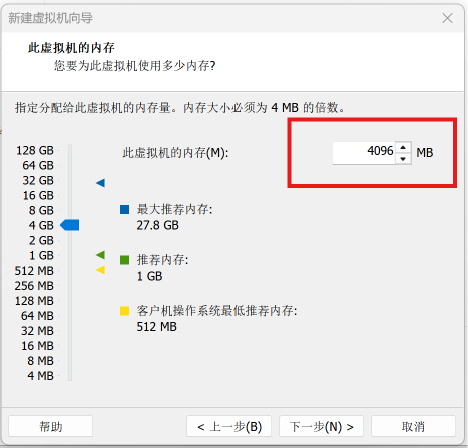
安装选项
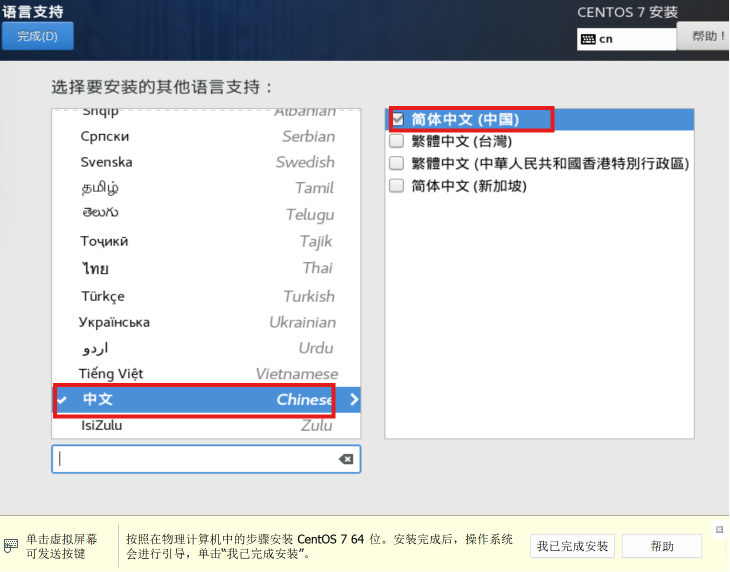
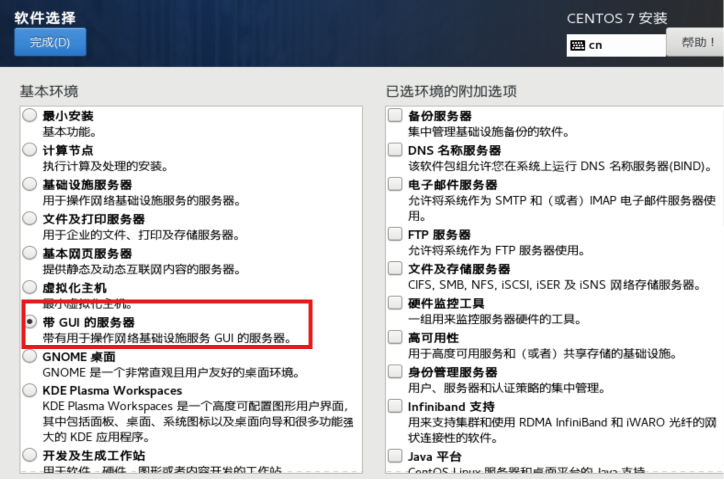
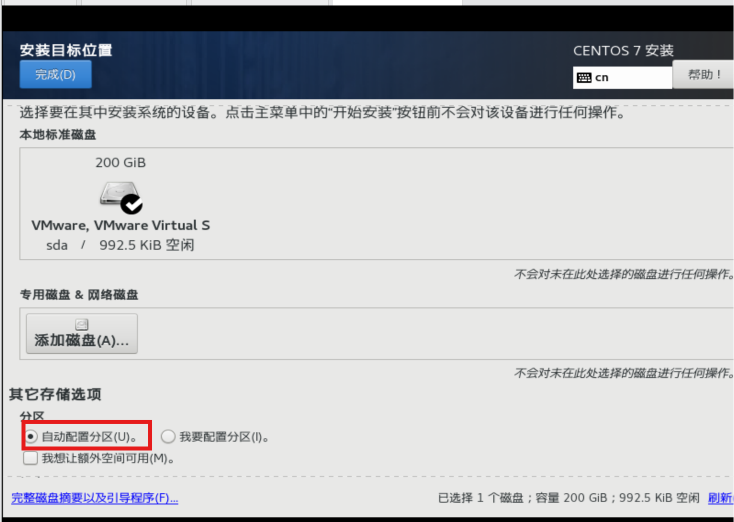
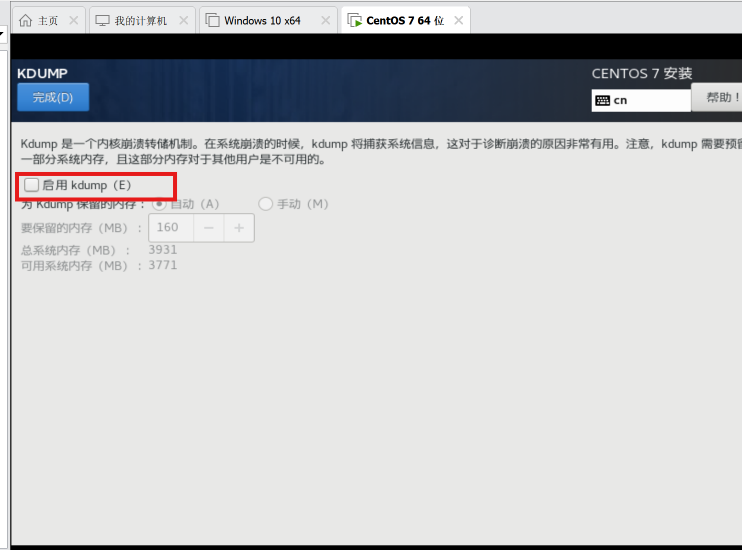
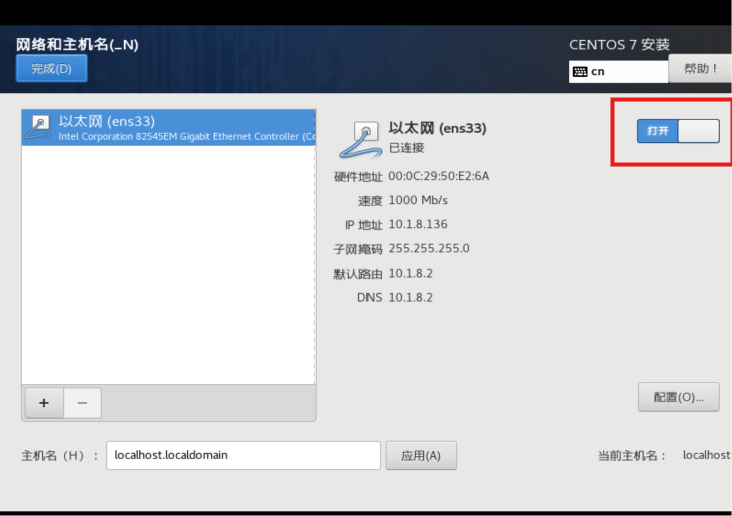
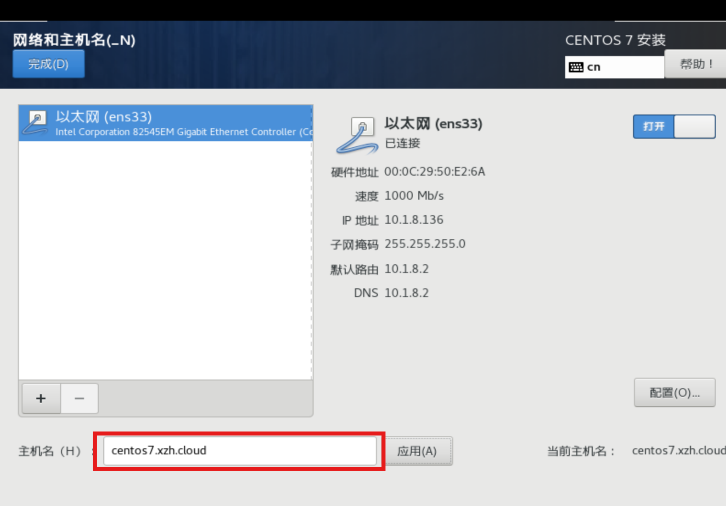
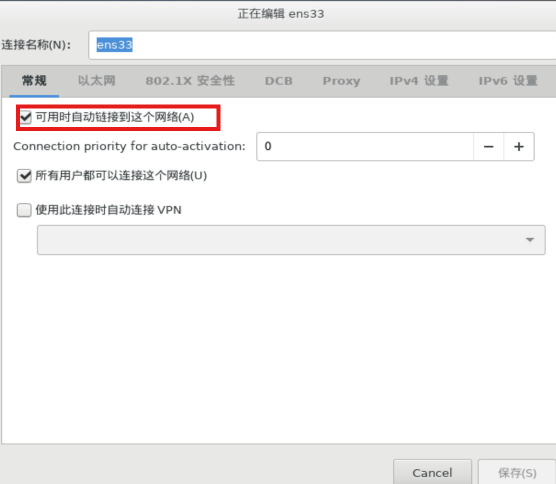
手动配置相关信息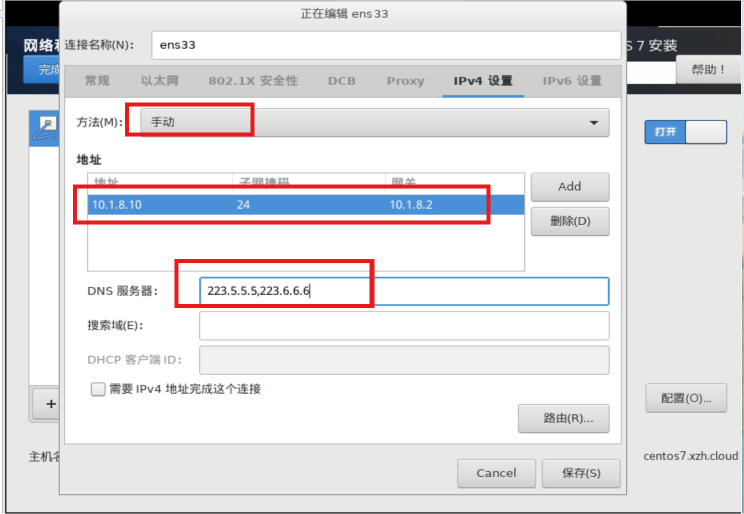
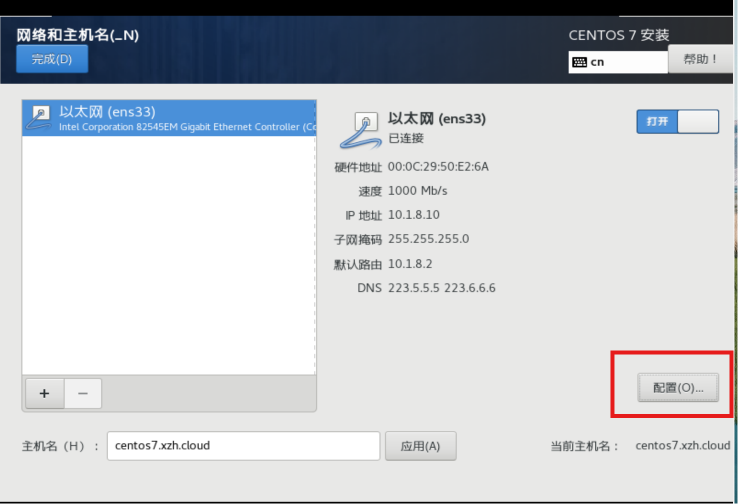
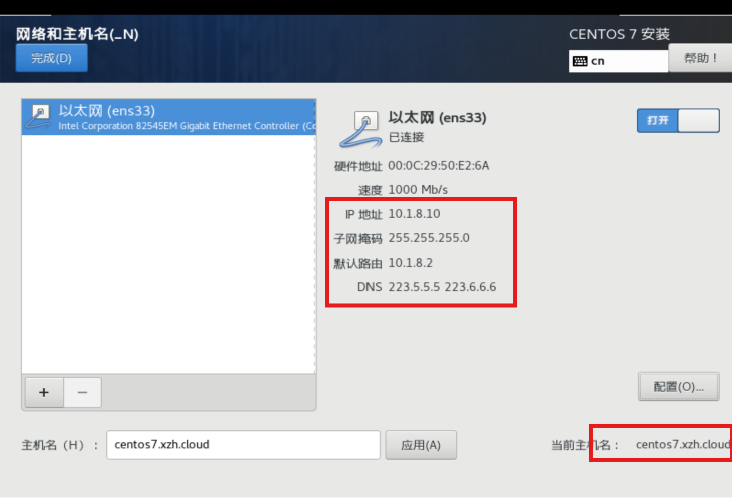
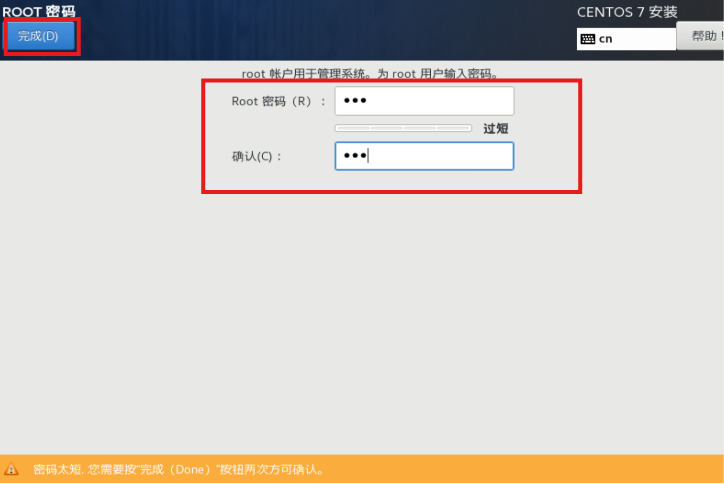
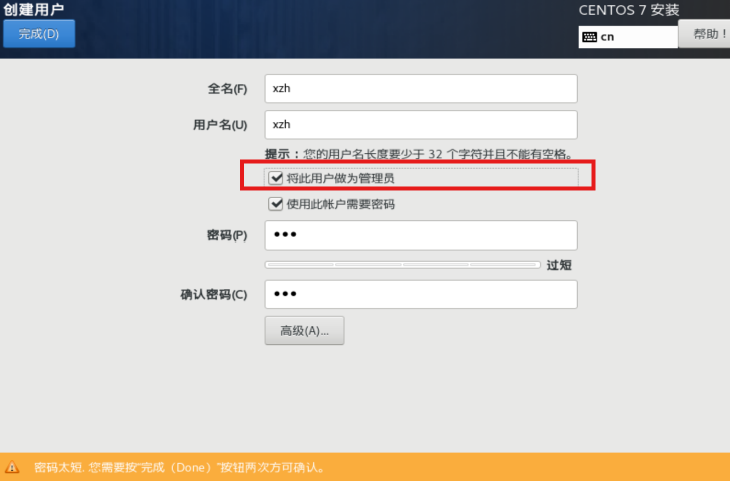
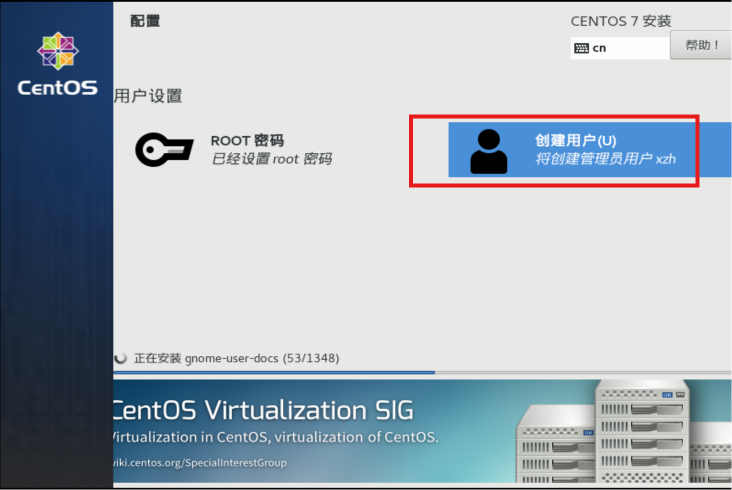
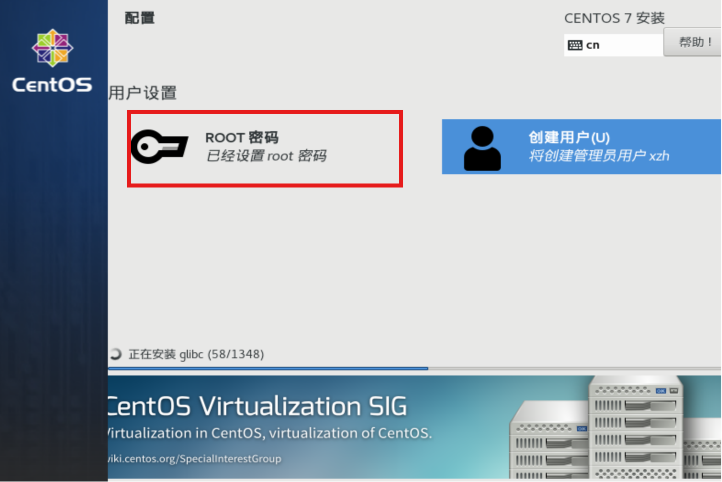
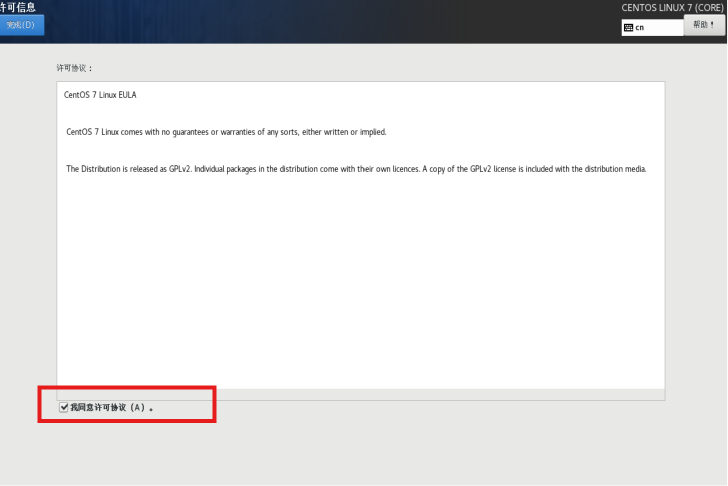
登录
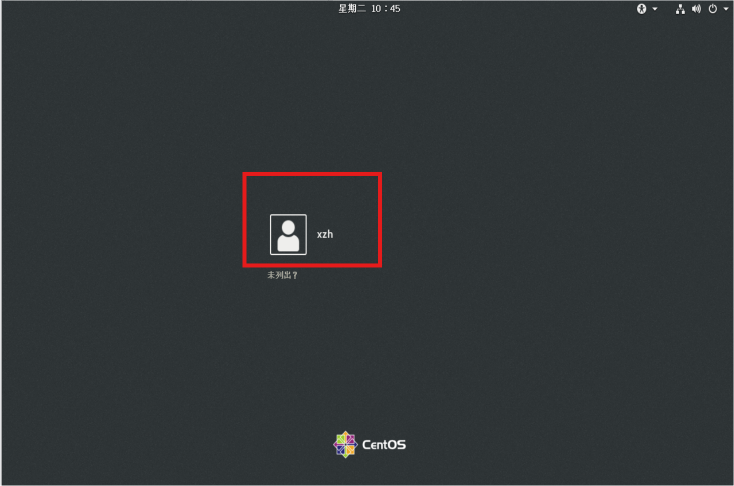
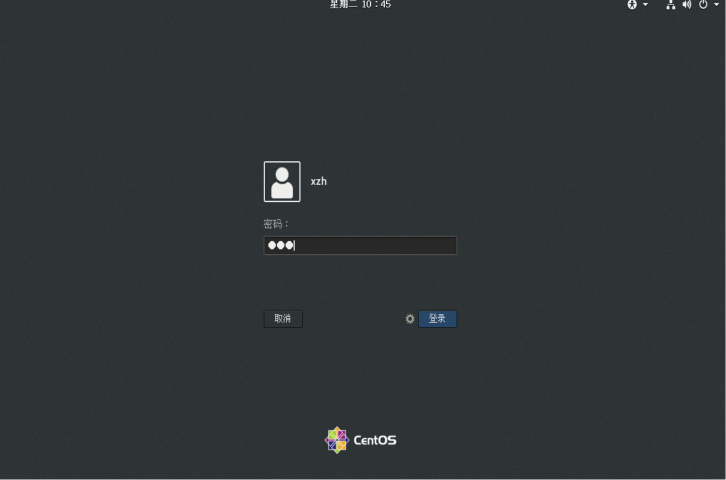
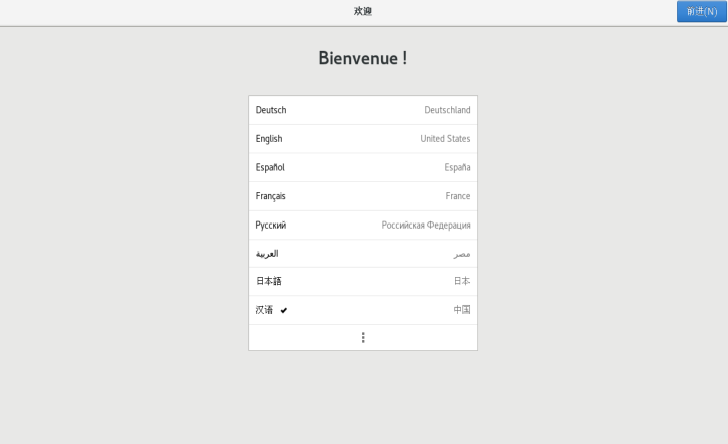
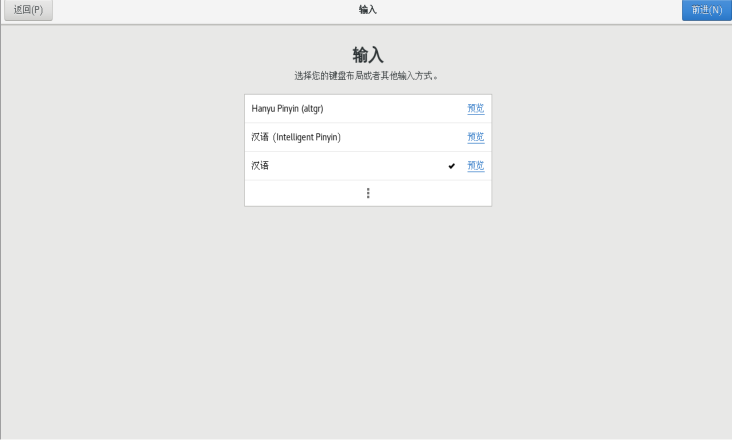
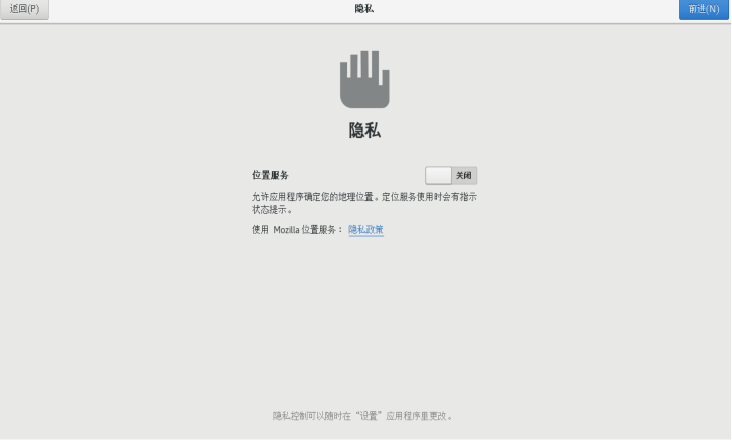
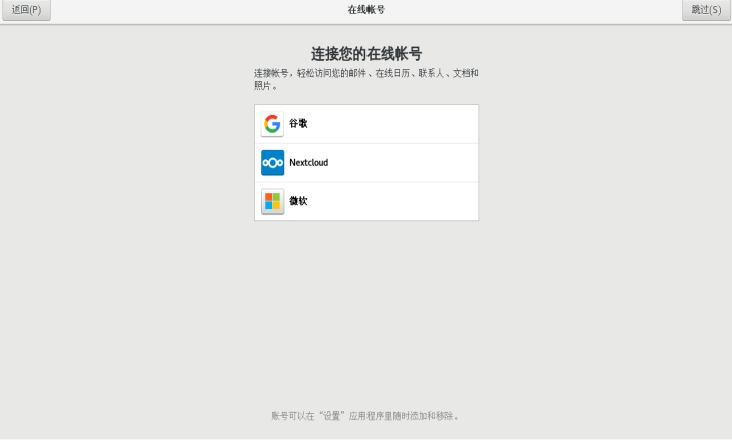
开始使用

最后一步
关机打快照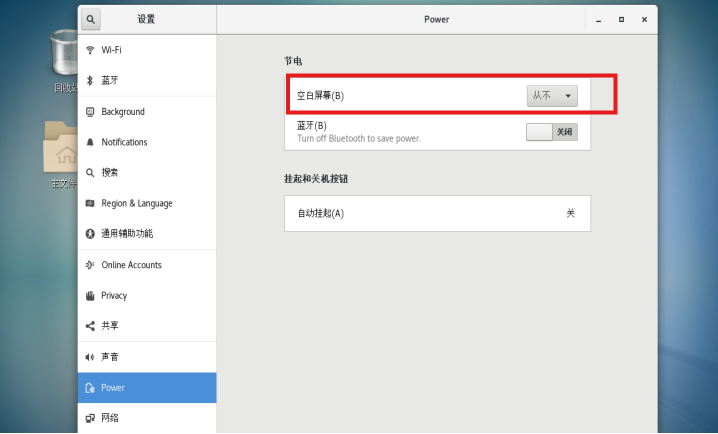
xshell 和 xftp 安装和配置
xshell安装和配置
安装步骤略
打开xshell,在终端中输入ssh xzh@10.1.8.10,回车,并输入用户名对应的密码。
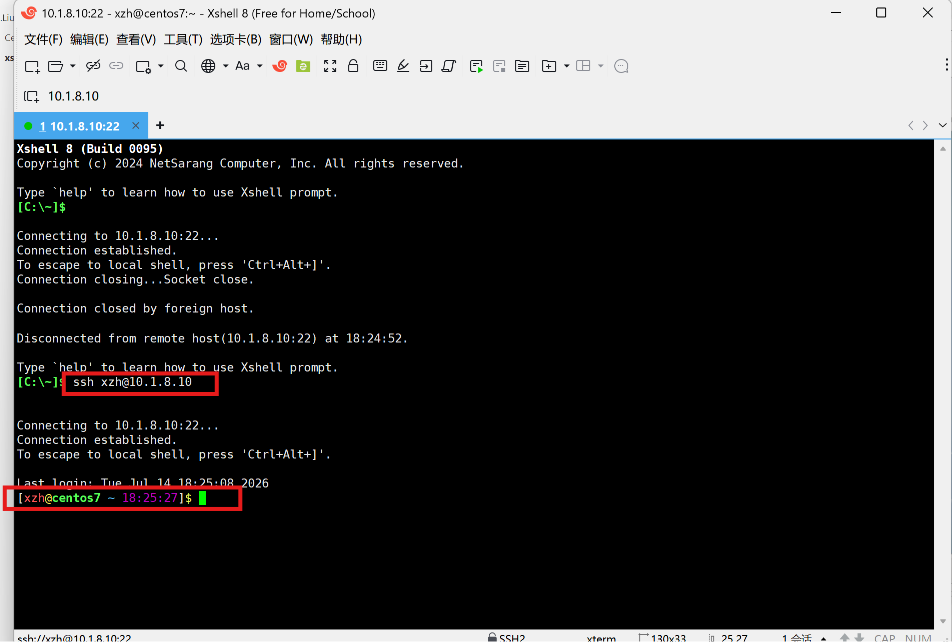 添加到链接栏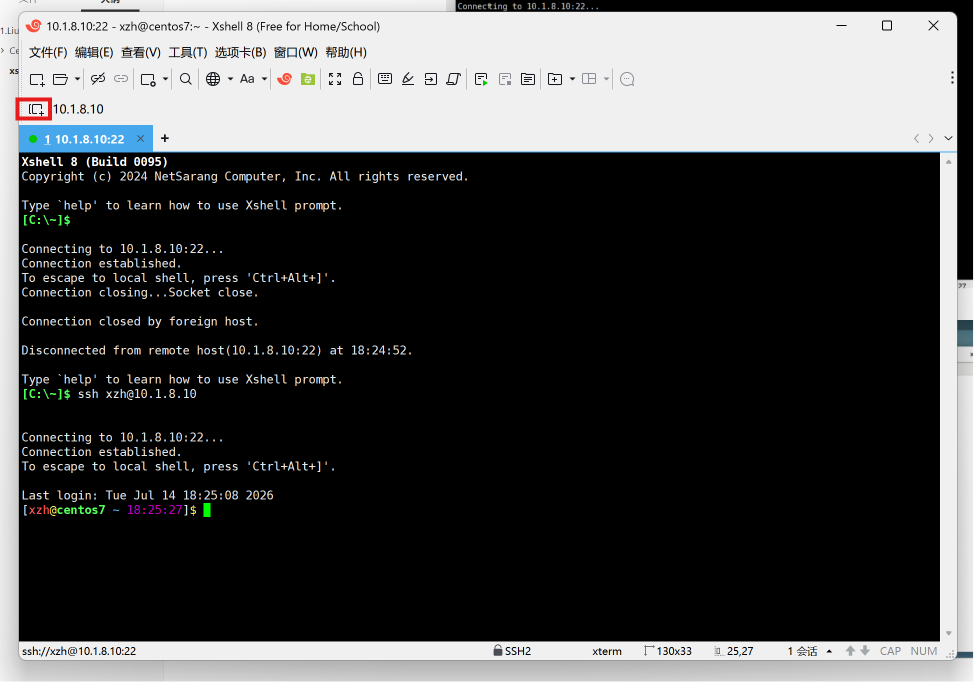
xftp安装和配置
安装步骤略
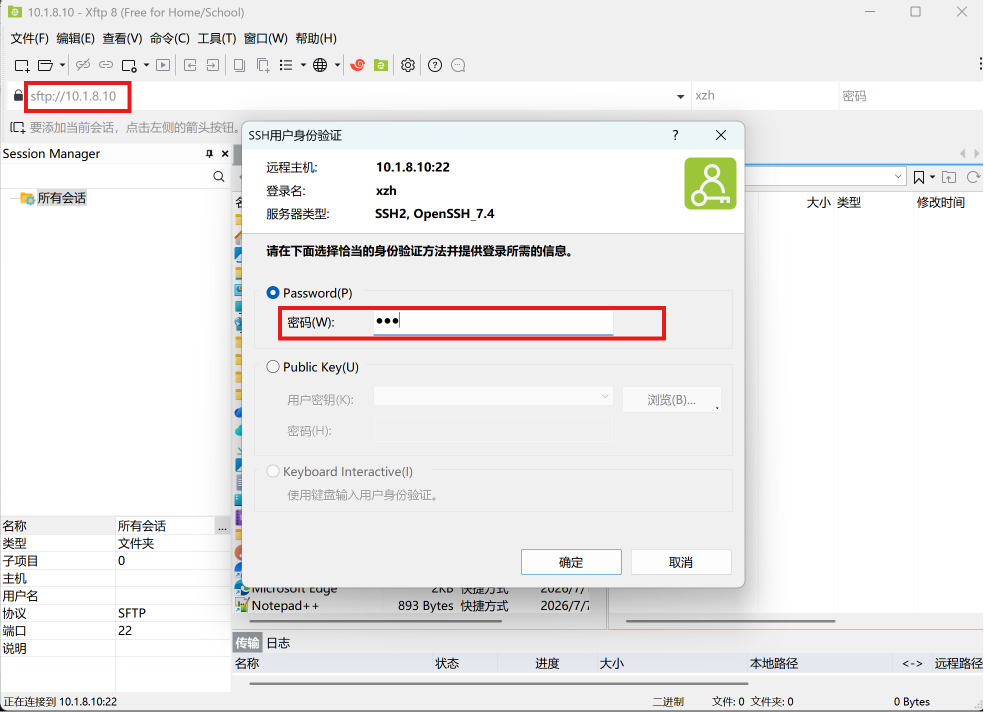
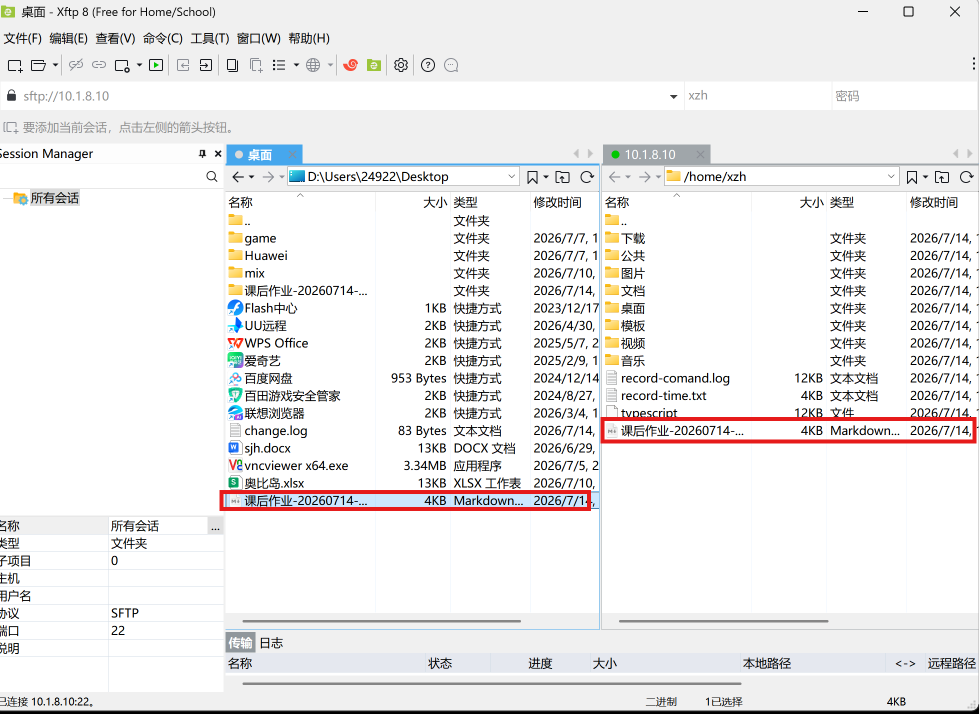
打开xftp,输入主机IP和密码点击确定
2.桌面环境介绍
桌面介绍

终端设置
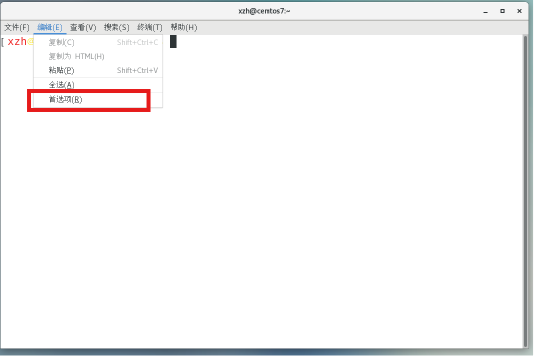
设置字体大小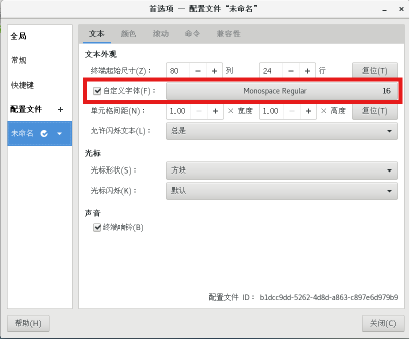
快捷键
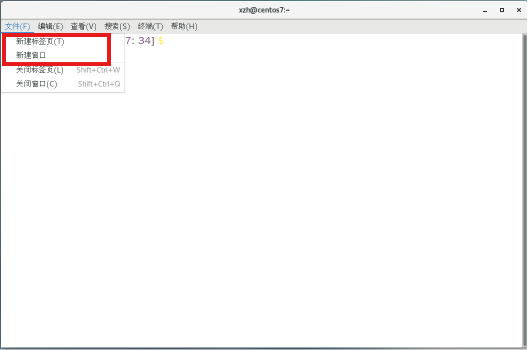
新建终端(ctrl+alt+N)
新建标签(ctrl+alt+T)
3.Linux 命令行
控制台
ctrl + alt + F2 进入3号虚拟控制台,登录后,执行tty命令,效果如下: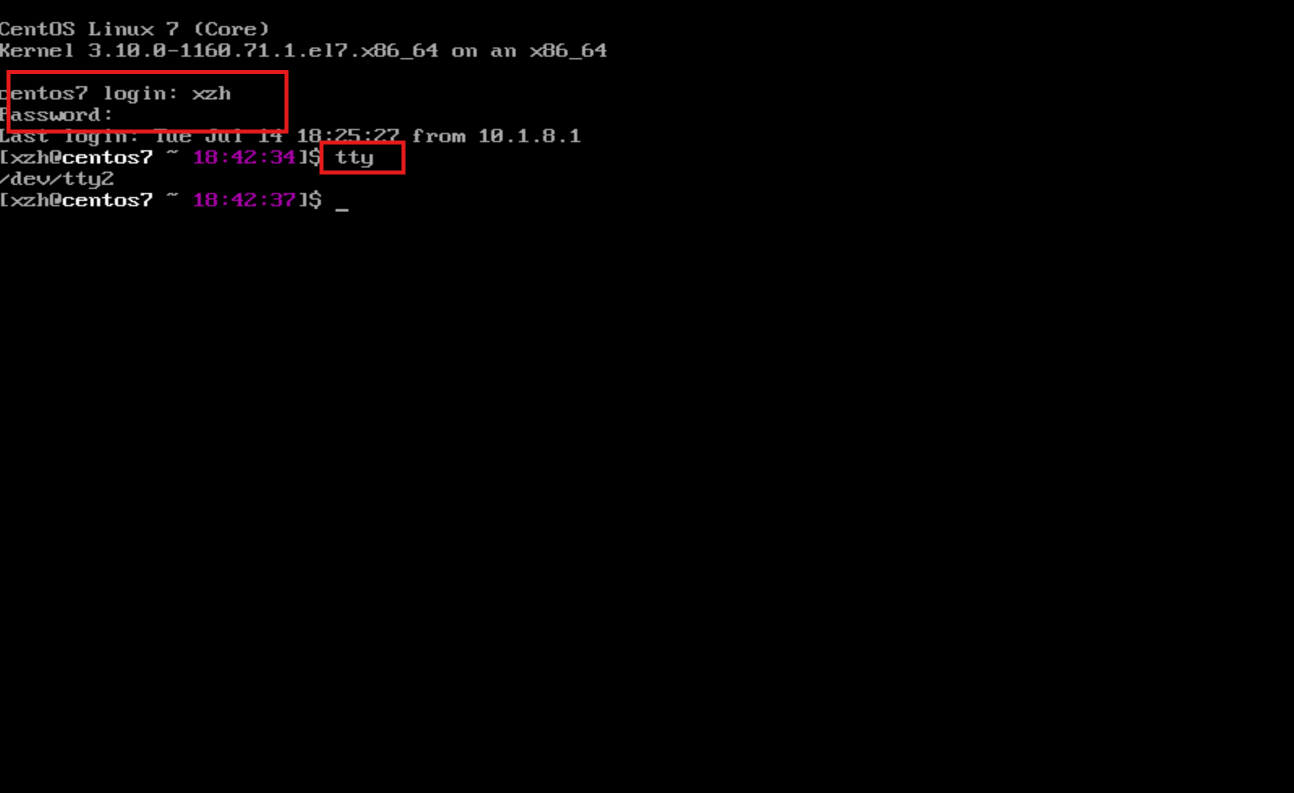 ### 命令提示符
作用:提示计算机正在等待用户的输入。
# 代表普通用户提示符,提示符最后是有一个空格。
[xzh@centos7 ~ 18:25:27]$ date
2026年 07月 14日 星期二 18:45:02 CST

# 代表管理员提示符
[xzh@centos7 ~ 18:45:02]$ su -l root
密码:
上一次登录:二 7月 14 14:51:20 CST 2026pts/1 上
[root@centos7 ~ 18:45:16]#
shell 解析字符串的语法
shell命令行,通过空格分隔,包涵三个部分:
- 命令,第一部分必须是命令,代表要执行的程序,其后可能跟着选项或参数。
- 选项,调整命令的行为或作用。通常以一个或两个
-符号开头,例如(-a --all)。 - 参数,典型的参数是命令的目标,命令后面可能接多个参数。
Enter键,shell开始解析命令行中字符串,并交由kernel执行。
示例:
[root@centos7 ~ 18:45:21]# ls -l /home
总用量 4
drwx------.  3 laochen laochen   78 7月  14 13:54 laochen
drwx------.  3 qqq     qqq       78 7月  14 13:56 qqq
drwx------.  3 www     www       78 7月  14 13:55 www
drwx------. 15 xzh     xzh     4096 7月  14 18:45 xzh
# ls,是命令
# -l,是选项
# /home,是参数

# 只用命令情况
[xzh@centos7 ~ 18:46:16]$ ls
record-comand.log  record-time.txt  typescript  公共  课后作业-20260714-陈小月.md  模板  视频  图片  文档

# 使用不同格式选项,-a和--all都是用于显示所有文件,包涵.开头的隐藏文件
[xzh@centos7 ~ 18:46:20]$ ls -a
.              .bash_logout   .cache   .esd_auth      .mozilla           typescript   公共                         视频  下载
..             .bash_profile  .config  .ICEauthority  record-comand.log  .viminfo     课后作业-20260714-陈小月.md  图片  音乐
.bash_history  .bashrc        .dbus    .local         record-time.txt    .Xauthority  模板                         文档  桌面
[xzh@centos7 ~ 18:46:25]$ ls --all
.              .bash_logout   .cache   .esd_auth      .mozilla           typescript   公共                         视频  下载
..             .bash_profile  .config  .ICEauthority  record-comand.log  .viminfo     课后作业-20260714-陈小月.md  图片  音乐
.bash_history  .bashrc        .dbus    .local         record-time.txt    .Xauthority  模板                         文档  桌面

# 使用参数,指定目标,查看目录/etc/yum文件清单
[xzh@centos7 ~ 18:46:29]$ ls /etc/yum
fssnap.d  pluginconf.d  protected.d  vars  version-groups.conf
命令行语法示例
[xzh@centos7 ~ 18:47:49]$ date --help
用法:date [选项]... [+格式]
 或:date [-u|--utc|--universal] [MMDDhhmm[[CC]YY][.ss]]
Display the current time in the given FORMAT, or set the system date.

Mandatory arguments to long options are mandatory for short options too.
  -d, --date=STRING         display time described by STRING, not 'now'
  -f, --file=DATEFILE       like --date once for each line of DATEFILE
  -I[TIMESPEC], --iso-8601[=TIMESPEC]  output date/time in ISO 8601 format.
                            TIMESPEC='date' for date only (the default),
                            'hours', 'minutes', 'seconds', or 'ns' for date
                            and time to the indicated precision.
... ...

[xzh@centos7 ~ 18:48:29]$ date
2026年 07月 14日 星期二 18:48:41 CST

# 显示UTC时间
[xzh@centos7 ~ 18:49:16]$ date -u
2026年 07月 14日 星期二 10:49:19 UTC
[xzh@centos7 ~ 18:49:19]$ date --utc
2026年 07月 14日 星期二 10:49:26 UTC
[xzh@centos7 ~ 18:49:26]$ date --universal
2026年 07月 14日 星期二 10:49:38 UTC

# 根据给定时间字符串显示日志
[xzh@centos7 ~ 18:49:38]$ date -d '-1 day'
2026年 07月 13日 星期一 18:49:49 CST
[xzh@centos7 ~ 18:49:49]$ date -date '-1 day'
date:无效选项 -- 1
Try 'date --help' for more information.
[xzh@centos7 ~ 18:50:02]$ date --date '-1 day'
2026年 07月 13日 星期一 18:50:09 CST
[xzh@centos7 ~ 18:50:09]$ date --date '100 day'
2026年 10月 22日 星期四 18:50:17 CST

# 特殊案例
[xzh@centos7 ~ 18:50:17]$ date -d "-1 year +3 month +10 days"
2025年 10月 24日 星期五 18:50:55 CST

# 以给定格式显示时间
[xzh@centos7 ~ 18:50:55]$ date +%Y%m%d
20260714
[xzh@centos7 ~ 18:51:11]$ date +%Y-%m-%d
2026-07-14
[xzh@centos7 ~ 18:51:22]$ date +%Y/%m/%d
2026/07/14
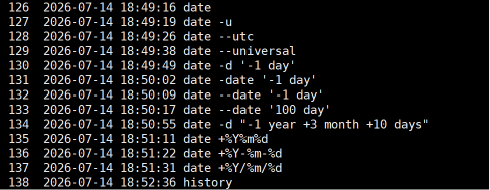 一行要执行多个命令,使用分号(;)分隔。
[xzh@centos7 ~ 18:52:36]$ ls
record-comand.log  record-time.txt  typescript  公共  课后作业-20260714-陈小月.md  模板  视频  图片  文档  下载  音乐  桌面
[xzh@centos7 ~ 18:53:31]$ date
2026年 07月 14日 星期二 18:53:32 CST
[xzh@centos7 ~ 18:53:32]$ ls;date
record-comand.log  record-time.txt  typescript  公共  课后作业-20260714-陈小月.md  模板  视频  图片  文档  下载  音乐  桌面
2026年 07月 14日 星期二 18:53:37 CST

# 错误的示例
[xzh@centos7 ~ 18:53:37]$ ls date
ls: 无法访问date: 没有那个文件或目录
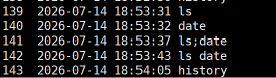
bash 执行命令
bash 执行命令
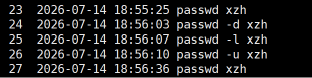
passwd
作用:管理用户密码。
[xzh@centos7 ~ 18:54:05]$ passwd --help
用法: passwd [选项...] <帐号名称>
  -k, --keep-tokens       保持身份验证令牌不过期
  -d, --delete            删除已命名帐号的密码(只有根用户才能进行此操作)
  -l, --lock              锁定指名帐户的密码(仅限 root 用户)
  -u, --unlock            解锁指名账户的密码(仅限 root 用户)
  -e, --expire            终止指名帐户的密码(仅限 root 用户)
  -f, --force             强制执行操作
  -x, --maximum=DAYS      密码的最长有效时限(只有根用户才能进行此操作)
  -n, --minimum=DAYS      密码的最短有效时限(只有根用户才能进行此操作)
  -w, --warning=DAYS      在密码过期前多少天开始提醒用户(只有根用户才能进行此操作)
  -i, --inactive=DAYS     当密码过期后经过多少天该帐号会被禁用(只有根用户才能进行此操作)
  -S, --status            报告已命名帐号的密码状态(只有根用户才能进行此操作)
  --stdin                 从标准输入读取令牌(只有根用户才能进行此操作)

Help options:
  -?, --help              Show this help message
  --usage                 Display brief usage message

# 普通用户修改密码
[xzh@centos7 ~ 18:54:35]$ passwd
更改用户 xzh 的密码 。
为 xzh 更改 STRESS 密码。
(当前)UNIX 密码:
新的 密码:
重新输入新的 密码:
passwd:所有的身份验证令牌已经成功更新。

# root 用户管理账户密码
[xzh@centos7 ~ 18:54:58]$ su -l root
密码:
上一次登录:二 7月 14 18:45:15 CST 2026pts/0 上
[root@centos7 ~ 18:55:20]# passwd xzh
更改用户 xzh 的密码 。
新的 密码:
无效的密码: 密码少于 8 个字符
重新输入新的 密码:
passwd:所有的身份验证令牌已经成功更新。

# 删除用户密码,实现用户登录不需要密码
[root@centos7 ~ 18:55:37]# passwd -d xzh
清除用户的密码 xzh。
passwd: 操作成功

# 锁定用户密码,用户将无法登录
[root@centos7 ~ 18:56:03]# passwd -l xzh
锁定用户 xzh 的密码 。
passwd: 操作成功

# 解锁用户密码,用户可以正常登录
[root@centos7 ~ 18:56:07]# passwd -u xzh
解锁用户 xzh 的密码。
passwd: 警告:未锁定的密码将是空的。
passwd: 不安全的操作(使用 -f 参数强制进行该操作)

file
作用:判定文件类型。
[root@centos7 ~ 18:57:28]# file --help
Usage: file [OPTION...] [FILE...]
Determine type of FILEs.

      --help                 display this help and exit
  -v, --version              output version information and exit
  -m, --magic-file LIST      use LIST as a colon-separated list of magic
                               number files
  -z, --uncompress           try to look inside compressed files
  -b, --brief                do not prepend filenames to output lines
  -c, --checking-printout    print the parsed form of the magic file, use in
                               conjunction with -m to debug a new magic file
                               before installing it
... ...

[xzh@centos7 ~ 18:59:05]$ file /etc/yum
/etc/yum: directory
[xzh@centos7 ~ 18:59:30]$ file /etc/fstab
/etc/fstab: ASCII text

# /bin/file是二进制程序
[xzh@centos7 ~ 18:59:37]$ file /bin/file
/bin/file: ELF 64-bit LSB executable, x86-64, version 1 (SYSV), dynamically linked (uses shared libs), for GNU/Linux 2.6.32, BuildID[sha1]=58f6c8b82ee70887d7136a7181ffc8fa18030cde, stripped

cat
作用:一次性读取文件内容
[xzh@centos7 ~ 19:00:10]$ cat --help
用法:cat [选项]... [文件]...
将[文件]或标准输入组合输出到标准输出。

  -A, --show-all           等于-vET
  -b, --number-nonblank    对非空输出行编号
  -e                       等于-vE
  -E, --show-ends          在每行结束处显示"$"
  -n, --number             对输出的所有行编号
  -s, --squeeze-blank      不输出多行空行
  -t                       与-vT 等价
  -T, --show-tabs          将跳格字符显示为^I
  -u                       (被忽略)
  -v, --show-nonprinting   使用^ 和M- 引用,除了LFD和 TAB 之外
      --help		显示此帮助信息并退出
      --version		显示版本信息并退出
... ...

[xzh@centos7 ~ 19:00:37]$ cat /etc/hosts
127.0.0.1   localhost localhost.localdomain localhost4 localhost4.localdomain4
::1         localhost localhost.localdomain localhost6 localhost6.localdomain6

# -A选项等于-vET,用于显示行尾加个$,用^I显示制表符(tab键)
[xzh@centos7 ~ 19:00:50]$ cat -A /etc/hosts
127.0.0.1   localhost localhost.localdomain localhost4 localhost4.localdomain4$
::1         localhost localhost.localdomain localhost6 localhost6.localdomain6$


# 一次性查看多个文件
[xzh@centos7 ~ 19:01:01]$ cat /etc/hosts /etc/fstab
127.0.0.1   localhost localhost.localdomain localhost4 localhost4.localdomain4
::1         localhost localhost.localdomain localhost6 localhost6.localdomain6

#
# /etc/fstab
# Created by anaconda on Tue Jul 14 10:26:00 2026
#
# Accessible filesystems, by reference, are maintained under '/dev/disk'
# See man pages fstab(5), findfs(8), mount(8) and/or blkid(8) for more info
#
/dev/mapper/centos-root /                       xfs     defaults        0 0
UUID=84d23754-4354-4cb1-84a0-ebf1d839f5f2 /boot                   xfs     defaults        0 0
/dev/mapper/centos-home /home                   xfs     defaults        0 0
/dev/mapper/centos-swap swap                    swap    defaults        0 0
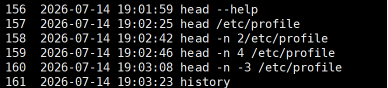
head
作用:显示文件头部内容。
[xzh@centos7 ~ 19:01:35]$ head --help
用法:head [选项]... [文件]...
Print the first 10 lines of each FILE to standard output.
With more than one FILE, precede each with a header giving the file name.
With no FILE, or when FILE is -, read standard input.

Mandatory arguments to long options are mandatory for short options too.
  -c, --bytes=[-]K         print the first K bytes of each file;
                             with the leading '-', print all but the last
                             K bytes of each file
  -n, --lines=[-]K         print the first K lines instead of the first 10;
                             with the leading '-', print all but the last
                             K lines of each file
  -q, --quiet, --silent	不显示包含给定文件名的文件头
  -v, --verbose		总是显示包含给定文件名的文件头
      --help		显示此帮助信息并退出
      --version		显示版本信息并退出

K 后面可以跟乘号:
b 512, kB 1000, K 1024, MB 1000*1000, M 1024*1024,
GB 1000*1000*1000, G 1024*1024*1024, 对于T, P, E, Z, Y 同样适用。

GNU coreutils online help: <http://www.gnu.org/software/coreutils/>
请向<http://translationproject.org/team/zh_CN.html> 报告head 的翻译错误
要获取完整文档,请运行:info coreutils 'head invocation'

[xzh@centos7 ~ 19:02:08]$ head /etc/profile
# /etc/profile

# System wide environment and startup programs, for login setup
# Functions and aliases go in /etc/bashrc

# It's NOT a good idea to change this file unless you know what you
# are doing. It's much better to create a custom.sh shell script in
# /etc/profile.d/ to make custom changes to your environment, as this
# will prevent the need for merging in future updates.

# 只看前4行内容
[xzh@centos7 ~ 19:02:42]$ head -n 4 /etc/profile
# /etc/profile

# System wide environment and startup programs, for login setup
# Functions and aliases go in /etc/bashrc

# 查看文件所有内容,除了最后3行
[xzh@centos7 ~ 19:02:52]$ head -n -3 /etc/profile
# /etc/profile

# System wide environment and startup programs, for login setup
# Functions and aliases go in /etc/bashrc

# It's NOT a good idea to change this file unless you know what you
# are doing. It's much better to create a custom.sh shell script in
# /etc/profile.d/ to make custom changes to your environment, as this
# will prevent the need for merging in future updates.

pathmunge () {
    case ":${PATH}:" in
        *:"$1":*)
            ;;
        *)
            if [ "$2" = "after" ] ; then
                PATH=$PATH:$1
            else
                PATH=$1:$PATH
            fi
    esac
}


if [ -x /usr/bin/id ]; then
    if [ -z "$EUID" ]; then
        # ksh workaround
        EUID=`/usr/bin/id -u`
        UID=`/usr/bin/id -ru`
    fi
    USER="`/usr/bin/id -un`"
    LOGNAME=$USER
    MAIL="/var/spool/mail/$USER"
fi

# Path manipulation
if [ "$EUID" = "0" ]; then
    pathmunge /usr/sbin
    pathmunge /usr/local/sbin
else
    pathmunge /usr/local/sbin after
    pathmunge /usr/sbin after
fi

HOSTNAME=`/usr/bin/hostname 2>/dev/null`
HISTSIZE=1000
if [ "$HISTCONTROL" = "ignorespace" ] ; then
    export HISTCONTROL=ignoreboth
else
    export HISTCONTROL=ignoredups
fi

export PATH USER LOGNAME MAIL HOSTNAME HISTSIZE HISTCONTROL

# By default, we want umask to get set. This sets it for login shell
# Current threshold for system reserved uid/gids is 200
# You could check uidgid reservation validity in
# /usr/share/doc/setup-*/uidgid file
if [ $UID -gt 199 ] && [ "`/usr/bin/id -gn`" = "`/usr/bin/id -un`" ]; then
    umask 002
else
    umask 022
fi

for i in /etc/profile.d/*.sh /etc/profile.d/sh.local ; do
    if [ -r "$i" ]; then
        if [ "${-#*i}" != "$-" ]; then
            . "$i"
        else
            . "$i" >/dev/null
        fi
    fi
done
 ##### tail
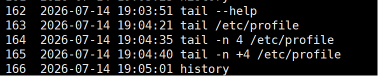
作用:显示文件尾部内容。
[xzh@centos7 ~ 19:03:23]$ tail --help
用法:tail [选项]... [文件]...
Print the last 10 lines of each FILE to standard output.
With more than one FILE, precede each with a header giving the file name.
With no FILE, or when FILE is -, read standard input.

Mandatory arguments to long options are mandatory for short options too.
  -c, --bytes=K            output the last K bytes; or use -c +K to output
                             bytes starting with the Kth of each file
... ...

[xzh@centos7 ~ 19:04:04]$ tail /etc/profile
        if [ "${-#*i}" != "$-" ]; then
            . "$i"
        else
            . "$i" >/dev/null
        fi
    fi
done

unset i
unset -f pathmunge


[xzh@centos7 ~ 19:04:25]$ tail -n 4 /etc/profile
done

unset i
unset -f pathmunge
[xzh@centos7 ~ 19:04:35]$ tail -n +4 /etc/profile
# Functions and aliases go in /etc/bashrc

# It's NOT a good idea to change this file unless you know what you
# are doing. It's much better to create a custom.sh shell script in
# /etc/profile.d/ to make custom changes to your environment, as this
# will prevent the need for merging in future updates.

pathmunge () {
    case ":${PATH}:" in
        *:"$1":*)
            ;;
        *)
            if [ "$2" = "after" ] ; then
                PATH=$PATH:$1
            else
                PATH=$1:$PATH
            fi
    esac
}


if [ -x /usr/bin/id ]; then
    if [ -z "$EUID" ]; then
        # ksh workaround
        EUID=`/usr/bin/id -u`
        UID=`/usr/bin/id -ru`
    fi
    USER="`/usr/bin/id -un`"
    LOGNAME=$USER
    MAIL="/var/spool/mail/$USER"
fi

# Path manipulation
if [ "$EUID" = "0" ]; then
    pathmunge /usr/sbin
    pathmunge /usr/local/sbin
else
    pathmunge /usr/local/sbin after
    pathmunge /usr/sbin after
fi

HOSTNAME=`/usr/bin/hostname 2>/dev/null`
HISTSIZE=1000
if [ "$HISTCONTROL" = "ignorespace" ] ; then
    export HISTCONTROL=ignoreboth
else
    export HISTCONTROL=ignoredups
fi

export PATH USER LOGNAME MAIL HOSTNAME HISTSIZE HISTCONTROL

# By default, we want umask to get set. This sets it for login shell
# Current threshold for system reserved uid/gids is 200
# You could check uidgid reservation validity in
# /usr/share/doc/setup-*/uidgid file
if [ $UID -gt 199 ] && [ "`/usr/bin/id -gn`" = "`/usr/bin/id -un`" ]; then
    umask 002
else
    umask 022
fi

for i in /etc/profile.d/*.sh /etc/profile.d/sh.local ; do
    if [ -r "$i" ]; then
        if [ "${-#*i}" != "$-" ]; then
            . "$i"
        else
            . "$i" >/dev/null
        fi
    fi
done

unset i
unset -f pathmunge
less
作用:交互式、翻页查看文件内容。
# 使用less查看多页文档,可以翻页,搜索等
[xzh@centos7 ~ 19:11:47]$ less -N /etc/profile
# 在less查看文件过程中常见指令:
# / 搜索,n(next)搜索下一个,N搜索上一个。
# 上下方向键 逐行查看,左右键左右翻页
# pageup和pagedown 上下翻页
# q,退出文档查看
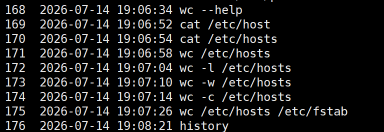
wc
作用:统计文件行数、单词数、字节数。
[xzh@centos7 ~ 19:06:05]$ wc --help
用法:wc [选项]... [文件]...
 或:wc [选项]... --files0-from=F
Print newline, word, and byte counts for each FILE, and a total line if
more than one FILE is specified.  With no FILE, or when FILE is -,
read standard input.  A word is a non-zero-length sequence of characters
delimited by white space.
The options below may be used to select which counts are printed, always in
the following order: newline, word, character, byte, maximum line length.
  -c, --bytes            print the byte counts
  -m, --chars            print the character counts
  -l, --lines            print the newline counts
      --files0-from=文件	从指定文件读取以NUL 终止的名称,如果该文件被
					指定为"-"则从标准输入读文件名
  -L, --max-line-length	显示最长行的长度
  -w, --words			显示单词计数
      --help		显示此帮助信息并退出
      --version		显示版本信息并退出

GNU coreutils online help: <http://www.gnu.org/software/coreutils/>
请向<http://translationproject.org/team/zh_CN.html> 报告wc 的翻译错误
要获取完整文档,请运行:info coreutils 'wc invocation'

[xzh@centos7 ~ 19:06:52]$ cat /etc/hosts
127.0.0.1   localhost localhost.localdomain localhost4 localhost4.localdomain4
::1         localhost localhost.localdomain localhost6 localhost6.localdomain6
[xzh@centos7 ~ 19:06:54]$ wc /etc/hosts
  2  10 158 /etc/hosts

# 统计文件line数量
[xzh@centos7 ~ 19:06:58]$ wc -l /etc/hosts
2 /etc/hosts

# 统计文件word数量
[xzh@centos7 ~ 19:07:04]$ wc -w /etc/hosts
10 /etc/hosts

# 统计文件bytes数量
[xzh@centos7 ~ 19:07:10]$ wc -c /etc/hosts
158 /etc/hosts

# 统计多个文件数据
[xzh@centos7 ~ 19:07:14]$ wc /etc/hosts /etc/fstab
  2  10 158 /etc/hosts
 12  60 541 /etc/fstab
 14  70 699 总用量
tab 按键
补全功能:补全命令、补全选项、补全参数
# tab 一次,就出结果,说明匹配结果
# tab 两次,才补全出结果,说明匹配结果不唯一

# 补全命令
[xzh@centos7 ~ 19:10:55]$ pas<tab><tab>
passwd       paste        pasuspender


[xzh@centos7 ~ 19:11:20]$ pass<tab>
[xzh@centos7 ~ 19:11:25]$ passwd
更改用户 xzh 的密码 。
为 xzh 更改 STRESS 密码。
(当前)UNIX 密码:
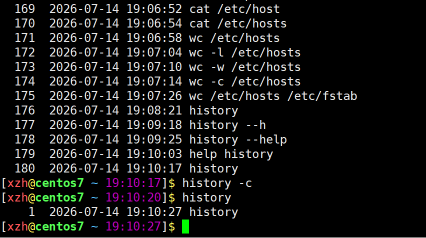
history 命令
# history命令查看帮助不能使用 history --help
[xzh@centos7 ~ 19:09:18]$ history --help
-bash: history: --: 无效选项
history: 用法:history [-c] [-d 偏移量] [n] 或 history -anrw [文件名] 或 history -ps 参数 [参数...]

[xzh@centos7 ~ 19:09:44]$ help history
history: history [-c] [-d 偏移量] [n] 或 history -anrw [文件名] 或 history -ps 参数 [参数...]
    显示或操纵历史列表。

    带行号显示历史列表,将每个被修改的条目加上前缀 `*'。
    参数 N 会仅列出最后的 N 个条目。

    选项:
      -c	删除所有条目从而清空历史列表。
      -d 偏移量	从指定位置删除历史列表。

      -a	将当前绘画的历史行追加到历史文件中
      -n	从历史文件中读取所有未被读取的行
      -r	读取历史文件并将内容追加到历史列表中
    	中
      -w	将当前历史写入到历史文件中
    	并追加到历史列表中

      -p	对每一个 ARG 参数展开历史并显示结果
    	而不存储到历史列表中
      -s	以单条记录追加 ARG 到历史列表中

    如果给定了 FILENAME 文件名,则它将被作为历史文件。否则
    如果 $HISTFILE 变量有值的话使用之,不然使用 ~/.bash_history 文件。

    如果 $HISTTIMEFORMAT 变量被设定并且不为空,它的值会被用于
    strftime(3) 的格式字符串来打印与每一个显示的历史条目想关联的时
    间戳,否则不打印时间戳。

    退出状态:
    返回成功,除非使用了无效的选项或者发生错误。

[xzh@centos7 ~ 19:10:06]$ history
    1  2026-07-14 18:25:27 ip -br addr
    2  2026-07-14 18:25:27 vi /etc/ssh/sshd_config
    3  2026-07-14 18:25:27 su - xzh
    4  2026-07-14 18:25:27 su -l root
    5  2026-07-14 18:25:27 tty
    6  2026-07-14 18:25:27 init 0
    7  2026-07-14 18:25:27 su -l root
    8  2026-07-14 18:25:27 history
... ...

# 情况历史操作记录
[xzh@centos7 ~ 19:10:17]$ history -c
script 命令(自学)
[xzh@centos7 ~ 19:12:45]$ script --help

用法:
 script [选项] [文件]

选项:
 -a, --append            追加输出
 -c, --command <命令>    运行命令而不是交互式 shell
 -e, --return            返回子进程的退出代码
 -f, --flush             每次 write(写) 后运行 flush(冲刷)
     --force             即使输出文件是链接也依然使用
 -q, --quiet             安静模式
 -t, --timing[=<文件>]   将时间数据输出到标准错误(或文件)
 -V, --version           输出版本信息并退出
 -h, --help              显示此帮助并退出

# 记录终端中历史操作,并保存到指定文件,还可以同时记录操作时间
[xzh@centos7 ~ 19:15:49]$ script --timing=time.log record.log
Script started, file is record.log
[xzh@centos7 ~ 19:19:59]$ echo hello world
hello world
[xzh@centos7 ~ 19:20:08]$ hostname
centos7.xzh.cloud
[xzh@centos7 ~ 19:20:11]$ date
2026年 07月 14日 星期二 19:20:13 CST
[xzh@centos7 ~ 19:20:13]$ history -c
[xzh@centos7 ~ 19:20:17]$ echo goodbay
goodbay
[xzh@centos7 ~ 19:20:25]$ exit
exit
Script done, file is record.log

# 查看日志内容
[xzh@centos7 ~ 19:20:27]$ cat record.log
脚本启动于 2026年07月14日 星期二 19时19分59秒
[xzh@centos7 ~ 19:19:59]$ echo hello world
hello world
[xzh@centos7 ~ 19:20:08]$ hostname
centos7.xzh.cloud
[xzh@centos7 ~ 19:20:11]$ date
2026年 07月 14日 星期二 19:20:13 CST
[xzh@centos7 ~ 19:20:13]$ history -c
[xzh@centos7 ~ 19:20:17]$ echo goodbay
goodbay
[xzh@centos7 ~ 19:20:25]$ exit
exit

Script done on 2026年07月14日 星期二 19时20分27秒

# 动态回放日志
[xzh@centos7 ~ 19:21:03]$ scriptreplay -t time.log  record.log

bash 快捷键
| 快捷键 | 作用 |
|---|---|
| Ctrl+a 或者 Home | 光标定位到命令行开头 |
| Ctrl+e 或者 End | 光标定位到命令行末尾 |
| Ctrl+u | 删除光标位置到命令行开头 |
| Ctrl+k | 删除光标位置到命令行末尾 |
| Ctrl+<- | 光标向左跳转一个单词 |
| Ctrl±> | 光标向右跳转一个单词 |
| Ctrl+r | 搜索历史命令 |
| Ctrl+w | 向左删除一个参数 |
| Esc(松开)+. | 打印上一个命令的最后一个参数 |
| Ctrl+l(L的小写) | 清空屏幕 |
| Ctrl+d | 登出终端 |

openEuler 是由开放原子开源基金会孵化的全场景开源操作系统项目,面向数字基础设施四大核心场景(服务器、云计算、边缘计算、嵌入式),全面支持 ARM、x86、RISC-V、loongArch、PowerPC、SW-64 等多样性计算架构
更多推荐


 9
9 0
0- 0


 已为社区贡献1条内容

所有评论(0)