彭于晏一个月带你玩转Linux操作系统2
命令行管理文件
文件系统层次结构
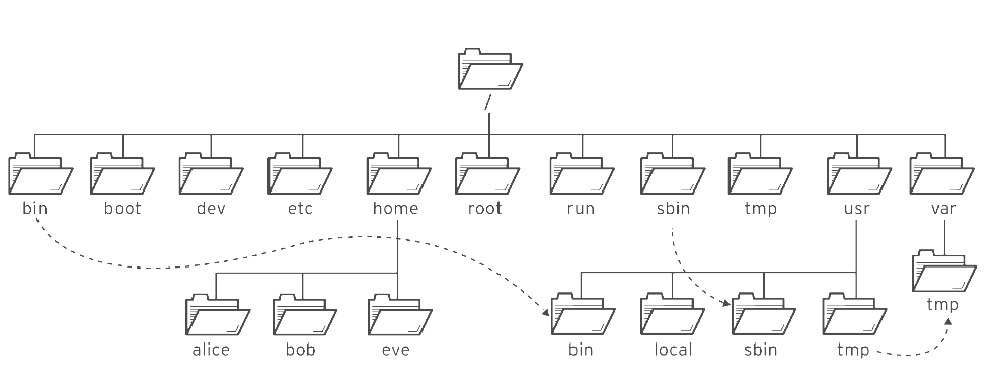
Linux遵循开源协议,所以任何人都可以根据Linux的核心代码制作和发行版本。如果每个人都按自己的喜好,在/目录下创建目录、存放文件,将导致其他人无法快速使用他人的linux系统。为避免这样的情况,FHS就应运而生,对linux文件系统目录结构进行规范化。
FHS(Filesystem Hierarchy Standard)采用树形结构组织文件,定义了系统中每个区域的用途、所需要的最小构成的文件和目录,同时还给出了例外处理与矛盾处理。
FHS定义了两层规范:
-
**定义了 / 下面的各个目录应该要放什么文件数据。**例如/etc应该要放置设置文件,/bin与/sbin则应该要放置可执行文件等等。
-
**针对/usr及/var这两个目录的子目录来定义。**例如/var/log放置系统登录文件、/usr/share放置共享数据等等。
USR,Unix System Resource
| 位置 | 用途 |
|---|---|
| /usr | 系统安装的软件、共享的库。重要的子目录有:/usr/bin: 用户命令。/usr/sbin: 系统管理命令。 /usr/lib、/usr/lib64:应用程序可调用的通用库文件。 /usr/local: 本地自定义软件。 |
| /etc | 系统配置文件。 |
| /var | variable,系统可变数据,在系统启动之间保持永久性,如数据库、 缓存目录、日志文件、打印机后台处理文档和网站内容。 |
| /run | 自本次系统启动以来运行中的进程的运行数据,包括进程ID文件和锁定文件,等等。此目录中的内容在重启时重新创建。此目录合并了早期版本的Linux 中的/var/run和/var/lock。 |
| /home | 主目录是普通用户存储其个人数据和配置文件的位置。 每个用户有自己的位置,例如 /home/laoma。 |
| /root | 管理员root的主目录。 |
| /tmp | 供临时文件使用的全局可写空间。 10天内未访问、未更改或未修改的文件将自动从该目录中删除。 还有一个临时目录/var/tmp,该目录中的文件如果在30天内未曾访问、更改或修改过, 将被自动删除。 |
| /boot | 开机启动过程所需的文件。 |
| /dev | device,包含特殊的设备文件,供系统用于访问硬件。 |
文件路径导航
导航路径 cd 和 pwd
常见路径说明:
- 绝对路径:以根(/)开头的路径,用于指定文件的确切位置。
- 当前工作路径:当前所处的位置。
- 相对路径:不是以根(/)开头的路径,相对当前工作目录的路径。(从你当前位置出发,到达某个文件的路线)
pwd:显示当前工作目录(绝对路径)
cd:切换当前工作目录到目标路径
cd的常见用法:
cd..                切换到上级目录

cd../..             切换到上上级目录

cd~                切换到当前用户的家目录

cd-                 切换到上一个工作目录
# 显示当前工作目录
[pengyuyan@centos7 ~]$ pwd
/home/laoma

# 切换路径
[pengyuyan@centos7 ~]$ cd /usr/bin
[pengyuyan@centos7 bin]$ pwd
/usr/bin
[pengyuyan@centos7 bin]$ ls
[                                    mpartition
a2p                                  mpls_dump
ab                                   mpris-proxy
abrt-action-analyze-backtrace        mpstat
... ...

# 切换到其他目录
[pengyuyan@centos7 bin]$ cd /usr/share/doc
[pengyuyan@centos7 doc]$ pwd
/usr/share/doc

# 切换上一次所在目录
[pengyuyan@centos7 doc]$ cd -
/usr/bin
[pengyuyan@centos7 bin]$ pwd
/usr/bin

# 切换到家目录
[pengyuyan@centos7 bin]$ cd
# 或者
[pengyuyan@centos7 bin]$ cd ~
[pengyuyan@centos7 ~]$ pwd
/home/laoma

# 上一级目录(父目录),用..表示
[pengyuyan@centos7 ~]$ pwd
/home/laoma
[pengyuyan@centos7 ~]$ ls /home
laoma
[pengyuyan@centos7 ~]$ cd ..
[pengyuyan@centos7 home]$ pwd
/home

# 当前目录用.表示,通常不写.
[pengyuyan@centos7 ~]$ file ./.bash_history
./.bash_history: UTF-8 Unicode text
[pengyuyan@centos7 ~]$ file .bash_history
.bash_history: UTF-8 Unicode text

[pengyuyan@centos7 ~]$ cd /usr/share/doc/at-spi2-core-2.28.0/
# 使用相对路径切换到/usr/share/
[pengyuyan@centos7 at-spi2-core-2.28.0]$ cd ../../
[pengyuyan@centos7 share]$ pwd
/usr/share

[pengyuyan@centos7 ~]$ cd /usr/share/doc/at-spi2-core-2.28.0/
# 使用相对路径切换到      /etc/yum
[pengyuyan@centos7 share]$ cd ../../../../etc/yum
[pengyuyan@centos7 yum]$ pwd
/etc/yum
**思考:**什么时候使用相对路径?什么时候使用绝对路径?
答案:一般情况是怎么方便怎么来。但是在变量定义文件的路径时候,尽量使用绝对路径。
ls 命令补充
作用:列出指定目录下的文件和子目录
语法:ls [选项] [目标路径]
常见选项:
-l 以长列表的格式显示详细信息
-a 显示所有文件,包含.开头的隐藏文件
-t 按修改时间排序
-r 反向排序
-R 递归显示子目录的内容(逐层展开)
-S 按文件大小排序
-d 只显示目录本身的信息,不显示目录里的内容
常见组合:
ls -l 最长用的详细列表
ls -la 详细列表+显示隐藏文件
ls -lh 详细列表+文件大小自动换单位
ls -ltr 按修改时间倒序排序(最新的在最后,适合查看日志目录)
ls -ls 按文件大小排序(最大的在前面)
ls -laR 递归显示所有文件,逐层展开整个目录树
# -1(数字1)选项以单列格式展示
# 图形化界面,并且用户登录系统后才会有这些文件。
[pengyuyan@centos7 ~]$ ls -1
公共
模板
视频
图片
文档
下载
音乐
桌面

# -R 选项递归查看子目录中文件
[pengyuyan@centos7 ~]$ ls /etc/yum
fssnap.d  pluginconf.d  protected.d  vars  version-groups.conf
[pengyuyan@centos7 ~]$ ls -R /etc/yum
/etc/yum:
fssnap.d  pluginconf.d  protected.d  vars  version-groups.conf

/etc/yum/fssnap.d:

/etc/yum/pluginconf.d:
fastestmirror.conf  langpacks.conf

/etc/yum/protected.d:
systemd.conf

/etc/yum/vars:
contentdir  infra

# -l选项 长列表格式查看文件详细信息
[pengyuyan@centos7 ~]$ ls /etc/hosts
/etc/hosts
[pengyuyan@centos7 ~]$ ls -l /etc/hosts
-rw-r--r--. 1 root root 197 11月  3 14:35 /etc/hosts

# ls 命令默认按文件名先后顺序正向排序
[pengyuyan@centos7 ~]$ ls -l
总用量 0
-rw-rw-r--. 1 laoma laoma 0 11月  3 17:18 abc
-rw-rw-r--. 1 laoma laoma 0 11月  3 17:17 file-1
-rw-rw-r--. 1 laoma laoma 0 11月  3 17:18 file-2
-rw-rw-r--. 1 laoma laoma 0 11月  3 17:18 hello
... ...

# 使用 -r 选项反向排序
[pengyuyan@centos7 ~]$ ls -rl
总用量 0
-rw-rw-r--. 1 laoma laoma 0 11月  3 17:18 hello
-rw-rw-r--. 1 laoma laoma 0 11月  3 17:18 file-2
-rw-rw-r--. 1 laoma laoma 0 11月  3 17:17 file-1
-rw-rw-r--. 1 laoma laoma 0 11月  3 17:18 abc

# 使用 -t 选项按时间排序
[pengyuyan@centos7 ~]$ ls -tl
总用量 0
-rw-rw-r--. 1 laoma laoma 0 11月  3 17:22 hello
-rw-rw-r--. 1 laoma laoma 0 11月  3 17:18 abc
-rw-rw-r--. 1 laoma laoma 0 11月  3 17:18 file-2
-rw-rw-r--. 1 laoma laoma 0 11月  3 17:17 file-1

# 使用 -d 选项只查看对象本身
[pengyuyan@centos7 ~]$ ls -ld /etc/yum
drwxr-xr-x. 6 root root 100 12月 13 10:42 /etc/yum
[pengyuyan@centos7 ~]$ ls -l /etc/yum
总用量 4
drwxr-xr-x. 2 root root   6 10月  2 2020 fssnap.d
drwxr-xr-x. 2 root root  54 12月 13 10:45 pluginconf.d
drwxr-xr-x. 2 root root  26 12月 13 10:42 protected.d
drwxr-xr-x. 2 root root  37 10月  2 2020 vars
-rw-r--r--. 1 root root 444 10月  2 2020 version-groups.conf
tree 命令
作用:以树形格式查看目录结构
用法:tree [选项] [目录路径]
常见选项:
-a 显示所有文件
-d 只显示目录,不显示普通文件
-L<层级> 限制显示目录深度(层数)
-f 显示每个文件的完整路径
-h 显示文件大小(K、M、G)
-s 显示文件大小(字节数)
-t 按文件修改时间排序显示
-D 显示文件最后修改的时间
# 配置仓库
[root@centos7 ~]# curl -s -o /etc/yum.repos.d/CentOS-Base.repo http://mirrors.aliyun.com/repo/Centos-7.repo
[root@centos7 ~]# curl -s -o /etc/yum.repos.d/epel.repo http://mirrors.aliyun.com/repo/epel-7.repo

# 安装tree工具
[root@centos7 ~]# yum install -y tree

[pengyuyan@centos7 ~]$ tree /etc/yum
/etc/yum
├── fssnap.d
├── pluginconf.d
│   ├── fastestmirror.conf
│   └── langpacks.conf
├── protected.d
│   └── systemd.conf
├── vars
│   ├── contentdir
│   └── infra
└── version-groups.conf

4 directories, 6 files
stat 命令
作用:查看文件的元数据属性
各字段含义详解:
File 文件名
Size 文件大小
Blocks 占用的磁盘块数
IO Block I/O块大小
Device 设备号
Inode inode号
Links 硬链接数
Access 文件权限
Uid 所有者
Gid 所属组
Access(Atime) 访问时间
Modify(Mtime) 修改时间
[pengyuyan@centos7 ~]$ stat /etc/fstab
  文件:"/etc/fstab"
  大小:541       	块:8          IO 块:4096   普通文件
设备:fd00h/64768d	Inode:67160130    硬链接:1
权限:(0644/-rw-r--r--)  Uid:(    0/    root)   Gid:(    0/    root)
环境:system_u:object_r:etc_t:s0
最近访问:2022-12-14 11:09:49.628179033 +0800
最近更改:2022-12-13 10:38:44.625179973 +0800
最近改动:2022-12-13 10:53:38.563774524 +0800
创建时间:-
touch 命令
作用:1.创建空文件:如果指定文件不存在,则创建一个空文件
2.更新时间戳:如果文件已存在,则更新完它的访问时间和修改时间为当前时间
语法:touch [选项] 文件名
常见选项:
-a 只修改访问时间,不修改修改时间
-m 只修改修改时间,不修改访问时间
-c 不创建文件。如果问及那不存在,不报错,也不创建它
-t 指定一个具体时间来设置时间戳,而不是使用当前时间
-d 使用指定的日期字符串来设置时间戳
# 更新现有文件时间戳:包括访问时间,更改时间和修改时间。
[pengyuyan@centos7 ~]$ ls -l zhang.txt
-rw-rw-r--. 1 laoma laoma 0 12月 14 10:51 zhang.txt
[pengyuyan@centos7 ~]$ touch zhang.txt
[pengyuyan@centos7 ~]$ ls -l zhang.txt
-rw-rw-r--. 1 laoma laoma 0 12月 14 13:36 zhang.txt
[pengyuyan@centos7 ~]$ date
2022年 12月 14日 星期三 13:36:42 CST
[pengyuyan@centos7 ~]$ stat zhang.txt
  文件:"zhang.txt"
  大小:0         	块:0          IO 块:4096   普通空文件
设备:fd02h/64770d	Inode:116         硬链接:1
权限:(0664/-rw-rw-r--)  Uid:( 1000/   laoma)   Gid:( 1000/   laoma)
环境:unconfined_u:object_r:user_home_t:s0
最近访问:2022-12-14 13:36:36.396932594 +0800
最近更改:2022-12-14 13:36:36.396932594 +0800
最近改动:2022-12-14 13:36:36.396932594 +0800
创建时间:-

# 如果文件不存在,则创建文件
[pengyuyan@centos7 ~]$ ls zhang-f1.txt
ls: 无法访问zhang-f1.txt: 没有那个文件或目录
[pengyuyan@centos7 ~]$ touch zhang-f1.txt
[pengyuyan@centos7 ~]$ ls zhang-f1.txt
zhang-f1.txt

# 使用-c选项时候,如果文件不存在,则不会创建文件。
[pengyuyan@centos7 ~]$ ls zhang-f2.txt
ls: 无法访问zhang-f2.txt: 没有那个文件或目录
[pengyuyan@centos7 ~]$ touch -c zhang-f2.txt
[pengyuyan@centos7 ~]$ ls zhang-f2.txt
ls: 无法访问zhang-f2.txt: 没有那个文件或目录
命令行管理文件
| 操作 | 单一来源 | 多来源 |
|---|---|---|
| 复制文件 | cp file1 file2 | cp file1 file2 file3 dir |
| 移动文件 | mv file1 file2 | mv file1 file2 file3 dir |
| 删除文件 | rm file1 | rm file1 file2 file3 |
| 创建目录 | mkdir dir | mkdir -p dir1/dir2/dir3 |
| 复制目录 | cp -r dir1 dir2 | cp -r dir1 dir2 dir3 dir4 |
| 移动目录 | mv dir1 dir2 | mv dir1 dir2 dir3 dir4 |
| 删除目录 | rm -r dir1 或 rmdir dir1 | rm -rf dir1 dir2 dir3 |
mkdir 命令
作用:在当前目录或指定位置创建一个新的空目录
语法:mkdir [选项] 目录名
常见选项:
-p 递归创建:如果父目录不存在,自动逐级创建;如果已存在,系统忽略已存在的目录,之间创建缺失部分
-v 显示过程:显示每个创建的目录路径
-m 设置权限:创建时直接指定目录权限(默认755)
# 创建目录
[pengyuyan@centos7 ~]$ mkdir lab
[pengyuyan@centos7 ~]$ ls
lab  公共  模板  视频  图片  文档  下载  音乐  桌面
[pengyuyan@centos7 ~]$ mkdir lab1 lab2
[pengyuyan@centos7 ~]$ ls
lab  lab1  lab2  公共  模板  视频  图片  文档  下载  音乐  桌面

# -p 选项级联创建目录
[pengyuyan@centos7 ~]$ mkdir dir1/dir2/dir3/dir4
mkdir: 无法创建目录"dir1/dir2/dir3/dir4": 没有那个文件或目录
[pengyuyan@centos7 ~]$ mkdir -p dir1/dir2/dir3/dir4
[pengyuyan@centos7 ~]$ tree dir1
dir1
└── dir2
    └── dir3
        └── dir4

3 directories, 0 files
cp 命令
作用:复制文件或目录
语法:cp [选项] 源文件 目标文件
cp [选项] 源文件1 源文件2…目标目录
常见选项:
-r 递归复制:复制目录及其内部所有子目录和文件
-i 交互确认:覆盖文件前会询问用户
-f 强制覆盖:不询问,直接覆盖目标文件
-u 增量更新:仅当源文件比目标文件新或目标文件不存在时才复制
-v 显示过程:显示每个被复制的文件名
-s 创建软链接:不是复制文件内容
-l 创建硬链接:不是复制文件内容
# 复制单个文件到目标位置
[pengyuyan@centos7 ~]$ cd lab
[pengyuyan@centos7 lab]$ ls
[pengyuyan@centos7 lab]$ cp /etc/hosts .
[pengyuyan@centos7 lab]$ ls
hosts

# 复制过来并且重命名
[pengyuyan@centos7 lab]$ cp /etc/hosts ./hosts-1
[pengyuyan@centos7 lab]$ ls
hosts  hosts-1

# 当前目录下有同名称文件,不会提示直接覆盖
[pengyuyan@centos7 lab]$ cp /etc/hosts ./hosts-1
# 通过 -i 选项,提示是否覆盖
[pengyuyan@centos7 lab]$ cp -i /etc/hosts ./hosts-1
cp:是否覆盖"./hosts-1"? yes

# 复制多个文件,目标只能是目录
[pengyuyan@centos7 lab]$ cp /etc/passwd /etc/hosts.allow ./hosts-all
cp: 目标"./hosts-all" 不是目录
[pengyuyan@centos7 lab]$ cp /etc/passwd /etc/hosts.allow .
[pengyuyan@centos7 lab]$ ls
hosts.allow  hosts  hosts-1  passwd
复制目录
# 使用 -r 选项复制目录
[pengyuyan@centos7 lab]$ cp /etc/yum .
cp: 略过目录"/etc/yum"
[pengyuyan@centos7 lab]$ cp -r /etc/yum .
[pengyuyan@centos7 lab]$ ls
hosts.allow  hosts  hosts-1  passwd  yum

# 复制过来,并使用新的名称
[pengyuyan@centos7 lab]$ cp -r /etc/yum ./yum-1
[pengyuyan@centos7 lab]$ ls
hosts.allow  hosts  hosts-1  passwd  yum  yum-1

# 当前目录下有同名称目录,则将源目录放到相同目录下面,而不是覆盖当前目录
[pengyuyan@centos7 lab]$ ls yum
fssnap.d  pluginconf.d  protected.d  vars  version-groups.conf
[pengyuyan@centos7 lab]$ cp -r /etc/yum ./yum
[pengyuyan@centos7 lab]$ ls
hosts.allow  hosts  hosts-1  passwd  yum  yum-1
[pengyuyan@centos7 lab]$ ls yum
fssnap.d  pluginconf.d  protected.d  vars  version-groups.conf  yum

# 复制多个目录,目标必须是已经存在的目录
[pengyuyan@centos7 lab]$ cp -r /etc /home ./mydir
cp: 目标"./mydir" 不是目录
[pengyuyan@centos7 lab]$ cp -r /etc /home .
... ...
cp: 无法打开"/etc/sudo.conf" 读取数据: 权限不够
cp: 无法访问"/etc/sudoers.d": 权限不够
... ...
# 以上信息提示权限不够,暂不用理会

[pengyuyan@centos7 lab]$ ls
etc  home  hosts.allow  hosts  hosts-1  passwd  yum  yum-1
[pengyuyan@centos7 lab]$ ls etc home
mv 命令
作用:移动或重命名文件和目录
同一目录下操作=重命名
不同目录间操作=移动(剪切)
语法:mv [选项] 源文件/目录 目标文件/目录
mv [选项] 源文件1 源文件2 … 目标目录
常见选项:
-i 交互确认:覆盖前会询问
-f 强制覆盖:不询问,直接覆盖目标
-n 不覆盖:如果目标已存在,则不执行任何操作
-u 增量移动:仅当源文件比目标文件新,或目标不存在时才移动
-v 显示过程:显示每个被移动的文件名
-b 备份目标文件:如果目标存在,先备份再覆盖
# 我们使用前面创建的lab1目录
[pengyuyan@centos7 lab]$ ls -dl ../lab1
drwxrwxr-x. 2 laoma laoma 6 11月  4 10:32 ../lab1

# 移动单个文件
[pengyuyan@centos7 lab]$ ls
etc  home  hosts.allow  hosts  hosts-1  passwd  yum  yum-1
[pengyuyan@centos7 lab]$ mv hosts-1 ../lab1
[pengyuyan@centos7 lab]$ ls
etc  home  hosts.allow  hosts  passwd  yum  yum-1
[pengyuyan@centos7 lab]$ ls ../lab1
hosts-1

# 移动多个文件,目标位置只能是目录
[pengyuyan@centos7 lab]$ mv passwd hosts /home/laoma/lab1/
[pengyuyan@centos7 lab]$ ls
etc  home  hosts.allow  yum  yum-1
[pengyuyan@centos7 lab]$ ls ../lab1
hosts  hosts-1  passwd

# 重命名文件
[pengyuyan@centos7 lab]$ ls
etc  home  hosts.allow  yum  yum-1
[pengyuyan@centos7 lab]$ mv hosts.allow hosts.allow-new
[pengyuyan@centos7 lab]$ ls
etc  home  hosts.allow-new  yum  yum-1

# 移动单个目录
[pengyuyan@centos7 lab]$ mv etc ../lab1
[pengyuyan@centos7 lab]$ ls
home  hosts.allow-new  yum  yum-1
[pengyuyan@centos7 lab]$ ls ../lab1
etc  hosts  hosts-1  passwd

# 移动多个目录
[pengyuyan@centos7 lab]$ mv home/ yum/ yum-1/ ../lab1
[pengyuyan@centos7 lab]$ ls
hosts.allow-new
[pengyuyan@centos7 lab]$ ls ../lab1
etc  home  hosts  hosts-1  passwd  yum  yum-1
rmdir 命令
作用:只能删除空目录
语法:rmdir [选项] 目录名
常见选项:
-p 递归删除父目录:删除目标目录后,如果父目录也变成空目录,则一并删除
-v 显示过程:显示每个被删除的目录名
# 删除空目录
[pengyuyan@centos7 lab]$ rmdir ../lab2

[pengyuyan@centos7 lab1]$ rmdir etc
rmdir: 删除 "etc" 失败: 目录非空
rm 命令
作用:删除文件或目录(删除的文件不会进入回收站,一旦删除就很难恢复)
语法:rm [选项] 文件或目录名
常见选项:
-r(删除目录必须加) 递归删除:删除目录及其内部所有内容
-f 强制删除:不询问确认,忽略不存在的文件
-i 交互确认:每次删除前都询问
-v 显示过程:显示每个被删除的文件名
-d 删除空目录
-rf 强制递归删除
[laoma@centos7 lab]$ cd ../lab1
[laoma@centos7 lab1]$ ls
etc  home  hosts  hosts-1  passwd  yum  yum-1

# 删除文件
[laoma@centos7 lab1]$ rm hosts
[laoma@centos7 lab1]$ ls
etc  home  hosts-1  passwd  yum  yum-1
[laoma@centos7 lab1]$ rm hosts-1 passwd
[laoma@centos7 lab1]$ ls
etc  home  yum  yum-1

# 强制删除具有写保护的文件,
[laoma@centos7 lab1]$ cp /etc/pki/ca-trust/extracted/java/cacerts .
[laoma@centos7 lab1]$ rm cacerts
rm:是否删除有写保护的普通文件 "cacerts"?yes
[laoma@centos7 lab1]$ ls cacerts
ls: 无法访问cacerts: 没有那个文件或目录

# 使用-f选项,直接删除
[laoma@centos7 lab1]$ cp /etc/pki/ca-trust/extracted/java/cacerts .
[laoma@centos7 lab1]$ rm -f cacerts

# -r选项递归删除目录
[laoma@centos7 lab1]$ rm -r yum
[laoma@centos7 lab1]$ ls
etc  home  yum-1

# 递归强制删除目录 -fr选项
[laoma@centos7 lab1]$ rm -fr etc
[laoma@centos7 lab1]$ ls
home  yum-1

# 删除多个目录
[laoma@centos7 lab1]$ rm -fr home/ yum-1/
[laoma@centos7 lab1]$ ls

# 清理实验环境
[laoma@centos7 lab1]$ cd ..
[laoma@centos7 ~]$ ls
dir1  lab  lab1  lab2  公共  模板  视频  图片  文档  下载  音乐  桌面
[laoma@centos7 ~]$ rm -fr lab lab1 lab2 dir1
[laoma@centos7 ~]$ ls
公共  模板  视频  图片  文档  下载  音乐  桌面
软连接
软链接soft link,也称为 symbolic link(符号链接),是Linux文件系统中的一种特殊文件,它的作用是指向另一个文件或目录,类似于Windows系统中的快捷方式。
示例:window中快捷方式
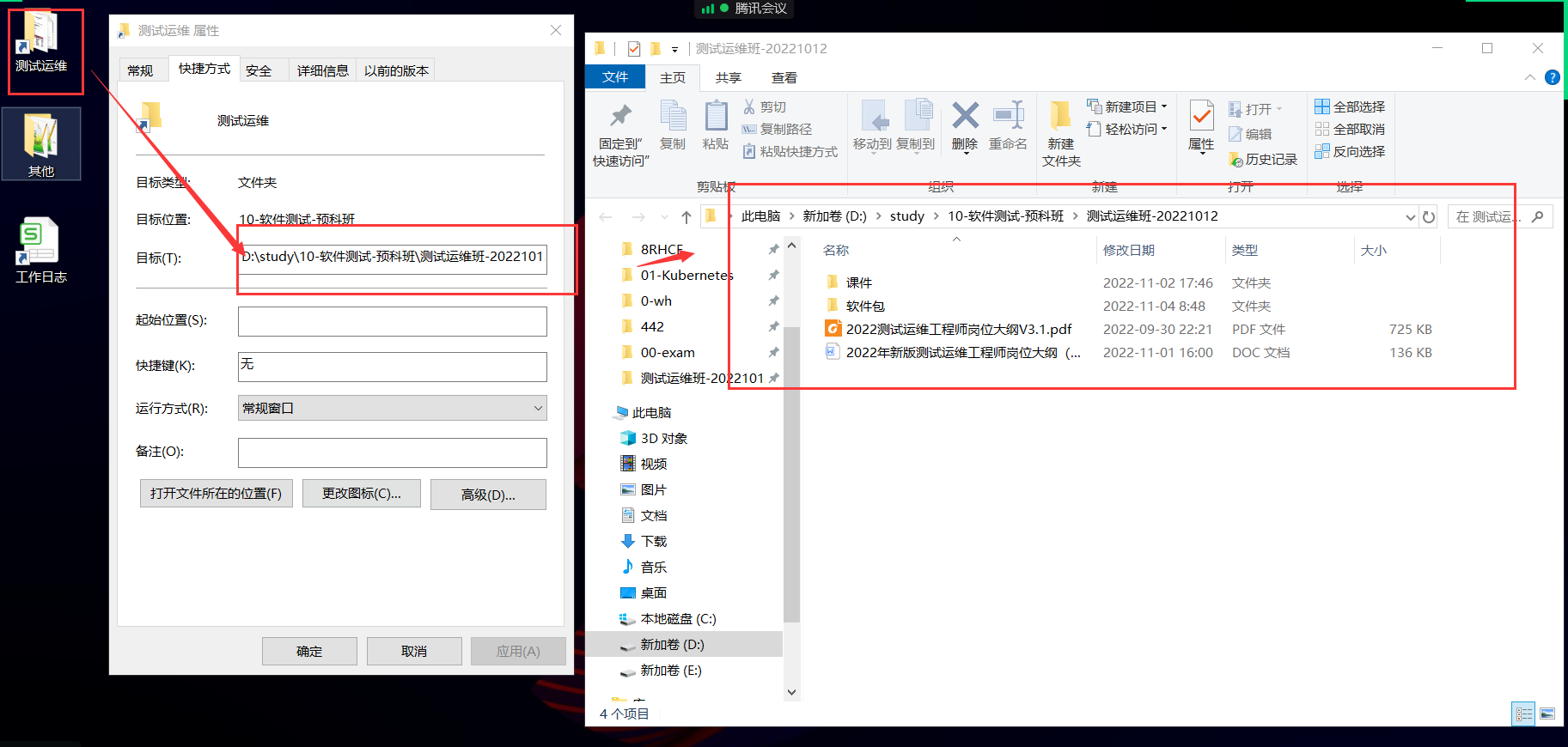
创建软链接:ln -s 目标文件/目录 链接名称
例:ln -s /etc/passwd passwd_link #创建一个名为passwd_link的软链接,指向/etc/passwd
软链接的核心特性:
指向路径 存储的是目标文件的路径
跨文件系统 可以跨分区/跨磁盘创建
指向目录 可以指向目录
目标删除后 链接失效,成为“悬空链接”
占用空间 很小,只存储路径字符串
inode 有自己的inode
[pengyuyan@centos7 ~]$ ls -dl /bin
lrwxrwxrwx. 1 root root 7 11月  2 17:32 /bin -> usr/bin

# 创建软连接
[pengyuyan@centos7 ~]$ ln -s /var/tmp/ mytmp
[pengyuyan@centos7 ~]$ ls -l mytmp
lrwxrwxrwx. 1 laoma laoma 9 11月  4 11:40 mytmp -> /var/tmp/

[pengyuyan@centos7 ~]$ ls mytmp
abrt
systemd-private-cc2ca9fc4c76487786a01ace1c2d3c02-bolt.service-7QksBe
systemd-private-cc2ca9fc4c76487786a01ace1c2d3c02-chronyd.service-sy8uDv
systemd-private-cc2ca9fc4c76487786a01ace1c2d3c02-colord.service-ZHr5vc
systemd-private-cc2ca9fc4c76487786a01ace1c2d3c02-cups.service-RPtndj
systemd-private-cc2ca9fc4c76487786a01ace1c2d3c02-rtkit-daemon.service-YLtiRi
[pengyuyan@centos7 ~]$ ls /var/tmp/
abrt
systemd-private-cc2ca9fc4c76487786a01ace1c2d3c02-bolt.service-7QksBe
systemd-private-cc2ca9fc4c76487786a01ace1c2d3c02-chronyd.service-sy8uDv
systemd-private-cc2ca9fc4c76487786a01ace1c2d3c02-colord.service-ZHr5vc
systemd-private-cc2ca9fc4c76487786a01ace1c2d3c02-cups.service-RPtndj
systemd-private-cc2ca9fc4c76487786a01ace1c2d3c02-rtkit-daemon.service-YLtiRi

[pengyuyan@centos7 ~]$ touch mytmp/myfile
[pengyuyan@centos7 ~]$ ls /var/tmp/myfile
/var/tmp/myfile

# 错误的示范
[pengyuyan@centos7 tmp]$ ls -l /home/laoma/tmp1
lrwxrwxrwx. 1 laoma laoma 1 11月  4 11:43 /home/laoma/tmp1 -> .
[pengyuyan@centos7 ~]$ ls /home/laoma/tmp1
mytmp  tmp1  公共  模板  视频  图片  文档  下载  音乐  桌面
[pengyuyan@centos7 ~]$ ls /home/laoma
mytmp  tmp1  公共  模板  视频  图片  文档  下载  音乐  桌面
硬连接
**硬链接就是一个普通文件。**相当于,可以通过多个文件名访问同一个数据块。任何一个文件发生的变化,其他文件也跟着变。
创建硬链接:ln 目标文件 链接名称
例:ln file1 hardlink1 #创建一个名为hardlink1的硬链接,指向file1的数据
硬链接的核心特性:
共享inode 硬链接和源文件inode完全相同
共享数据块 多个硬链接指向同一份数据,不额外占用磁盘空间
跨文件系统 不可以(必须在同一分区/文件系统)
指向目录 不可以(不能对目录创建硬链接)
目标删除后 仍然有效(数据块还在,其他硬链接仍可访问)
修改同步 修改一个硬链接,所有链接的内容都会同步变化
[pengyuyan@centos7 lab]$ cp /etc/hosts ./hosts-1
# 创建硬链接
[pengyuyan@centos7 lab]$ ln hosts-1 hosts-2
[pengyuyan@centos7 lab]$ ls -l hosts-1 hosts-2
-rw-r--r--. 2 laoma laoma 158 11月  4 13:34 hosts-1
-rw-r--r--. 2 laoma laoma 158 11月  4 13:34 hosts-2

# 两个文件的inode是相同的
[pengyuyan@centos7 lab]$ ls -i1 hosts-1 hosts-2
33554556 hosts-1
33554556 hosts-2

# 更新hosts-1时间,hosts-2也跟着一起变动
[pengyuyan@centos7 lab]$ touch hosts-1
[pengyuyan@centos7 lab]$ ls -l hosts-1 hosts-2
-rw-r--r--. 2 laoma laoma 158 11月  4 13:36 hosts-1
-rw-r--r--. 2 laoma laoma 158 11月  4 13:36 hosts-2

# 更新hosts-1文件内容,hosts-2也跟着一起变动
[pengyuyan@centos7 lab]$ cat hosts-1
127.0.0.1   localhost localhost.localdomain localhost4 localhost4.localdomain4
::1         localhost localhost.localdomain localhost6 localhost6.localdomain6
[pengyuyan@centos7 lab]$ cat hosts-2
127.0.0.1   localhost localhost.localdomain localhost4 localhost4.localdomain4
::1         localhost localhost.localdomain localhost6 localhost6.localdomain6
[pengyuyan@centos7 lab]$ echo hello world >> hosts-1
[pengyuyan@centos7 lab]$ cat hosts-1
127.0.0.1   localhost localhost.localdomain localhost4 localhost4.localdomain4
::1         localhost localhost.localdomain localhost6 localhost6.localdomain6
hello world
[pengyuyan@centos7 lab]$ cat hosts-2
127.0.0.1   localhost localhost.localdomain localhost4 localhost4.localdomain4
::1         localhost localhost.localdomain localhost6 localhost6.localdomain6
hello world
shell 扩展匹配文件
| 模式 | 匹配项 |
|---|---|
| * | 由零个或更多字符组成的任何字符串。单独*不匹配隐藏文件。 |
| ? | 任何一个字符。 |
| [abc…] | 位于两个方括号之间中的任何一个字符。 |
| [**^abc…]或[!**abc…] | 不在括起的类中的任何一个字符。 |
| ~ | 当前用户的主目录。 |
| ~username | username用户的主目录。 |
| [[:alpha:]] | 任何字母字符,相当于[a-Z]。 |
| [[:lower:]] | 任何小写字符。 |
| [[:upper:]] | 任何大写字符。 |
| [[:alnum:]] | 任何字母字符或数字,相当于[a-Z0-9]。 |
| [[:punct:]] | 除空格和字母数字以外的任何可打印字符。 |
| [[:digit:]]或[0-9] | 从 0 到 9 的任何单个数字。 |
| [[:space:]] | 任何一个空白字符。这可能包括制表符、 换行符、回车符、 换页符或空格。 |
| {…} | 匹配列表。 |
* 示例
匹配由零个或更多字符组成的任何字符串。单独*不匹配隐藏文件。
# 匹配/etc目录下所有ho开头的文件
[pengyuyan@centos7 ~]$ ls /etc/ho*
/etc/hosts.allow  /etc/hostname  /etc/hosts  /etc/hosts.allow  /etc/hosts.deny

# 将/etc目录下所有ho开头的文件复制到/tmp
[pengyuyan@centos7 ~]$ cp /etc/ho* /tmp
[pengyuyan@centos7 ~]$ ls /tmp/ho*
/tmp/hosts.allow  /tmp/hostname  /tmp/hosts  /tmp/hosts.allow  /tmp/hosts.deny

# 删除/tmp目录下所有ho开头的文件
[pengyuyan@centos7 ~]$ rm /tmp/ho*
[pengyuyan@centos7 ~]$ ls /tmp/ho*
ls: 无法访问/tmp/ho*: 没有那个文件或目录

# *不匹配隐藏文件
[pengyuyan@centos7 ~ 15:15:04]$ ls *
ls: 无法访问*: 没有那个文件或目录

# 如果匹配隐藏文件,使用以下命令
[pengyuyan@centos7 ~]$ ls -d .*
.  ..  .bash_logout  .bash_profile  .bashrc  .cache  .config  .mozilla  .Xauthority
? 示例
匹配任何一个字符。
# 准备文件
[pengyuyan@centos7 lab]$ touch file-1 file-2 file-a file-a1 file-a2  file-ab file-b
[laoma@centos7 lab]$ ls file-*
file-1  file-2  file-a  file-a1  file-a2  file-ab  file-b

# 查看文件名称是 file- 后跟1个字母的文件
[pengyuyan@centos7 lab]$ ls file-?
file-1  file-2  file-a  file-b

# 查看文件名称是 file- 后跟2个字母的文件
[pengyuyan@centos7 lab]$ ls file-??
file-a1  file-a2  file-ab

# 查看文件名称是 file- 后跟3个字母的文件
[pengyuyan@centos7 lab]$ ls file-???
ls: 无法访问file-???: 没有那个文件或目录
[] 示例
匹配位于两个方括号之间中的任何一个字符。
[pengyuyan@centos7 lab]$ ls file-?
file-1  file-2  file-a  file-b

[pengyuyan@centos7 lab]$ ls file-[abc]
file-a  file-b

[pengyuyan@centos7 lab]$ ls file-[12]
file-1  file-2

[pengyuyan@centos7 lab]$ ls file-[^12]
file-a  file-b
集合示例
# 准备文件
[pengyuyan@centos7 lab]$ touch file-9 file-A file-Z file-z

# 匹配所有数字
[pengyuyan@centos7 lab]$ ls file-[0-9]
file-1  file-2  file-9
[pengyuyan@centos7 lab]$ ls file-[[:digit:]]
file-1  file-2  file-9

# 匹配所有大写字母
[pengyuyan@centos7 lab]$ ls file-[[:upper:]]
file-A  file-Z

# 匹配所有小写字母
[pengyuyan@centos7 lab]$ ls file-[[:lower:]]
file-a  file-b  file-z

# 匹配所有字母
[pengyuyan@centos7 lab]$ ls file-[a-Z]
file-a  file-A  file-b  file-z  file-Z
[pengyuyan@centos7 lab]$ ls file-[[:alpha:]]
file-a  file-A  file-b  file-z  file-Z

# 匹配所有字母和数字
[pengyuyan@centos7 lab]$ ls file-[[:alnum:]]
file-1  file-2  file-9  file-a  file-A  file-b  file-z  file-Z
~ 示例
匹配用户家目录。
[pengyuyan@centos7 lab]$ echo ~
/home/laoma
[pengyuyan@centos7 lab]$ cd ~
[pengyuyan@centos7 ~]$ pwd
/home/laoma

[pengyuyan@centos7 ~]$ echo ~root
/root
[pengyuyan@centos7 ~]$ cd ~root
-bash: cd: /root: 权限不够
{} 示例
[pengyuyan@centos7 lab]$ ls file-[abc]
file-a  file-b
[pengyuyan@centos7 lab]$ ls file-{a,b,c}
# 相当于下面命令
[pengyuyan@centos7 lab]$ ls file-a file-b file-c
ls: 无法访问file-c: 没有那个文件或目录
file-a  file-b

# {1..5}表达一个范围
[pengyuyan@centos7 lab]$ ls file-{1..5}
ls: 无法访问file-3: 没有那个文件或目录
ls: 无法访问file-4: 没有那个文件或目录
ls: 无法访问file-5: 没有那个文件或目录
file-1  file-2
匹配所有字母
[pengyuyan@centos7 lab]$ ls file-[a-Z]
file-a file-A file-b file-z file-Z
[pengyuyan@centos7 lab]$ ls file-[[:alpha:]]
file-a file-A file-b file-z file-Z
匹配所有字母和数字
[pengyuyan@centos7 lab]$ ls file-[[:alnum:]]
file-1 file-2 file-9 file-a file-A file-b file-z file-Z
### ~ 示例

匹配用户家目录。

```bash
[pengyuyan@centos7 lab]$ echo ~
/home/laoma
[pengyuyan@centos7 lab]$ cd ~
[pengyuyan@centos7 ~]$ pwd
/home/laoma

[pengyuyan@centos7 ~]$ echo ~root
/root
[pengyuyan@centos7 ~]$ cd ~root
-bash: cd: /root: 权限不够
{} 示例
[pengyuyan@centos7 lab]$ ls file-[abc]
file-a  file-b
[pengyuyan@centos7 lab]$ ls file-{a,b,c}
# 相当于下面命令
[pengyuyan@centos7 lab]$ ls file-a file-b file-c
ls: 无法访问file-c: 没有那个文件或目录
file-a  file-b

# {1..5}表达一个范围
[pengyuyan@centos7 lab]$ ls file-{1..5}
ls: 无法访问file-3: 没有那个文件或目录
ls: 无法访问file-4: 没有那个文件或目录
ls: 无法访问file-5: 没有那个文件或目录
file-1  file-2

openEuler 是由开放原子开源基金会孵化的全场景开源操作系统项目,面向数字基础设施四大核心场景(服务器、云计算、边缘计算、嵌入式),全面支持 ARM、x86、RISC-V、loongArch、PowerPC、SW-64 等多样性计算架构
更多推荐
 6
6 0
0- 0


 已为社区贡献7条内容

所有评论(0)