小白信创:OpenEuler24.03+JeecgBoot 3.8.3 部署全流程(通关版)
小白信创:OpenEuler24.03+JeecgBoot 3.8.3 部署全流程(通关版)
最近工作场所施工,拖了好久才又继续折腾部署,这次通关了,后续会在此基础上,架构我的资产管理系统,这篇基本就能解决从零部署的大部分问题。
📋 目录
- 环境准备与软件安装
- PostgreSQL 安装与配置
- 拉取 JeecgBoot 源码
- 执行建表语句(重要)
- 调整 docker-compose.yml
- 编译后端与前端
- Docker 容器化部署
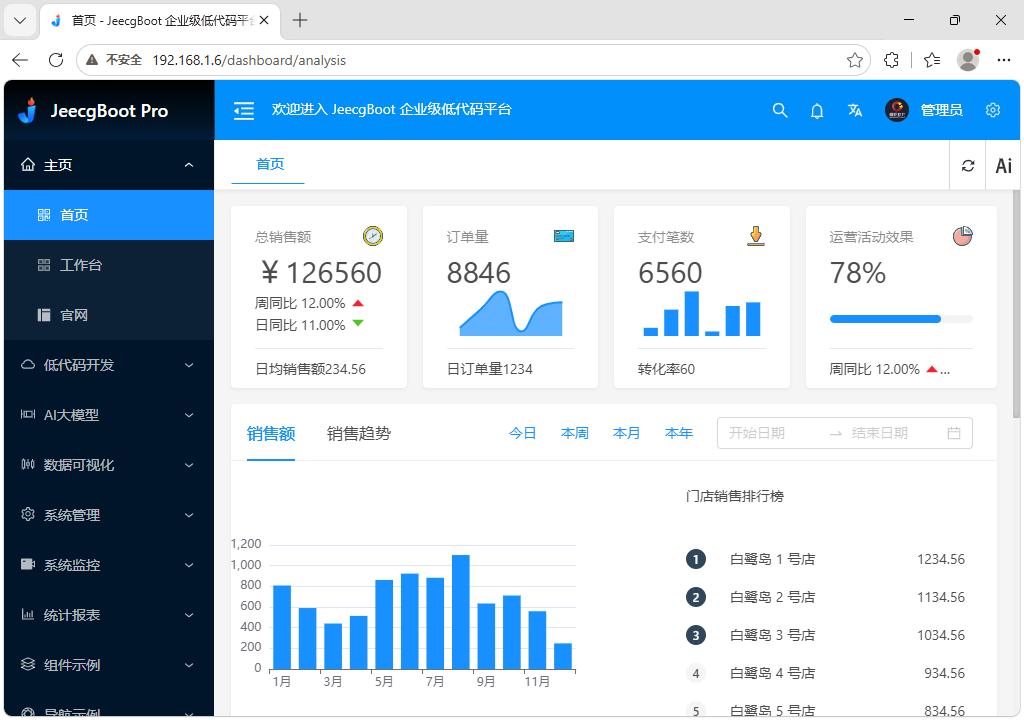
- 登录验证
- 踩坑记录全集
- 附录:一键环境检查脚本
1. 环境准备与软件安装
1.1 安装基础软件
# 更新系统
dnf update -y
# 安装基础工具
dnf install -y vim wget curl git
# 安装 JDK 17
dnf install -y java-17-openjdk java-17-openjdk-devel
# 安装 Maven
dnf install -y maven
# 安装 Node.js 20
dnf install -y nodejs
# 安装 pnpm(前端包管理器)
npm install -g pnpm
# 验证安装
java -version
mvn -version
node -v
pnpm -v
1.2 安装 Docker 和 Docker Compose
# 安装 Docker
dnf install -y docker-ce docker-ce-cli containerd.io docker-compose-plugin --nogpgcheck
# 启动 Docker
systemctl enable --now docker
# 配置国内镜像加速(重要!避免拉取超时)
mkdir -p /etc/docker
cat > /etc/docker/daemon.json << 'EOF'
{
  "registry-mirrors": [
    "https://docker.mirrors.ustc.edu.cn",
    "https://hub-mirror.c.163.com",
    "https://mirror.baidubce.com"
  ]
}
EOF
systemctl restart docker
# 验证
docker --version
docker compose version
1.3 安装 yq(YAML 处理工具)
# 下载预编译二进制
wget -O /usr/local/bin/yq https://mirror.ghproxy.com/https://github.com/mikefarah/yq/releases/download/v4.44.3/yq_linux_amd64
chmod +x /usr/local/bin/yq
yq --version
2. PostgreSQL 安装与配置
2.1 安装 PostgreSQL 17
# 查看可用版本
dnf list available --enablerepo=EPOL | grep postgresql-17
# 安装
dnf install -y postgresql-17-server
2.2 初始化并启动
# 初始化数据库
/usr/bin/postgresql-setup --initdb --unit=postgresql@17
# 启动并设置开机自启
systemctl enable --now postgresql@17
# 查看状态
systemctl status postgresql@17
2.3 设置数据库密码
sudo -u postgres psql -c "ALTER USER postgres WITH PASSWORD '你的数据库密码';"
2.4 配置远程访问
# 修改监听地址
sed -i "s/#listen_addresses = 'localhost'/listen_addresses = '*'/" /var/lib/pgsql/17/data/postgresql.conf
# 添加 Docker 网段到 pg_hba.conf
echo "host    all             all             172.16.0.0/12           md5" >> /var/lib/pgsql/17/data/pg_hba.conf
# 重启
systemctl restart postgresql@17
# 防火墙放行
firewall-cmd --add-port=5432/tcp --permanent && firewall-cmd --reload
2.5 创建 JeecgBoot 数据库
PGPASSWORD='你的数据库密码' psql -U postgres -h localhost -c "CREATE DATABASE jeecg_boot WITH OWNER postgres ENCODING 'UTF8' LC_COLLATE='C' LC_CTYPE='C' TEMPLATE=template0;"
3. 拉取 JeecgBoot 源码
# 拉取 v3.8.3last 标签(最后一个 Spring Boot 2 版本)
git clone --branch v3.8.3last https://gitee.com/jeecg/JeecgBoot.git
cd JeecgBoot
# 确认版本
git describe --tags
预期输出:
v3.8.3last
4. 执行建表语句(重要)
⚠️ 必须在容器化之前执行!否则启动时会因找不到核心表而报错。
cd ~/JeecgBoot/jeecg-boot/db/其他数据库脚本/
# 确认脚本存在
ls -lh jeecgboot-postgresql17.sql
# 执行建表
PGPASSWORD='你的数据库密码' psql -U postgres -h localhost -d jeecg_boot -f jeecgboot-postgresql17.sql
4.1 验证表数量
PGPASSWORD='你的数据库密码' psql -U postgres -h localhost -d jeecg_boot -c "\dt" | wc -l
预期输出:119 张表
5. 调整 docker‑compose.yml
5.1 使用 yq 修改配置
cd ~/JeecgBoot
# 1. 删除 MySQL 服务
yq -i 'del(.services.jeecg-boot-mysql)' docker-compose.yml
# 2. 删除 pgvector 服务(如不需要 AI)
yq -i 'del(.services.jeecg-boot-pgvector)' docker-compose.yml
# 3. 重命名 Redis 服务
yq -i 'with(.services; .["redis"] = .["jeecg-boot-redis"] | del(.["jeecg-boot-redis"]))' docker-compose.yml
yq -i '.services.redis.container_name = "redis"' docker-compose.yml
yq -i 'del(.services.redis.hostname)' docker-compose.yml
# 4. 移除对 MySQL 的依赖
yq -i 'del(.services.jeecg-boot-system.depends_on[] | select(. == "jeecg-boot-mysql"))' docker-compose.yml
# 5. 添加环境变量
yq -i '.services.jeecg-boot-system.environment += {
    "SPRING_DATASOURCE_URL": "jdbc:postgresql://服务器IP:5432/jeecg_boot",
    "SPRING_DATASOURCE_USERNAME": "postgres",
    "SPRING_DATASOURCE_PASSWORD": "你的数据库密码",
    "SPRING_DATASOURCE_DRIVER_CLASS_NAME": "org.postgresql.Driver",
    "SPRING_REDIS_HOST": "redis",
    "SPRING_REDIS_PORT": "6379"
}' docker-compose.yml
# 6. 添加持久化卷
yq -i '.services.jeecg-boot-system.volumes += [
    "./upload:/home/jeecg/upload",
    "./logs:/home/jeecg/logs"
]' docker-compose.yml
# 7. 验证
yq eval '.services | keys' docker-compose.yml
预期输出:redis、jeecg-boot-system、jeecg-vue
6. 编译后端与前端
6.1 编译后端
cd ~/JeecgBoot/jeecg-boot
# 确保 JDK 17 是默认版本
export JAVA_HOME=/usr/lib/jvm/java-17-openjdk-17.0.19.10-7.oe2403sp4.x86_64
export PATH=$JAVA_HOME/bin:$PATH
java -version
# 编译
mvn clean package -Dmaven.test.skip=true
# 验证 jar 包
ls -lh jeecg-module-system/jeecg-system-start/target/jeecg-system-start-3.8.3.jar
6.2 编译前端
cd ~/JeecgBoot/jeecgboot-vue3
# 安装依赖
npm install --legacy-peer-deps --registry=https://registry.npmmirror.com
# 构建
npm run build
# 验证
ls -la dist/ | head -10
7. Docker 容器化部署
cd ~/JeecgBoot
# 构建镜像
docker compose build
# 启动服务
docker compose up -d
# 查看日志
docker compose logs -f jeecg-boot-system
启动成功标志:日志中出现
Application Jeecg-Boot is running! Access URLs: Local: http://localhost:8080/jeecg-boot Swagger文档: http://xxx:8080/jeecg-boot/doc.html
8. 登录验证
- 前端地址:
http://服务器IP - 默认账号:
admin - 默认密码:
123456
9. 踩坑记录全集
🔴 坑 1:Maven 编译报错 无效的目标发行版: 17
报错原文:
[ERROR] Failed to execute goal org.apache.maven.plugins:maven-compiler-plugin:3.14.0:compile (default-compile) on project jeecg-boot-base-core: Fatal error compiling: 无效的目标发行版: 17 -> [Help 1]
原因:系统默认 JDK 版本不是 17。
解决方法:
# 安装 JDK 17
dnf install -y java-17-openjdk java-17-openjdk-devel
# 切换默认 JDK
sudo alternatives --config java
# 选择编号对应的 java-17-openjdk
# 切换 javac
sudo alternatives --config javac
# 选择编号对应的 java-17-openjdk
# 验证
java -version   # 应显示 openjdk version "17"
javac -version  # 应显示 javac 17
🔴 坑 2:Maven 报错 JAVA_HOME environment variable is not defined correctly
报错原文:
The JAVA_HOME environment variable is not defined correctly This environment variable is needed to run this program NB: JAVA_HOME should point to a JDK not a JRE
解决方法:
# 查找 JDK 17 实际路径
which javac
readlink -f $(which javac)
# 设置正确的 JAVA_HOME
export JAVA_HOME=/usr/lib/jvm/java-17-openjdk-17.0.19.10-7.oe2403sp4.x86_64
export PATH=$JAVA_HOME/bin:$PATH
# 写入 .bashrc 永久生效
echo "export JAVA_HOME=/usr/lib/jvm/java-17-openjdk-17.0.19.10-7.oe2403sp4.x86_64" >> ~/.bashrc
echo "export PATH=\$JAVA_HOME/bin:\$PATH" >> ~/.bashrc
source ~/.bashrc
# 验证
mvn -version   # 应显示 Java version: 17
🔴 坑 3:npm install 报 stylelint 版本冲突
报错原文:
npm error ERESOLVE unable to resolve dependency tree npm error While resolving: jeecgboot-vue3@3.8.3 npm error Found: stylelint@16.26.1 npm error Could not resolve dependency: npm error peer stylelint@">= 11.x < 15" from stylelint-config-prettier@9.0.5
解决方法:
# 使用 --legacy-peer-deps 跳过依赖检查
npm install --legacy-peer-deps --registry=https://registry.npmmirror.com
🔴 坑 4:pnpm install 报 integrity 校验失败
报错原文:
Error: ERR_PNPM_TARBALL_INTEGRITY Failed to verify the integrity of https://registry.npmmirror.com/vue-print-nb-jeecg/-/vue-print-nb-jeecg-1.0.12.tgz Wanted: sha512-zlvD2qFY9wrfH3M+YCP91fe1ihVjwNFgycXX6zfC7Q1x6IHAPKvZhke599x86O/Ta4edCx+HoYchm72sANuyRw== Actual: sha512-jHyWm6/TxB1iU2nHL7upQdHVdxb1SJQ9n3XKeYTaruFdbSphLo1vDtTunS2qVCjupk8lui7FlF5rxxSNr0zjZg==
原因:lockfile 中的哈希值与镜像源实际文件不一致。
解决方法:
# 方法1:删除 lockfile 重新生成
rm -f pnpm-lock.yaml
pnpm install --registry=https://registry.npmmirror.com
# 方法2:跳过 lockfile
pnpm install --no-lockfile --registry=https://registry.npmmirror.com
# 方法3:改用 npm(最稳妥)
rm -rf node_modules package-lock.json
npm install --legacy-peer-deps --registry=https://registry.npmmirror.com
🔴 坑 5:前端构建报 cross‑env: 未找到命令
报错原文:
sh: 行 1: cross-env: 未找到命令
解决方法:
npm install cross-env -D
npm run build
🔴 坑 6:Docker 镜像拉取超时
报错原文:
Error response from daemon: Get "https://registry-1.docker.io/v2/": net/http: request canceled while waiting for connection (Client.Timeout exceeded while awaiting headers)
解决方法:
# 配置国内镜像加速
mkdir -p /etc/docker
cat > /etc/docker/daemon.json << 'EOF'
{
  "registry-mirrors": [
    "https://docker.mirrors.ustc.edu.cn",
    "https://hub-mirror.c.163.com",
    "https://mirror.baidubce.com"
  ]
}
EOF
systemctl restart docker
# 再重新拉取
docker compose pull
docker compose up -d
🔴 坑 7:docker‑compose 命令不存在
报错原文:
-bash: docker-compose: 未找到命令
原因:未安装 Docker Compose 插件。
解决方法:
dnf install -y docker-compose-plugin
# 使用 docker compose(注意是空格,不是横杠)
docker compose version
🔴 坑 8:PostgreSQL 容器连接被拒绝
报错原文:
psql: 错误: 连接到"服务器IP"上的服务器,端口5432失败:致命错误: 没有用于主机 "172.19.0.4", 用户 "postgres", 数据库 "jeecg_boot", no encryption 的 pg_hba.conf 记录
原因:pg_hba.conf 未允许 Docker 容器 IP 访问。
解决方法:
echo "host    all             all             172.16.0.0/12           md5" >> /var/lib/pgsql/17/data/pg_hba.conf
systemctl restart postgresql@17
🔴 坑 9:容器内无法用 127.0.0.1 连接宿主机 PostgreSQL
报错原文:
Caused by: java.net.ConnectException: Connection refused
原因:容器内的 127.0.0.1 指向容器自身,不是宿主机。
解决方法:
使用宿主机真实 IP,不是 127.0.0.1
SPRING_DATASOURCE_URL: jdbc:postgresql://服务器IP:5432/jeecg_boot
🔴 坑 10:修改 currentSchema 后登录失败
报错原文(日志中):
Relation "sys_user" does not exist
原因:currentSchema=asset_mgt 导致 JeecgBoot 在 asset_mgt Schema 中查找系统表 sys_user,但系统表在 public 下。
解决方法:
# 恢复默认数据源(不加 currentSchema)
SPRING_DATASOURCE_URL: jdbc:postgresql://服务器IP:5432/jeecg_boot
# 业务表通过多数据源管理配置
# 系统监控 → 数据源管理 → 新增
# 数据源地址:jdbc:postgresql://服务器IP:5432/jeecg_boot?currentSchema=asset_mgt
🔴 坑 11:多数据源测试连接失败
报错原文:
数据库连接失败:Connection to 127.0.0.1:5432 refused. Check that the hostname and port are correct and that the postmaster is accepting TCP/IP connections.
原因:数据源地址中使用了 127.0.0.1,但 JeecgBoot 容器内 127.0.0.1 指向容器自身。
解决方法:
将 127.0.0.1 改为宿主机真实 IP
jdbc:postgresql://服务器IP:5432/jeecg_boot?currentSchema=asset_mgt
🔴 坑 12:AI 功能报认证错误
报错原文(前端):
认证错误,请检查API密钥或凭据!
原因:application‑docker.yml 中的 apiKey: ?? 未配置真实密钥。
解决方法:
# 通过环境变量配置(推荐)
yq -i '.services.jeecg-boot-system.environment += {
    "JEECG_AI_CHAT_APIKEY": "你的真实API密钥",
    "JEECG_AI_CHAT_MODEL": "deepseek-chat",
    "JEECG_AI_CHAT_APIHOST": "https://api.deepseek.com/v1"
}' docker-compose.yml

docker compose restart jeecg-boot-system
🔴 坑 13:yq 源码编译失败(网络超时)
报错原文:
go: download go1.25.0: golang.org/toolchain@v0.0.1-go1.25.0.linux-amd64: Get "https://proxy.golang.org/...": dial tcp 142.250.69.177:443: i/o timeout
解决方法:
# 方法1:使用预编译二进制(推荐)
wget -O /usr/local/bin/yq https://mirror.ghproxy.com/https://github.com/mikefarah/yq/releases/download/v4.44.3/yq_linux_amd64
chmod +x /usr/local/bin/yq
# 方法2:如果必须编译,配置 Go 代理
export GOPROXY=https://goproxy.cn,direct
go build -o yq
🔴 坑 14:docker compose build 报 target 目录不存在
报错原文:
failed to compute cache key: failed to calculate checksum ... lstat /var/lib/docker/tmp/buildkit-.../target: no such file or directory
原因:后端 jar 包未编译或路径不对。
解决方法:
# 先编译后端
cd ~/JeecgBoot/jeecg-boot
mvn clean package -Dmaven.test.skip=true
# 确认 jar 包存在
ls -lh jeecg-module-system/jeecg-system-start/target/jeecg-system-start-3.8.3.jar
# 再重新构建
cd ~/JeecgBoot
docker compose build
附录:一键环境检查脚本
#!/bin/bash
echo "===== 环境检查 ====="
echo "JDK 版本:"
java -version 2>&1 | head -1
echo ""
echo "Maven 版本:"
mvn -version 2>&1 | head -1
echo ""
echo "Node.js 版本:"
node -v
echo ""
echo "pnpm 版本:"
pnpm -v
echo ""
echo "Docker 版本:"
docker --version
echo ""
echo "Docker Compose 版本:"
docker compose version
echo ""
echo "PostgreSQL 状态:"
systemctl status postgresql@17 --no-pager | head -3
echo ""
echo "yq 版本:"
yq --version
echo ""
echo "===== 检查完成 ====="
文档版本:v3.0 更新日期:2026‑09‑05 作者:dboru

openEuler 是由开放原子开源基金会孵化的全场景开源操作系统项目,面向数字基础设施四大核心场景(服务器、云计算、边缘计算、嵌入式),全面支持 ARM、x86、RISC-V、loongArch、PowerPC、SW-64 等多样性计算架构
更多推荐

 5
5 0
0- 0


 已为社区贡献5条内容

所有评论(0)